Radio Russia FM - Online Radio

Radio Russia FM - Online Radio

Music & Audio

| RadioFMapp

Play on PC with BlueStacks or from our cloud

  • Overview
  • How to Download

Page Modified On: January 06, 2026

Run Radio Russia FM - Online Radio on PC or Mac

What’s better than using Radio Russia FM – Online Radio by RadioFMapp? Well, try it on a big screen, on your PC or Mac, with BlueStacks to see the difference.

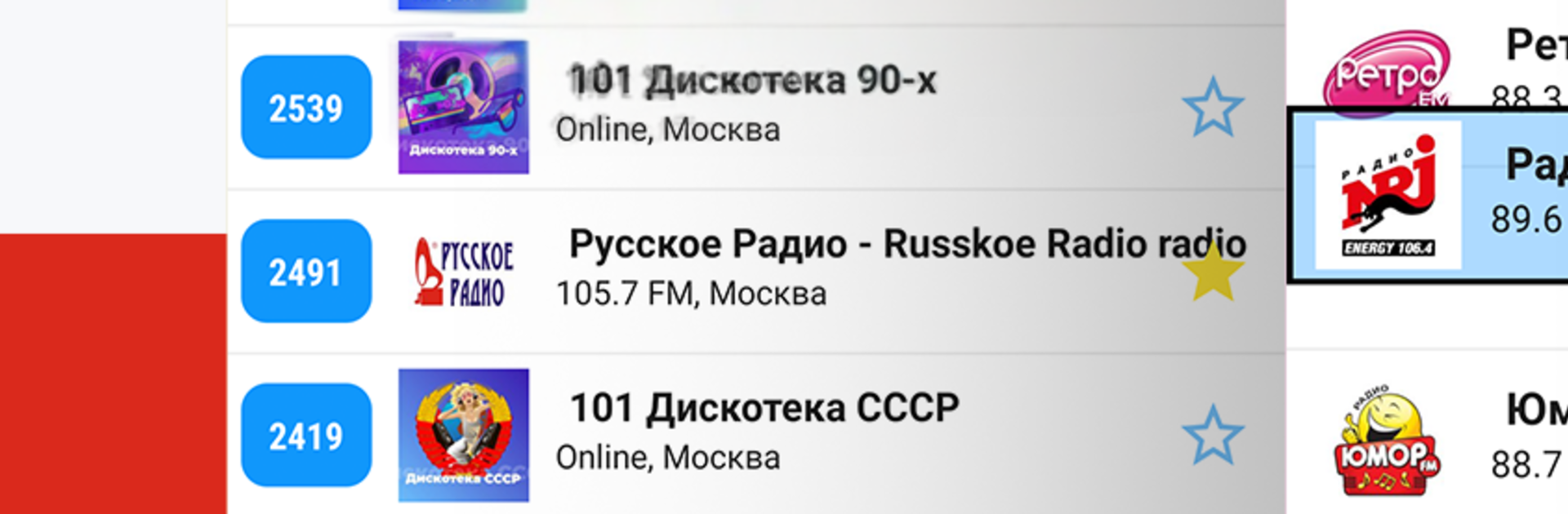
Radio Russia FM on a PC through BlueStacks feels like having a little desk tuner always at hand. The layout is very clean, clicks are quick, and streams start fast without a lot of waiting. It pulls in a big mix of Russian stations, both traditional FM and DAB streams plus web only channels, so there is music, news, sports updates, and talk shows in one place. Search works well, either by station name or by city, and there is a Top 20 section for discovering what other listeners are into. Saving favorites is simple and they can be sorted, which makes hopping between morning news and evening music easy.

It runs nicely in the background while doing other stuff on the computer. The mini player controls in notifications keep things manageable, and the sleep timer is handy if someone likes audio on a schedule. On BlueStacks the window can sit off to the side, so it really behaves like a small radio on the desktop. Stations get updated regularly, so broken links are not hanging around long. The catalogue is wide, with big names like Europa Plus, Vesti FM, Retro FM, Nashe Radio, Road Radio, Radio Mayak, Humor FM, and plenty of 80s or 90s throwback channels for nostalgia. It works abroad too, which is great for keeping up with Russian content, though an internet connection is required. There is even a quick share button for sending a station to a friend when something good is on.

BlueStacks brings your apps to life on a bigger screen—seamless and straightforward.

How to Download and Run Radio Russia FM - Online Radio on PC or Mac

  • Download and install BlueStacks on your PC or Mac

  • Complete Google sign-in to access the Play Store, or do it later

  • Look for Radio Russia FM - Online Radio in the search bar at the top right corner

  • Click to install Radio Russia FM - Online Radio from the search results

  • Complete Google sign-in (if you skipped step 2) to install Radio Russia FM - Online Radio

  • Click the Radio Russia FM - Online Radio icon on the home screen to start playing

video
Watch Video

Minimum System Requirements

With BlueStacks 5, you can get started on a PC that fulfills the following requirements.

  • Operating System

    Microsoft Windows 7 or above, macOS 11 (Big Sur) or above

  • Processor

    Intel, AMD or Apple Silicon Processor

  • RAM

    at least 4GB

  • HDD

    10GB Free Disk Space

Note:

* You must be an Administrator on your PC. Up to date graphics drivers from Microsoft or the chipset vendor.

Radio Russia FM - Online Radio - FAQs

  • How to Run Radio Russia FM - Online Radio on Windows PC & Mac?

    Run Radio Russia FM - Online Radio on your PC or Mac by following these simple steps.

    • Click on ‘Download Radio Russia FM - Online Radio on PC’ to download BlueStacks
    • Install it and log-in to Google Play Store
    • Launch and run the app.
  • Why is BlueStacks the fastest and safest platform to play games on PC?

    BlueStacks respects your privacy and is always safe and secure to use. It does not carry any malware, spyware, or any sort of additional software that could harm your PC.

    It is engineered to optimize speed and performance for a seamless gaming experience.

  • What are Radio Russia FM - Online Radio PC requirements?

    Minimum requirement to run Radio Russia FM - Online Radio on your PC

    • OS: Microsoft Windows 7 and above:
    • Processor: Intel or AMD Processor:
    • RAM: Your PC must have at least 2GB of RAM. (Note that having 2GB or more disk space is not a substitute for RAM):
    • HDD: 5GB Free Disk Space.
    • You must be an Administrator on your PC.