Radio Sri Lanka: FM online

Radio Sri Lanka: FM online

Music & Audio

| Radioworld FM

Play on PC with BlueStacks or from our cloud

  • Overview
  • How to Download

Page Modified On: January 13, 2026

Run Radio Sri Lanka: FM online on PC or Mac

Upgrade your experience. Try Radio Sri Lanka: FM online, the fantastic Music & Audio app from Radioworld FM, from the comfort of your laptop, PC, or Mac, only on BlueStacks.

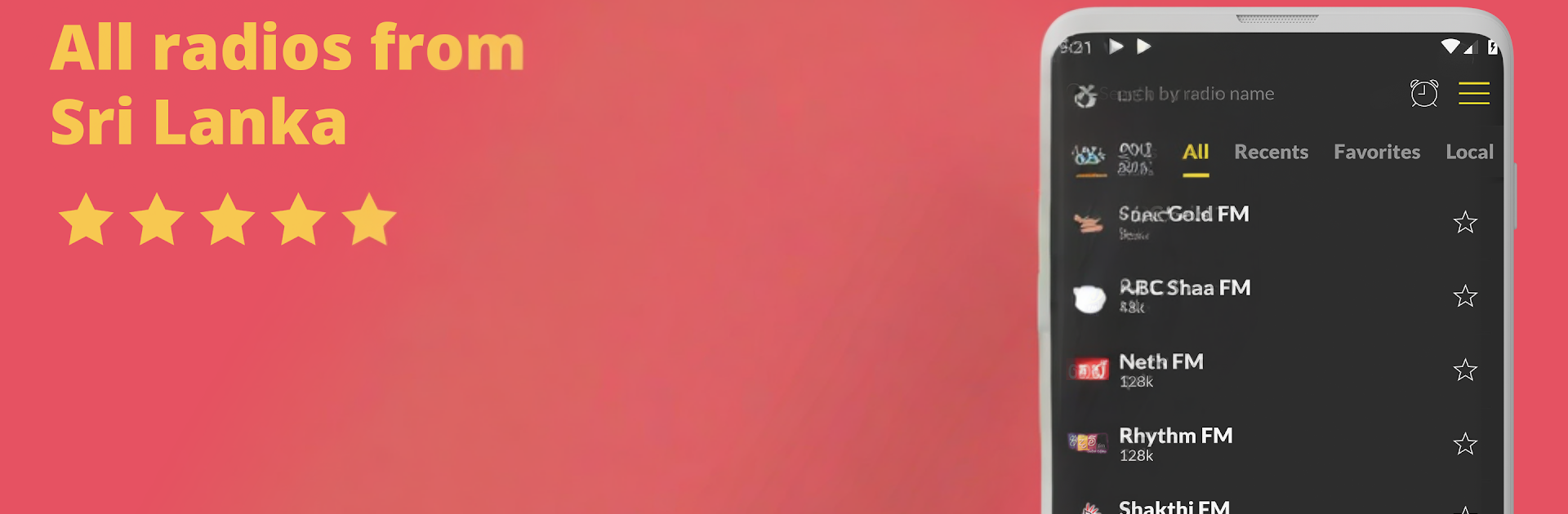
Radio Sri Lanka: FM online is a simple, no-fuss way to stream Sri Lankan radio, and it feels surprisingly nice on a computer with BlueStacks. The layout is clean and quick to figure out, with a big list of stations, a search bar that actually finds what someone wants, and easy favorites so they can jump back to the good stuff. There are lots of choices, over two hundred stations covering news, sports, talk, and plenty of music in Sinhala and Tamil. Stations like SLBC, Sirasa, Sooriyan, Neth, Sun, and Shaa are there, plus smaller ones that are fun to stumble into. Streams start fast, switching is snappy, and it keeps playing while they open other apps or do work in another window, so it feels like a small radio panel parked on the desktop.

It has little quality-of-life tools that help day to day. A sleep timer to shut off after a show, an alarm if someone wants to wake to a station, and an option to share what they are hearing. Favorites make sense, suggestions are not pushy, and the search is solid when they cannot remember exact names. If they are abroad, it still works, which is great for keeping up with local shows or cricket talk. There are ads, and they do exist, but there is an ad-free option in the menu. It needs internet, of course. On PC the widget part is not really the point, but the app window is light and stays out of the way. Overall it feels like a reliable radio hub for Sri Lankan stations that just does what it says without turning into a whole project to set up.

BlueStacks gives you the much-needed freedom to experience your favorite apps on a bigger screen. Get it now.


How to Download and Run Radio Sri Lanka: FM online on PC or Mac

  • Download and install BlueStacks on your PC or Mac

  • Complete Google sign-in to access the Play Store, or do it later

  • Look for Radio Sri Lanka: FM online in the search bar at the top right corner

  • Click to install Radio Sri Lanka: FM online from the search results

  • Complete Google sign-in (if you skipped step 2) to install Radio Sri Lanka: FM online

  • Click the Radio Sri Lanka: FM online icon on the home screen to start playing

video
Watch Video

Minimum System Requirements

With BlueStacks 5, you can get started on a PC that fulfills the following requirements.

  • Operating System

    Microsoft Windows 7 or above, macOS 11 (Big Sur) or above

  • Processor

    Intel, AMD or Apple Silicon Processor

  • RAM

    at least 4GB

  • HDD

    10GB Free Disk Space

Note:

* You must be an Administrator on your PC. Up to date graphics drivers from Microsoft or the chipset vendor.

Radio Sri Lanka: FM online - FAQs

  • How to Run Radio Sri Lanka: FM online on Windows PC & Mac?

    Run Radio Sri Lanka: FM online on your PC or Mac by following these simple steps.

    • Click on ‘Download Radio Sri Lanka: FM online on PC’ to download BlueStacks
    • Install it and log-in to Google Play Store
    • Launch and run the app.
  • Why is BlueStacks the fastest and safest platform to play games on PC?

    BlueStacks respects your privacy and is always safe and secure to use. It does not carry any malware, spyware, or any sort of additional software that could harm your PC.

    It is engineered to optimize speed and performance for a seamless gaming experience.

  • What are Radio Sri Lanka: FM online PC requirements?

    Minimum requirement to run Radio Sri Lanka: FM online on your PC

    • OS: Microsoft Windows 7 and above:
    • Processor: Intel or AMD Processor:
    • RAM: Your PC must have at least 2GB of RAM. (Note that having 2GB or more disk space is not a substitute for RAM):
    • HDD: 5GB Free Disk Space.
    • You must be an Administrator on your PC.