RadiOMG for SomaFM
RadiOMG for SomaFM

RadiOMG for SomaFM

Music & Audio

| Doug Melton

Play on PC with BlueStacks or from our cloud

  • Overview
  • How to Download

Page Modified On: January 06, 2026

Run RadiOMG for SomaFM on PC or Mac

Upgrade your experience. Try RadiOMG for SomaFM, the fantastic Music & Audio app from Doug Melton, from the comfort of your laptop, PC, or Mac, only on BlueStacks.

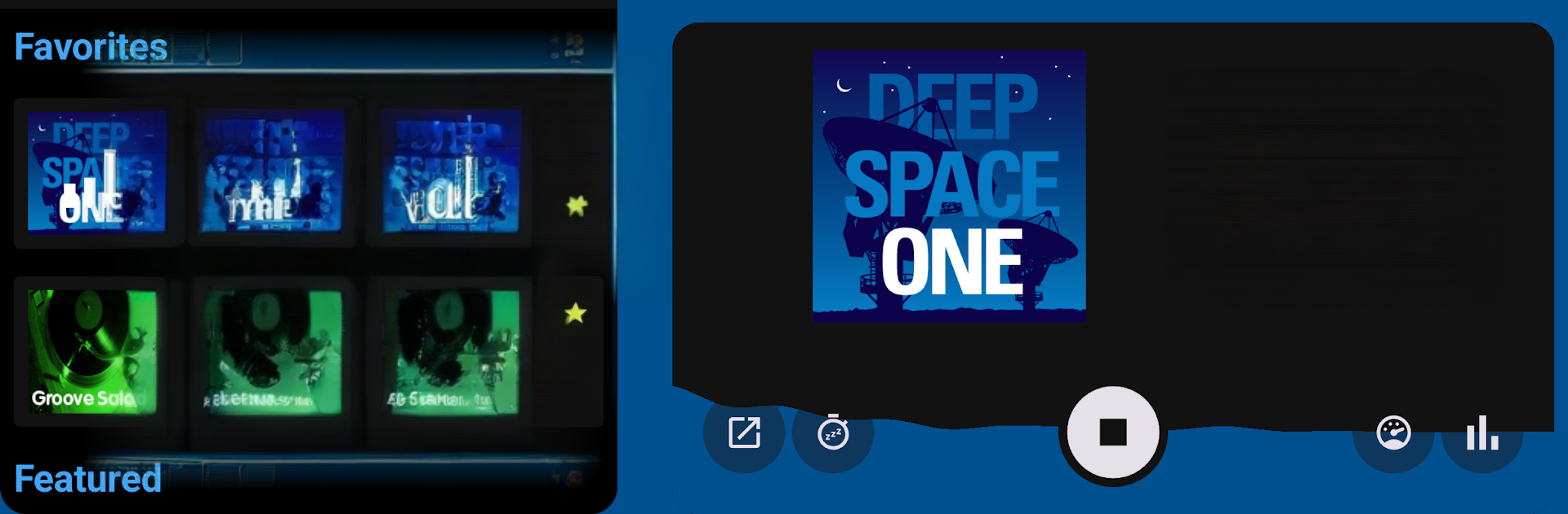
RadiOMG for SomaFM is a clean, no-fuss way to stream SomaFM’s stations, and it feels made for leaving on while working or chilling on the couch. The layout is simple, nothing bloated. Pick a station, it plays instantly, and there is a lightweight visualizer that looks like the old WinAmp days. On PC with BlueStacks it runs smooth and the visualization looks great full screen, so it doubles as a little desk companion.

What stands out is how organized it is. Stations can be sorted by popularity, title, or genre, and favorites are easy to save and filter, so it does not feel like scrolling forever to find that one channel. The now playing info is clear, and tapping the track jumps to the same song in whatever music app someone uses next. Handy for finding new artists without digging. It supports Chromecast, Bluetooth, and car stuff like Auto, plus XR if someone is into headsets.

The station list is stacked, so there is always something that fits the mood. Secret Agent for spy-jazz grooves, Groove Salad and Groove Salad Classic for mellow electronica, Drone Zone for deep focus, Indie Pop Rocks! for catchy alt, Underground 80s, The Trip, Synphaera Radio, Boot Liquor, Space Station Soma, and a bunch more. It feels fast, stable, and out of the way, which is exactly what streaming radio should be.

Big screen. Bigger performance. Use BlueStacks on your PC or Mac to run your favorite apps.

How to Download and Run RadiOMG for SomaFM on PC or Mac

  • Download and install BlueStacks on your PC or Mac

  • Complete Google sign-in to access the Play Store, or do it later

  • Look for RadiOMG for SomaFM in the search bar at the top right corner

  • Click to install RadiOMG for SomaFM from the search results

  • Complete Google sign-in (if you skipped step 2) to install RadiOMG for SomaFM

  • Click the RadiOMG for SomaFM icon on the home screen to start playing

video
Watch Video

Minimum System Requirements

With BlueStacks 5, you can get started on a PC that fulfills the following requirements.

  • Operating System

    Microsoft Windows 7 or above, macOS 11 (Big Sur) or above

  • Processor

    Intel, AMD or Apple Silicon Processor

  • RAM

    at least 4GB

  • HDD

    10GB Free Disk Space

Note:

* You must be an Administrator on your PC. Up to date graphics drivers from Microsoft or the chipset vendor.

RadiOMG for SomaFM - FAQs

  • How to Run RadiOMG for SomaFM on Windows PC & Mac?

    Run RadiOMG for SomaFM on your PC or Mac by following these simple steps.

    • Click on ‘Download RadiOMG for SomaFM on PC’ to download BlueStacks
    • Install it and log-in to Google Play Store
    • Launch and run the app.
  • Why is BlueStacks the fastest and safest platform to play games on PC?

    BlueStacks respects your privacy and is always safe and secure to use. It does not carry any malware, spyware, or any sort of additional software that could harm your PC.

    It is engineered to optimize speed and performance for a seamless gaming experience.

  • What are RadiOMG for SomaFM PC requirements?

    Minimum requirement to run RadiOMG for SomaFM on your PC

    • OS: Microsoft Windows 7 and above:
    • Processor: Intel or AMD Processor:
    • RAM: Your PC must have at least 2GB of RAM. (Note that having 2GB or more disk space is not a substitute for RAM):
    • HDD: 5GB Free Disk Space.
    • You must be an Administrator on your PC.