StreamMagic
StreamMagic

StreamMagic

Music & Audio

| Cambridge Audio

Play on PC with BlueStacks or from our cloud

  • Overview
  • How to Download

Page Modified On: September 19, 2025

Run StreamMagic on PC or Mac

What’s better than using StreamMagic by Cambridge Audio? Well, try it on a big screen, on your PC or Mac, with BlueStacks to see the difference.

StreamMagic feels like the remote control Cambridge Audio streamers deserve, without the fuss. It opens fast, finds the gear on the home network, and keeps the useful stuff right up front so there is less digging through menus. On a PC with BlueStacks, the bigger screen and keyboard make a difference. Scrolling long artist lists is smoother, and typing searches for albums or stations is not a chore.

Everything centers on playing music without getting in the way. It pulls from a USB drive, a NAS, or services like TIDAL, Qobuz, and Deezer. A queue can mix tracks from different places, then be saved as a preset for next time. The Hub tab quietly learns what gets used most and shows shortcuts for those inputs, playlists, or stations, which feels helpful rather than bossy.

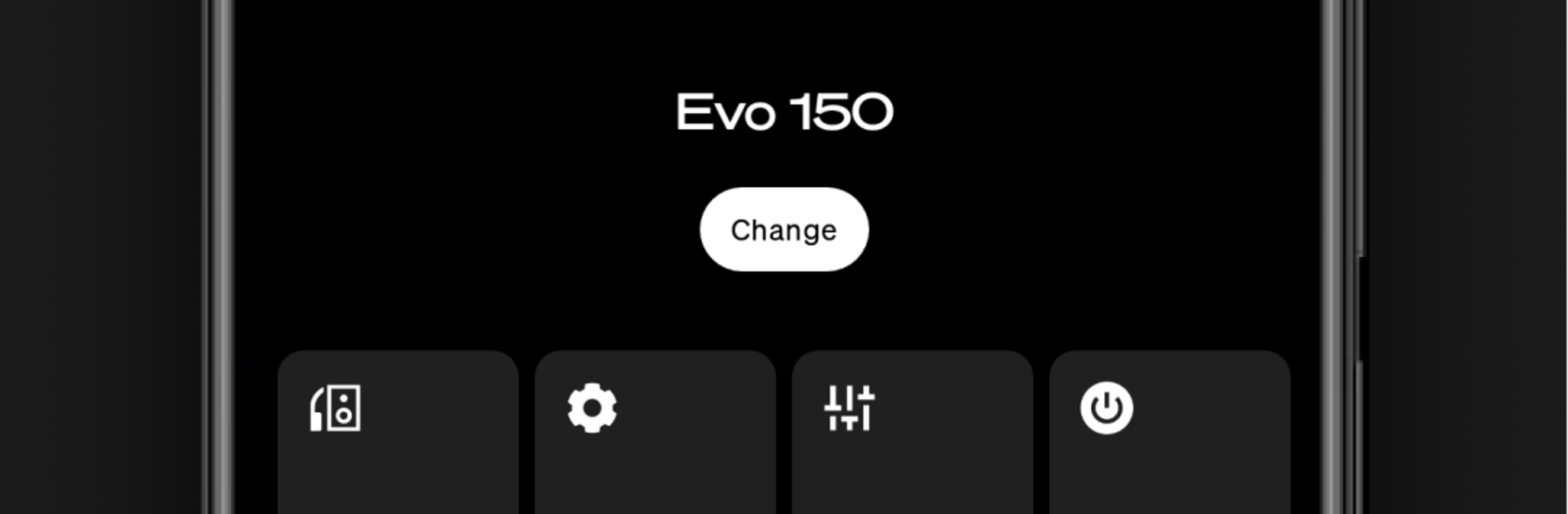
People with more than one Cambridge Audio box will like that it swaps between them cleanly. Moving from a CXN or CXN100 to an MXN10 in the office or an Evo in the living room is quick, with per room volume and source control. Internet radio is handled well too. Search by station or genre, save favorites from local news to a late night jazz station on the other side of the world, and jump back in a second.

There are useful setup bits baked in. Rename a unit, set volume limits, pick a standby mode, and adjust other small behaviors. Features do vary by model, including older ones like 851N or StreamMagic 6 v2, and there is no Zone 2 support.

BlueStacks brings your apps to life on a bigger screen—seamless and straightforward.

How to Download and Run StreamMagic on PC or Mac

  • Download and install BlueStacks on your PC or Mac

  • Complete Google sign-in to access the Play Store, or do it later

  • Look for StreamMagic in the search bar at the top right corner

  • Click to install StreamMagic from the search results

  • Complete Google sign-in (if you skipped step 2) to install StreamMagic

  • Click the StreamMagic icon on the home screen to start playing

video
Watch Video

Minimum System Requirements

With BlueStacks 5, you can get started on a PC that fulfills the following requirements.

  • Operating System

    Microsoft Windows 7 or above, macOS 11 (Big Sur) or above

  • Processor

    Intel, AMD or Apple Silicon Processor

  • RAM

    at least 4GB

  • HDD

    10GB Free Disk Space

Note:

* You must be an Administrator on your PC. Up to date graphics drivers from Microsoft or the chipset vendor.

StreamMagic - FAQs

  • How to Run StreamMagic on Windows PC & Mac?

    Run StreamMagic on your PC or Mac by following these simple steps.

    • Click on ‘Download StreamMagic on PC’ to download BlueStacks
    • Install it and log-in to Google Play Store
    • Launch and run the app.
  • Why is BlueStacks the fastest and safest platform to play games on PC?

    BlueStacks respects your privacy and is always safe and secure to use. It does not carry any malware, spyware, or any sort of additional software that could harm your PC.

    It is engineered to optimize speed and performance for a seamless gaming experience.

  • What are StreamMagic PC requirements?

    Minimum requirement to run StreamMagic on your PC

    • OS: Microsoft Windows 7 and above:
    • Processor: Intel or AMD Processor:
    • RAM: Your PC must have at least 2GB of RAM. (Note that having 2GB or more disk space is not a substitute for RAM):
    • HDD: 5GB Free Disk Space.
    • You must be an Administrator on your PC.