Note-ify: Notes, Lists & Tasks

Note-ify: Notes, Lists & Tasks

Productivity

| Zeplin Studios

Play on PC with BlueStacks or from our cloud

  • Overview
  • How to Download

Page Modified On: October 04, 2025

Run Note-ify: Notes, Lists & Tasks on PC or Mac

Multitask effortlessly on your PC or Mac as you try out Note-ify: Notes, Lists & Tasks, a Productivity app by Zeplin Studios on BlueStacks.

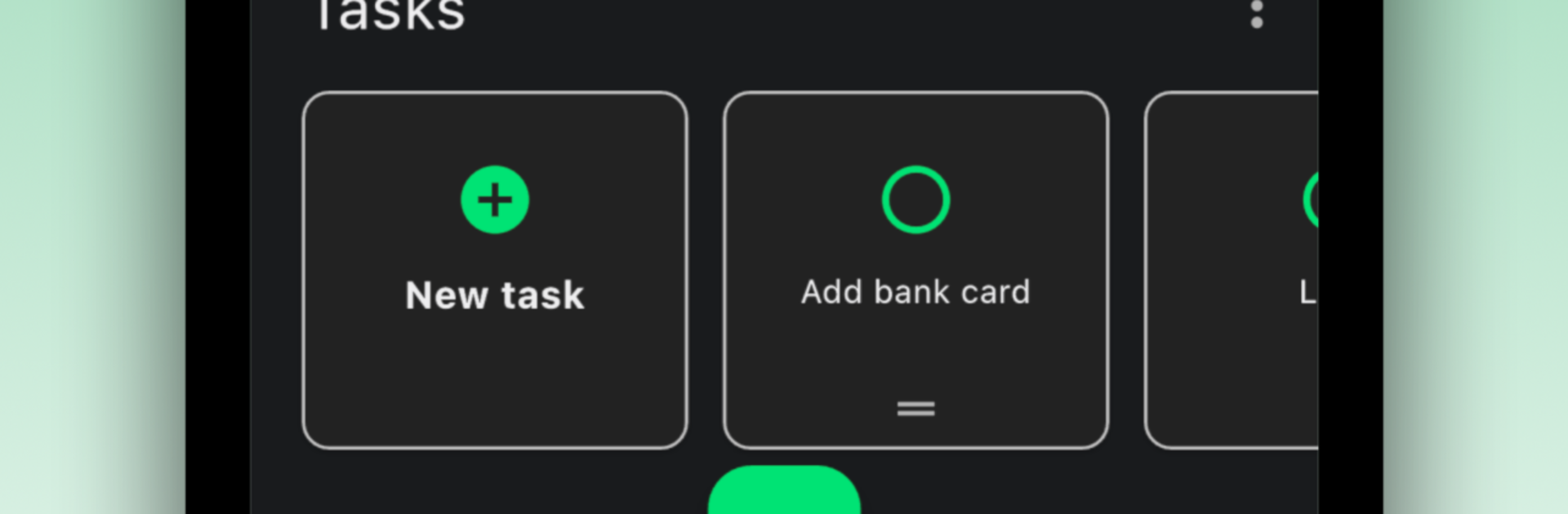
Note-ify feels like a tidy all-in-one spot for notes, lists, and tasks that actually stays organized once things pile up. The layout is clean, and the editor is more than basic formatting, so longer notes, checklists, and pasted clips do not turn into a mess. Users can stack folders inside folders, tag things, star important stuff, and even set a color and image for folders, which weirdly helps the brain remember where things are. Search is quick and gives smart suggestions, so finding that one grocery list from weeks ago is not a hunt. Sync works across devices in real time, plus there is a web app and live collaboration, so a shared packing list or meeting notes can update while everyone watches.

On PC with BlueStacks, it is nice to type full speed, rearrange tasks with the mouse, and see more on a bigger screen. Media drops in easily too, including images, audio, videos, and even YouTube. Notes can grab location, attach to a calendar, set reminders, and tasks can repeat, which is helpful for bills or weekly chores. There is version history if something gets overwritten, PDF export, and quick share by email. Folders can be locked with device security, and there is OCR for pulling text from images, speech to text, and a small Ask AI tool that can drop answers right into a note. Themes hit dark or light, accent colours are customizable, and backgrounds can be personal. There is a subscription or lifetime option after a trial, so that is worth knowing before going all in.

Big screen. Bigger performance. Use BlueStacks on your PC or Mac to run your favorite apps.

How to Download and Run Note-ify: Notes, Lists & Tasks on PC or Mac

  • Download and install BlueStacks on your PC or Mac

  • Complete Google sign-in to access the Play Store, or do it later

  • Look for Note-ify: Notes, Lists & Tasks in the search bar at the top right corner

  • Click to install Note-ify: Notes, Lists & Tasks from the search results

  • Complete Google sign-in (if you skipped step 2) to install Note-ify: Notes, Lists & Tasks

  • Click the Note-ify: Notes, Lists & Tasks icon on the home screen to start playing

video
Watch Video

Minimum System Requirements

With BlueStacks 5, you can get started on a PC that fulfills the following requirements.

  • Operating System

    Microsoft Windows 7 or above, macOS 11 (Big Sur) or above

  • Processor

    Intel, AMD or Apple Silicon Processor

  • RAM

    at least 4GB

  • HDD

    10GB Free Disk Space

Note:

* You must be an Administrator on your PC. Up to date graphics drivers from Microsoft or the chipset vendor.

Note-ify: Notes, Lists & Tasks - FAQs

  • How to Run Note-ify: Notes, Lists & Tasks on Windows PC & Mac?

    Run Note-ify: Notes, Lists & Tasks on your PC or Mac by following these simple steps.

    • Click on ‘Download Note-ify: Notes, Lists & Tasks on PC’ to download BlueStacks
    • Install it and log-in to Google Play Store
    • Launch and run the app.
  • Why is BlueStacks the fastest and safest platform to play games on PC?

    BlueStacks respects your privacy and is always safe and secure to use. It does not carry any malware, spyware, or any sort of additional software that could harm your PC.

    It is engineered to optimize speed and performance for a seamless gaming experience.

  • What are Note-ify: Notes, Lists & Tasks PC requirements?

    Minimum requirement to run Note-ify: Notes, Lists & Tasks on your PC

    • OS: Microsoft Windows 7 and above:
    • Processor: Intel or AMD Processor:
    • RAM: Your PC must have at least 2GB of RAM. (Note that having 2GB or more disk space is not a substitute for RAM):
    • HDD: 5GB Free Disk Space.
    • You must be an Administrator on your PC.