PDF Reader Pro - Read All PDF

PDF Reader Pro - Read All PDF

Productivity

| SkyDev Apps

Play on PC with BlueStacks or from our cloud

  • Overview
  • How to Download

Page Modified On: January 08, 2026

Run PDF Reader Pro - Read All PDF on PC or Mac

Multitask effortlessly on your PC or Mac as you try out PDF Reader Pro – Read All PDF, a Productivity app by SkyDev Apps on BlueStacks.

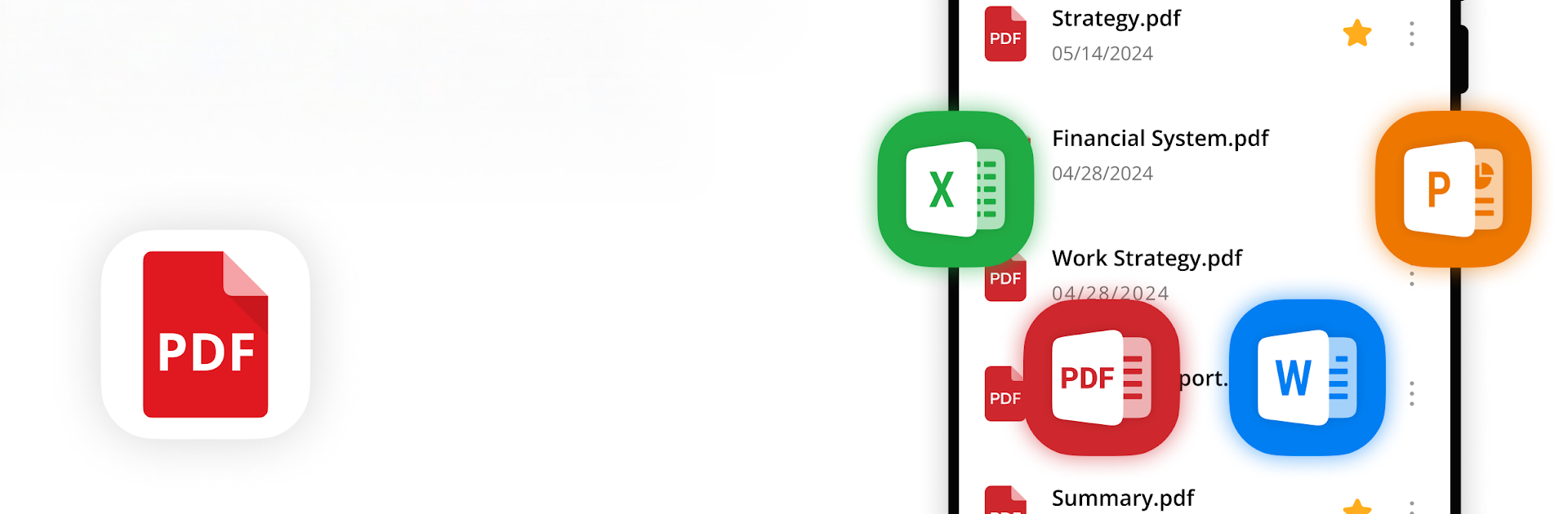
PDF Reader Pro – Read All PDF feels like that no-fuss tool people keep around because it just works. Open a file and it loads fast, then it lets the user read by flipping pages or scrolling smoothly through the whole thing. There is a choice between vertical or horizontal view, zoom that actually feels crisp, a proper full screen mode, and a dark theme for late nights. It is not only for PDFs either. It pulls in Word docs, Excel sheets, and PowerPoint files, and it does it offline, which is handy on a train or in a dead Wi‑Fi spot.

What stands out is how it keeps everything tidy. It scans the device and gathers documents from downloads, chat apps, or wherever they landed, so there is no hunting through folders. People can rename files, delete the junk, mark favorites, set a password on something private, and jump back into recent files without digging. Bookmarks make long reports or eBooks less of a chore, since you can save a page and get right back to it. Sharing is simple through messengers or email, and printing from the device is built in.

On a PC with BlueStacks, it feels a bit like using a desktop viewer. Big screen, easy scrolling with a mouse, more room for spreadsheets and slides. It suits work and school since it handles a lot without needing an internet connection or a fancy phone, and the basics are not locked behind extra purchases. It is straightforward, quick, and it does not demand much, which is kind of the point with a reader like this.

Eager to take your app experience to the next level? Start right away by downloading BlueStacks on your PC or Mac.

How to Download and Run PDF Reader Pro - Read All PDF on PC or Mac

  • Download and install BlueStacks on your PC or Mac

  • Complete Google sign-in to access the Play Store, or do it later

  • Look for PDF Reader Pro - Read All PDF in the search bar at the top right corner

  • Click to install PDF Reader Pro - Read All PDF from the search results

  • Complete Google sign-in (if you skipped step 2) to install PDF Reader Pro - Read All PDF

  • Click the PDF Reader Pro - Read All PDF icon on the home screen to start playing

video
Watch Video

Minimum System Requirements

With BlueStacks 5, you can get started on a PC that fulfills the following requirements.

  • Operating System

    Microsoft Windows 7 or above, macOS 11 (Big Sur) or above

  • Processor

    Intel, AMD or Apple Silicon Processor

  • RAM

    at least 4GB

  • HDD

    10GB Free Disk Space

Note:

* You must be an Administrator on your PC. Up to date graphics drivers from Microsoft or the chipset vendor.

PDF Reader Pro - Read All PDF - FAQs

  • How to Run PDF Reader Pro - Read All PDF on Windows PC & Mac?

    Run PDF Reader Pro - Read All PDF on your PC or Mac by following these simple steps.

    • Click on ‘Download PDF Reader Pro - Read All PDF on PC’ to download BlueStacks
    • Install it and log-in to Google Play Store
    • Launch and run the app.
  • Why is BlueStacks the fastest and safest platform to play games on PC?

    BlueStacks respects your privacy and is always safe and secure to use. It does not carry any malware, spyware, or any sort of additional software that could harm your PC.

    It is engineered to optimize speed and performance for a seamless gaming experience.

  • What are PDF Reader Pro - Read All PDF PC requirements?

    Minimum requirement to run PDF Reader Pro - Read All PDF on your PC

    • OS: Microsoft Windows 7 and above:
    • Processor: Intel or AMD Processor:
    • RAM: Your PC must have at least 2GB of RAM. (Note that having 2GB or more disk space is not a substitute for RAM):
    • HDD: 5GB Free Disk Space.
    • You must be an Administrator on your PC.