Project Schedule IAP

Project Schedule IAP

Productivity

| Thorsten Krämer

Play on PC with BlueStacks or from our cloud

  • Overview
  • How to Download

Page Modified On: October 10, 2025

Run Project Schedule IAP on PC or Mac

What’s better than using Project Schedule IAP by Thorsten Krämer? Well, try it on a big screen, on your PC or Mac, with BlueStacks to see the difference.

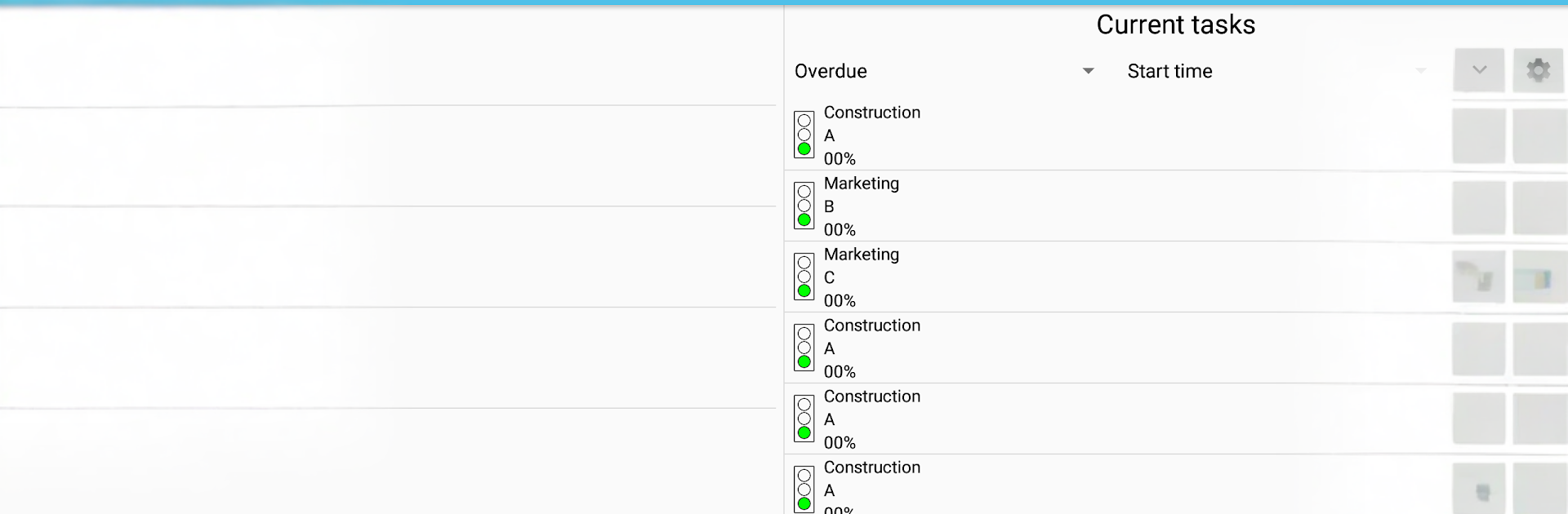
Project Schedule feels like a straight-up project planner that actually works on a small screen, and on a PC with BlueStacks it is much nicer because the Gantt chart and long task lists fit without constant scrolling. It lets someone spin up multiple projects, lay out tasks in a classic Gantt view or a simple list, and check an all-projects overview when deadlines creep up. Custom calendars are handy for setting work days, off days, or odd hours, so the timeline lines up with real life. There is a resources section that tracks cost and work per task and per project, and contacts can be attached to resources so people know who is doing what.

The free and paid parts are split in a way that makes sense. The paid extras add PDF exports of Gantt, task lists, and cost reports, better Excel exports with cost and duration, proper calendar sync, and manual export locations. File support is broad for a mobile tool. It reads MS Project MPP files in read-only form, and with small plugins it will open and save Excel XLS, MSPDI XML, and plain CSV. Exports can be PNG if someone wants a quick image. Notifications ping when a task starts or finishes, and there is optional Android backup so data is not lost. There is also a separate CloudSync plugin if syncing across devices is needed. On BlueStacks, dragging bars on the Gantt with a mouse and typing dates with a keyboard just feels faster, which helps on bigger plans that would be cramped on a phone.

BlueStacks gives you the much-needed freedom to experience your favorite apps on a bigger screen. Get it now.


How to Download and Run Project Schedule IAP on PC or Mac

  • Download and install BlueStacks on your PC or Mac

  • Complete Google sign-in to access the Play Store, or do it later

  • Look for Project Schedule IAP in the search bar at the top right corner

  • Click to install Project Schedule IAP from the search results

  • Complete Google sign-in (if you skipped step 2) to install Project Schedule IAP

  • Click the Project Schedule IAP icon on the home screen to start playing

video
Watch Video

Minimum System Requirements

With BlueStacks 5, you can get started on a PC that fulfills the following requirements.

  • Operating System

    Microsoft Windows 7 or above, macOS 11 (Big Sur) or above

  • Processor

    Intel, AMD or Apple Silicon Processor

  • RAM

    at least 4GB

  • HDD

    10GB Free Disk Space

Note:

* You must be an Administrator on your PC. Up to date graphics drivers from Microsoft or the chipset vendor.

Project Schedule IAP - FAQs

  • How to Run Project Schedule IAP on Windows PC & Mac?

    Run Project Schedule IAP on your PC or Mac by following these simple steps.

    • Click on ‘Download Project Schedule IAP on PC’ to download BlueStacks
    • Install it and log-in to Google Play Store
    • Launch and run the app.
  • Why is BlueStacks the fastest and safest platform to play games on PC?

    BlueStacks respects your privacy and is always safe and secure to use. It does not carry any malware, spyware, or any sort of additional software that could harm your PC.

    It is engineered to optimize speed and performance for a seamless gaming experience.

  • What are Project Schedule IAP PC requirements?

    Minimum requirement to run Project Schedule IAP on your PC

    • OS: Microsoft Windows 7 and above:
    • Processor: Intel or AMD Processor:
    • RAM: Your PC must have at least 2GB of RAM. (Note that having 2GB or more disk space is not a substitute for RAM):
    • HDD: 5GB Free Disk Space.
    • You must be an Administrator on your PC.