Saving Notes - Notepad

Saving Notes - Notepad

Productivity

| Magín Studios

Play on PC with BlueStacks or from our cloud

  • Overview
  • How to Download

Page Modified On: November 20, 2025

Run Saving Notes - Notepad on PC or Mac

Let BlueStacks turn your PC, Mac, or laptop into the perfect home for Saving Notes – Notepad, a fun Productivity app from Magín Studios.

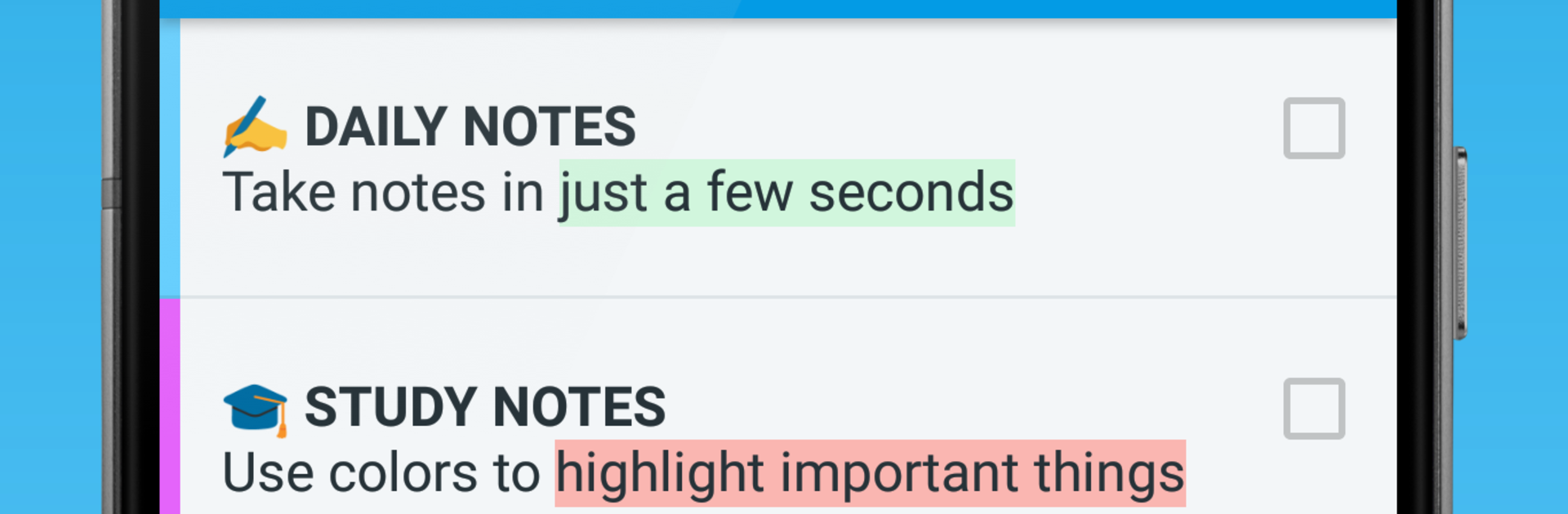
Saving Notes – Notepad keeps things simple in a good way. The whole flow is save a thought with a reminder, review it inside neat sheets so nothing piles up, then act on the list and share if needed. It feels quick and tidy, so it fits a mix of small tasks and bigger planning without getting in the way. The app is set up to hold everything in one spot, so someone can track to dos, money notes, trip plans and packing, study reviews, work tasks, calendar reminders, ideas, workout routines, meal plans, shopping, even a watchlist for shows or books. Instead of juggling several apps, it all sits together and stays organized.

Core tools are exactly what they should be. Notes and checklists are fast to write, reminders hook into the calendar, there is a password lock for private stuff, cloud sync so nothing goes missing, and recent notes open offline. Lists can show progress, search is quick, sorting is flexible, and links or phone numbers in a note are recognized. The look is clean and a bit customizable, and it feels stable. If someone needs more, the premium side removes limits on notes, sheets, and folders, adds color themes and icons, lets widgets live on the device, and exports to PDF.

On PC with BlueStacks it is surprisingly nice, since a keyboard makes long lists and study notes easier, and the bigger screen helps when moving between sheets or scanning progress. It feels like a simple notebook that scales when there is a lot to plan.

Switch to BlueStacks and make the most of your apps on your PC or Mac.

How to Download and Run Saving Notes - Notepad on PC or Mac

  • Download and install BlueStacks on your PC or Mac

  • Complete Google sign-in to access the Play Store, or do it later

  • Look for Saving Notes - Notepad in the search bar at the top right corner

  • Click to install Saving Notes - Notepad from the search results

  • Complete Google sign-in (if you skipped step 2) to install Saving Notes - Notepad

  • Click the Saving Notes - Notepad icon on the home screen to start playing

video
Watch Video

Minimum System Requirements

With BlueStacks 5, you can get started on a PC that fulfills the following requirements.

  • Operating System

    Microsoft Windows 7 or above, macOS 11 (Big Sur) or above

  • Processor

    Intel, AMD or Apple Silicon Processor

  • RAM

    at least 4GB

  • HDD

    10GB Free Disk Space

Note:

* You must be an Administrator on your PC. Up to date graphics drivers from Microsoft or the chipset vendor.

Saving Notes - Notepad - FAQs

  • How to Run Saving Notes - Notepad on Windows PC & Mac?

    Run Saving Notes - Notepad on your PC or Mac by following these simple steps.

    • Click on ‘Download Saving Notes - Notepad on PC’ to download BlueStacks
    • Install it and log-in to Google Play Store
    • Launch and run the app.
  • Why is BlueStacks the fastest and safest platform to play games on PC?

    BlueStacks respects your privacy and is always safe and secure to use. It does not carry any malware, spyware, or any sort of additional software that could harm your PC.

    It is engineered to optimize speed and performance for a seamless gaming experience.

  • What are Saving Notes - Notepad PC requirements?

    Minimum requirement to run Saving Notes - Notepad on your PC

    • OS: Microsoft Windows 7 and above:
    • Processor: Intel or AMD Processor:
    • RAM: Your PC must have at least 2GB of RAM. (Note that having 2GB or more disk space is not a substitute for RAM):
    • HDD: 5GB Free Disk Space.
    • You must be an Administrator on your PC.