Timesheet History
Timesheet History

Timesheet History

Productivity

| Forutan Software

Play on PC with BlueStacks or from our cloud

  • Overview
  • How to Download

Page Modified On: December 05, 2025

Run Timesheet History on PC or Mac

Let BlueStacks turn your PC, Mac, or laptop into the perfect home for Timesheet History, a fun Productivity app from Forutan Software.

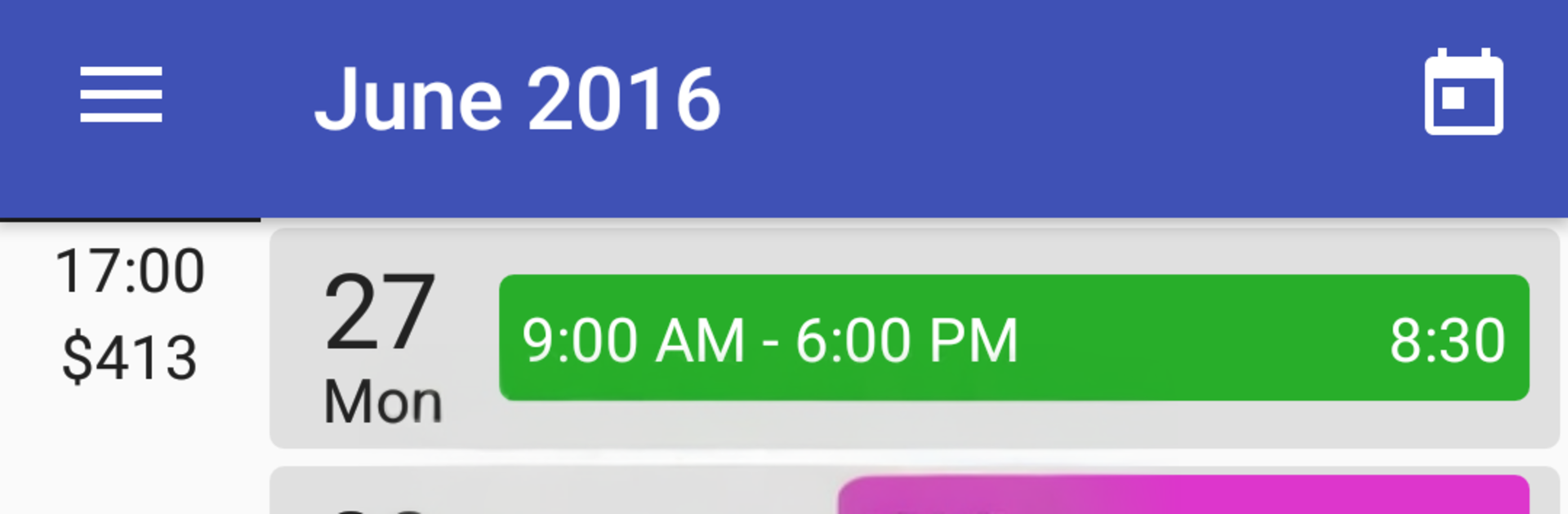
Timesheet History feels like a no-fuss way to log shifts and pay without getting lost in menus. On PC with BlueStacks, the bigger screen helps a lot, since the week view and long lists of entries are easier to scan, and typing notes with a keyboard is faster. Setup is straightforward. Create a job, pick a color so it stands out, set default break times, and the app builds a clean timeline. It lets someone scroll back to past weeks or jump ahead, so checking last month or planning next pay cycle does not turn into a maze.

What stands out is how specific the pay rules can be. Different rates for weekends or certain hours, fixed payments per shift, unpaid breaks by default or per entry, and even deductions baked into the job settings. Payment cycles show totals at a glance, and it flags payment errors when something looks off. There is a single list to see all jobs, which keeps things tidy, and each job’s color scheme makes them easy to pick out. Backups are handled either manually or daily, and restore is there if a phone gets reset. Sharing a timesheet is simple, and exporting to Excel is handy for anyone who lives in spreadsheets. The free version limits it to one job, so it is fine for a single gig, but multi job folks may need to upgrade. The app also teases reports and quick clock in or out from notifications, which sounds useful for people who track time a lot.

Ready to experience Timesheet History on a bigger screen, in all its glory? Download BlueStacks now.


How to Download and Run Timesheet History on PC or Mac

  • Download and install BlueStacks on your PC or Mac

  • Complete Google sign-in to access the Play Store, or do it later

  • Look for Timesheet History in the search bar at the top right corner

  • Click to install Timesheet History from the search results

  • Complete Google sign-in (if you skipped step 2) to install Timesheet History

  • Click the Timesheet History icon on the home screen to start playing

video
Watch Video

Minimum System Requirements

With BlueStacks 5, you can get started on a PC that fulfills the following requirements.

  • Operating System

    Microsoft Windows 7 or above, macOS 11 (Big Sur) or above

  • Processor

    Intel, AMD or Apple Silicon Processor

  • RAM

    at least 4GB

  • HDD

    10GB Free Disk Space

Note:

* You must be an Administrator on your PC. Up to date graphics drivers from Microsoft or the chipset vendor.

Timesheet History - FAQs

  • How to Run Timesheet History on Windows PC & Mac?

    Run Timesheet History on your PC or Mac by following these simple steps.

    • Click on ‘Download Timesheet History on PC’ to download BlueStacks
    • Install it and log-in to Google Play Store
    • Launch and run the app.
  • Why is BlueStacks the fastest and safest platform to play games on PC?

    BlueStacks respects your privacy and is always safe and secure to use. It does not carry any malware, spyware, or any sort of additional software that could harm your PC.

    It is engineered to optimize speed and performance for a seamless gaming experience.

  • What are Timesheet History PC requirements?

    Minimum requirement to run Timesheet History on your PC

    • OS: Microsoft Windows 7 and above:
    • Processor: Intel or AMD Processor:
    • RAM: Your PC must have at least 2GB of RAM. (Note that having 2GB or more disk space is not a substitute for RAM):
    • HDD: 5GB Free Disk Space.
    • You must be an Administrator on your PC.