Emergency Call – The Fire Fighting Simulation

Emergency Call – The Fire Fighting Simulation

Simulation

| Aerosoft GmbH

Play on PC with BlueStacks or from our cloud

  • Overview
  • Game Features
  • How to Play

Page Modified On: January 06, 2026

Play Emergency Call – The Fire Fighting Simulation on PC or Mac

Bring your A-game to Emergency Call – The Fire Fighting Simulation, the Simulation game sensation from Aerosoft GmbH. Give your gameplay the much-needed boost with precise game controls, high FPS graphics, and top-tier features on your PC or Mac with BlueStacks.

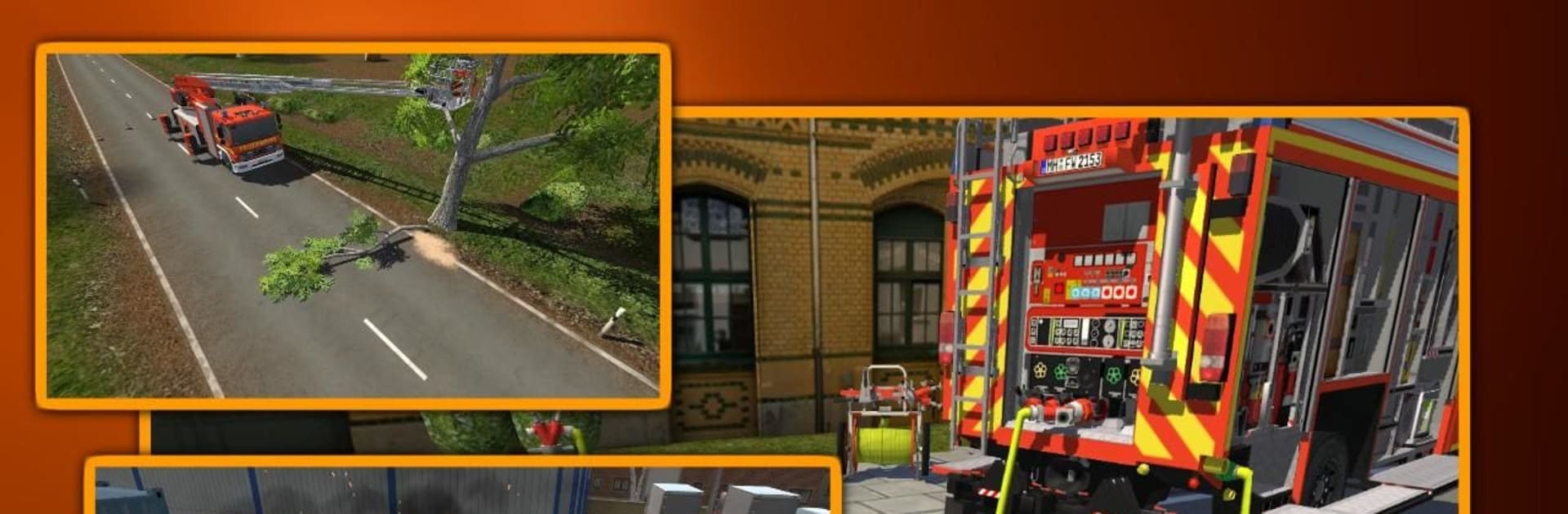
Emergency Call – The Fire Fighting Simulation feels like a grounded firefighter shift, built with help from a real German department so the routines make sense. It starts in the control room taking calls and sending the right crew, then it flips to the truck run with lights and sirens, cutting through traffic under special rights to get there fast. Out on scene, the gameplay breaks into simple tasks that stack into a full operation: hook up hoses to hydrants, get a rapid attack line flowing, cool off a container blaze, or deal with a car or truck fire that keeps flaring. Bigger jobs bring the turntable ladder for those hard-to-see hotspots, plus inside attacks on apartment fires where keeping the water supply stable actually matters.

There is more than fire, too. Road accidents show up with rescue work, sometimes a chain saw comes out, and oil spills need environmental protection so the mess does not spread. Short in-between clips explain what is happening so even a newcomer can follow the steps without prior knowledge. No in-app purchases and no ads, just experience points that push the rank higher and slowly unlock new units and gear as the station grows. The rhythm swings between calm dispatch planning and busy hands-on tasks, and it rewards doing things in the right order rather than rushing. On PC with BlueStacks the steering and tool selection feel cleaner with a keyboard and mouse, but the heart of it stays the same: methodical, practical firefighting that scratches that sim itch without demanding a textbook.

Start your journey now. Download the game on BlueStacks, invite your friends, and march on a new adventure.


Game Features

Enhancements

  • Macros
  • Multi Instance
  • Multi Instance Sync
  • Script
  • Enhancements
Macros

Macros

Automate the predictable in Emergency Call – The Fire Fighting Simulation and transform your gameplay with Macros. Get access to inventive Macros in the BlueStacks Macro Community
Multi Instance

Multi Instance

Play Emergency Call – The Fire Fighting Simulation on one window. And chat with your friend on the other. Press CTRL + Shift + 8 to open the Multi-Instance Manager. And start creating fresh instances or clone an existing one.
Multi Instance Sync

Multi Instance Sync

Play Emergency Call – The Fire Fighting Simulation with the power of Multi-Instance Sync. Replicate what you are doing on the main instance on all other instances. Level up faster, play more.
Script

Script

Script your way to gaming glory in Emergency Call – The Fire Fighting Simulation with BlueStacks Script. Write and run a set of commands to automate repeated tasks. Trigger the command by assigning it to any key.
Read More

How to Download and Play Emergency Call – The Fire Fighting Simulation on PC or Mac

  • Download and install BlueStacks on your PC or Mac

  • Complete Google sign-in to access the Play Store, or do it later

  • Look for Emergency Call – The Fire Fighting Simulation in the search bar at the top right corner

  • Click to install Emergency Call – The Fire Fighting Simulation from the search results

  • Complete Google sign-in (if you skipped step 2) to install Emergency Call – The Fire Fighting Simulation

  • Click the Emergency Call – The Fire Fighting Simulation icon on the home screen to start playing

video
Watch Video

Minimum System Requirements

With BlueStacks 5, you can get started on a PC that fulfills the following requirements.

  • Operating System

    Microsoft Windows 7 or above, macOS 11 (Big Sur) or above

  • Processor

    Intel, AMD or Apple Silicon Processor

  • RAM

    at least 4GB

  • HDD

    10GB Free Disk Space

Note:

* You must be an Administrator on your PC. Up to date graphics drivers from Microsoft or the chipset vendor.

Emergency Call – The Fire Fighting Simulation - FAQs

  • How to play Emergency Call – The Fire Fighting Simulation on Windows PC & Mac?

    Play Emergency Call – The Fire Fighting Simulation on your PC or Mac by following these simple steps.

    • Click on 'Play Emergency Call – The Fire Fighting Simulation on PC’ to download BlueStacks
    • Install it and log-in to Google Play Store
    • Launch and play the game.
  • Why is BlueStacks the fastest and safest platform to play games on PC?

    BlueStacks respects your privacy and is always safe and secure to use. It does not carry any malware, spyware, or any sort of additional software that could harm your PC.

    It is engineered to optimize speed and performance for a seamless gaming experience.

  • What are Emergency Call – The Fire Fighting Simulation PC requirements?

    Minimum requirement to run Emergency Call – The Fire Fighting Simulation on your PC

    • OS: Microsoft Windows 7 or above MacOS 11 (Big Sur) or above
    • Processor: Intel, AMD or Apple Silicon Processor
    • RAM: Your PC must have at least 4GB of RAM. (Note that having 4GB or more disk space is not a substitute for RAM)
    • HDD: 10GB Free Disk Space.
    • You must be an Administrator on your PC.