Nexus Station
Nexus Station

Nexus Station

Simulation

| Social First Oy

Play on PC with BlueStacks or from our cloud

  • Overview
  • Game Features
  • How to Play

Page Modified On: October 13, 2025

Play Nexus Station on PC or Mac

Bring your A-game to Nexus Station, the Simulation game sensation from Social First Oy. Give your gameplay the much-needed boost with precise game controls, high FPS graphics, and top-tier features on your PC or Mac with BlueStacks.

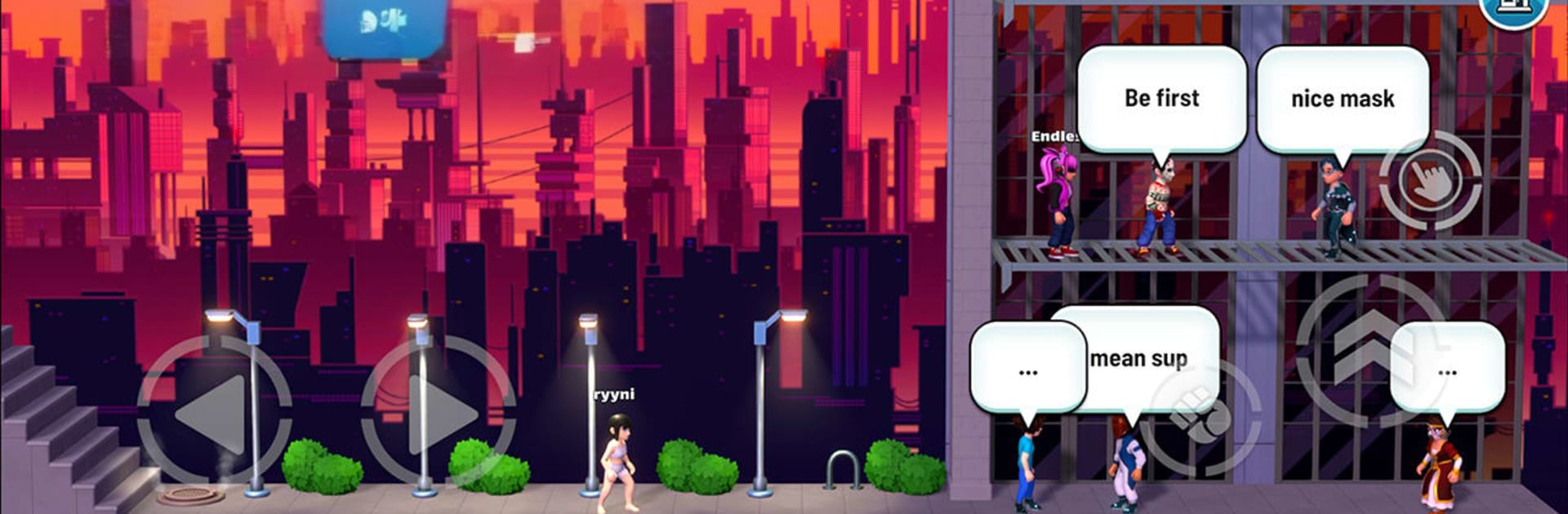
Nexus Station feels like a big shared playground that is still being built. It is early access, so the content is limited and things shift around a bit, but the idea is clear. Players drop into a hub, pop through portals, and find a mix of community worlds, time trials, and little competitive or co-op activities. The whole thing leans on creation. There is a level editor that lets players build full worlds, not just tiny obstacle courses, and the developers sometimes feature player-made stuff as official events. On PC with BlueStacks, the editor and camera feel easier with a mouse, and those parkour runs are cleaner with keyboard movement. It is not a hardcore MMO grind, more like a social space where people make toys and games for each other.

The daily parkour tracks are the main hook right now, simple to learn but tricky to run fast, with a chase for best times. There is a hoops mode that plays like a quick party game, score points together and move on. Progression is tied to a season pass that hands out wearable items, and there is trading if someone wants to piece together a specific look. Character customisation is decent already, with more promised. Because it is still developing, some features feel barebones, but updates land and the team seems to spotlight cool community creations. Anyone who enjoys building, racing ghosts, or just hanging in a shared world will get the idea fast, even if the edges are a bit rough right now.

Ready to top the leaderboard? We bet you do. Let precise controls and sharp visuals optimized on BlueStacks lead you to victory.


Game Features

Enhancements

  • Macros
  • Multi Instance
  • Multi Instance Sync
  • Script
  • Enhancements
Macros

Macros

Automate the predictable in Nexus Station and transform your gameplay with Macros. Get access to inventive Macros in the BlueStacks Macro Community
Multi Instance

Multi Instance

Play Nexus Station on one window. And chat with your friend on the other. Press CTRL + Shift + 8 to open the Multi-Instance Manager. And start creating fresh instances or clone an existing one.
Multi Instance Sync

Multi Instance Sync

Play Nexus Station with the power of Multi-Instance Sync. Replicate what you are doing on the main instance on all other instances. Level up faster, play more.
Script

Script

Script your way to gaming glory in Nexus Station with BlueStacks Script. Write and run a set of commands to automate repeated tasks. Trigger the command by assigning it to any key.
Read More

How to Download and Play Nexus Station on PC or Mac

  • Download and install BlueStacks on your PC or Mac

  • Complete Google sign-in to access the Play Store, or do it later

  • Look for Nexus Station in the search bar at the top right corner

  • Click to install Nexus Station from the search results

  • Complete Google sign-in (if you skipped step 2) to install Nexus Station

  • Click the Nexus Station icon on the home screen to start playing

video
Watch Video

Minimum System Requirements

With BlueStacks 5, you can get started on a PC that fulfills the following requirements.

  • Operating System

    Microsoft Windows 7 or above, macOS 11 (Big Sur) or above

  • Processor

    Intel, AMD or Apple Silicon Processor

  • RAM

    at least 4GB

  • HDD

    10GB Free Disk Space

Note:

* You must be an Administrator on your PC. Up to date graphics drivers from Microsoft or the chipset vendor.

Nexus Station - FAQs

  • How to play Nexus Station on Windows PC & Mac?

    Play Nexus Station on your PC or Mac by following these simple steps.

    • Click on 'Play Nexus Station on PC’ to download BlueStacks
    • Install it and log-in to Google Play Store
    • Launch and play the game.
  • Why is BlueStacks the fastest and safest platform to play games on PC?

    BlueStacks respects your privacy and is always safe and secure to use. It does not carry any malware, spyware, or any sort of additional software that could harm your PC.

    It is engineered to optimize speed and performance for a seamless gaming experience.

  • What are Nexus Station PC requirements?

    Minimum requirement to run Nexus Station on your PC

    • OS: Microsoft Windows 7 or above MacOS 11 (Big Sur) or above
    • Processor: Intel, AMD or Apple Silicon Processor
    • RAM: Your PC must have at least 4GB of RAM. (Note that having 4GB or more disk space is not a substitute for RAM)
    • HDD: 10GB Free Disk Space.
    • You must be an Administrator on your PC.