Stopwatch
Stopwatch

Stopwatch

Tools

| C Mobile

Play on PC with BlueStacks or from our cloud

  • Overview
  • How to Download

Page Modified On: January 29, 2026

Run Stopwatch on PC or Mac

What’s better than using Stopwatch by C Mobile? Well, try it on a big screen, on your PC or Mac, with BlueStacks to see the difference.

About the App

Stopwatch by C Mobile is a clean, no-nonsense timer that’s fast, precise, and easy to use. Whether you’re timing workouts, cooking, study sessions, or track practice, it gives you the control and detail you need without getting in your way. Expect smooth one-tap controls, super accurate timing, and smart options that make everyday timing simpler.

App Features

  • Millisecond accuracy: Track time down to thousandths of a second when precision really matters.
  • Unlimited laps and splits: Mark as many laps as you want and see the time between each one at a glance.
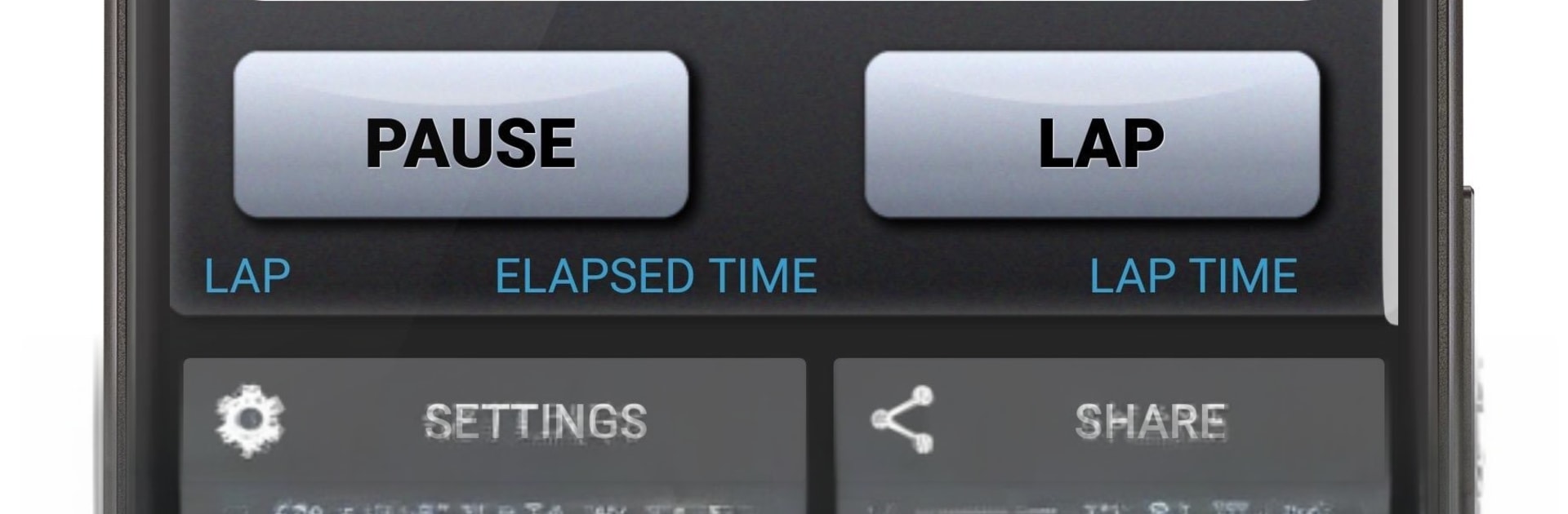
  • Simple one-tap controls: Start, Lap, and Pause respond instantly to a single tap, with optional haptic feedback so you can feel every press.
  • Keeps running through restarts: Timing continues even if your phone restarts, so long sessions don’t get lost.
  • Built for long events: Hours and days are fully supported, perfect for endurance challenges or multi-day tasks.
  • Share your results: Send your lap list or final time to teammates, friends, or anyone who needs the numbers.
  • Screen awake option: Choose to keep the display on while timing, or let it sleep to save battery—your call.
  • Lap on Pause setting: Prefer to capture a split when you pause? Toggle it on in Settings.
  • Works on any screen: Looks great on phones and tablets, scales cleanly, and stays lightweight. You can even move it to SD card.
  • Desktop-friendly: Want a bigger view while you work? Run Stopwatch on your computer with BlueStacks and keep it pinned on the side.
  • Genre: Tools: A straightforward utility that does its job reliably, exactly how a Tools app should.

Switch to BlueStacks and make the most of your apps on your PC or Mac.

How to Download and Run Stopwatch on PC or Mac

  • Download and install BlueStacks on your PC or Mac

  • Complete Google sign-in to access the Play Store, or do it later

  • Look for Stopwatch in the search bar at the top right corner

  • Click to install Stopwatch from the search results

  • Complete Google sign-in (if you skipped step 2) to install Stopwatch

  • Click the Stopwatch icon on the home screen to start playing

video
Watch Video

Minimum System Requirements

With BlueStacks 5, you can get started on a PC that fulfills the following requirements.

  • Operating System

    Microsoft Windows 7 or above, macOS 11 (Big Sur) or above

  • Processor

    Intel, AMD or Apple Silicon Processor

  • RAM

    at least 4GB

  • HDD

    10GB Free Disk Space

Note:

* You must be an Administrator on your PC. Up to date graphics drivers from Microsoft or the chipset vendor.

Stopwatch - FAQs

  • How to Run Stopwatch on Windows PC & Mac?

    Run Stopwatch on your PC or Mac by following these simple steps.

    • Click on ‘Download Stopwatch on PC’ to download BlueStacks
    • Install it and log-in to Google Play Store
    • Launch and run the app.
  • Why is BlueStacks the fastest and safest platform to play games on PC?

    BlueStacks respects your privacy and is always safe and secure to use. It does not carry any malware, spyware, or any sort of additional software that could harm your PC.

    It is engineered to optimize speed and performance for a seamless gaming experience.

  • What are Stopwatch PC requirements?

    Minimum requirement to run Stopwatch on your PC

    • OS: Microsoft Windows 7 and above:
    • Processor: Intel or AMD Processor:
    • RAM: Your PC must have at least 2GB of RAM. (Note that having 2GB or more disk space is not a substitute for RAM):
    • HDD: 5GB Free Disk Space.
    • You must be an Administrator on your PC.