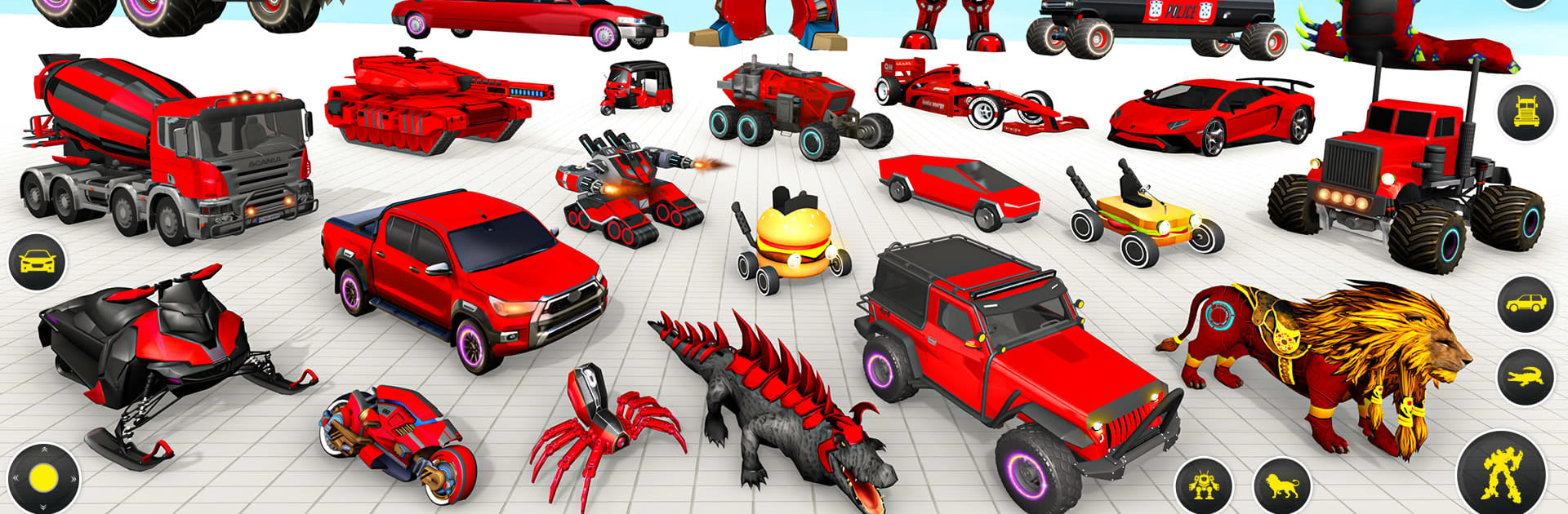
Drone Robot Car Game 3D

Drone Robot Car Game 3D

Adventure

| Buntoo Games

Play on PC with BlueStacks or from our cloud

  • Overview
  • Game Features
  • How to Play

Page Modified On: December 05, 2025

Play Drone Robot Car Game 3D on PC or Mac

Drone Robot Car Game 3D brings the Adventure genre to life, and throws up exciting challenges for gamers. Developed by Buntoo Games, this Android game is best experienced on BlueStacks, the World’s #1 app player for PC and Mac users.

Drone Robot Car Game 3D is one of those mashups that feels like a toybox tipped out on the floor. One minute the player is a car ripping through streets with nitro, the next second they hit transform and pop up into a drone, then slam back down as a robot with missiles and punchy melee. The loop is simple and quick, jump into a mission, clean out enemy mechs, rescue a corner of the city, move on. It leans hard into arcade action, so expect big explosions, loud sci fi sound effects, and lots of targets spawning in groups. The city maps are open enough to fly around, then drop to ground for car chases or a short brawl. Switching forms mid fight is the trick, and doing it at the right time keeps things fun instead of chaotic.

There are multiple modes that shuffle between shooting challenges, drone dogfights, and robot skirmishes. Boss style enemies show up here and there, nothing too complex but they make players use the tools. The controls are straightforward and feel much better on PC with BlueStacks, since a mouse helps with aiming from the drone and keyboard keys make transform, boost, and fire easy to reach. Physics are on the arcadey side, cars feel light, the drone banks fast, and the robot hits hard. Visuals are clean and bright, with plenty of flashy blasts. The game is not story heavy and does not try to be, it is more a pick up and play action set of missions with a pile of transformations and a lot of noise in the best way.

Make your gaming sessions memorable with precise controls that give you an edge in close combats and visuals that pop up, bringing every character to life.


Game Features

Enhancements

  • Macros
  • Multi Instance
  • Multi Instance Sync
  • Script
  • Enhancements
Macros

Macros

Automate the predictable in Drone Robot Car Game 3D and transform your gameplay with Macros. Get access to inventive Macros in the BlueStacks Macro Community
Multi Instance

Multi Instance

Play Drone Robot Car Game 3D on one window. And chat with your friend on the other. Press CTRL + Shift + 8 to open the Multi-Instance Manager. And start creating fresh instances or clone an existing one.
Multi Instance Sync

Multi Instance Sync

Play Drone Robot Car Game 3D with the power of Multi-Instance Sync. Replicate what you are doing on the main instance on all other instances. Level up faster, play more.
Script

Script

Script your way to gaming glory in Drone Robot Car Game 3D with BlueStacks Script. Write and run a set of commands to automate repeated tasks. Trigger the command by assigning it to any key.
Read More

How to Download and Play Drone Robot Car Game 3D on PC or Mac

  • Download and install BlueStacks on your PC or Mac

  • Complete Google sign-in to access the Play Store, or do it later

  • Look for Drone Robot Car Game 3D in the search bar at the top right corner

  • Click to install Drone Robot Car Game 3D from the search results

  • Complete Google sign-in (if you skipped step 2) to install Drone Robot Car Game 3D

  • Click the Drone Robot Car Game 3D icon on the home screen to start playing

video
Watch Video

Minimum System Requirements

With BlueStacks 5, you can get started on a PC that fulfills the following requirements.

  • Operating System

    Microsoft Windows 7 or above, macOS 11 (Big Sur) or above

  • Processor

    Intel, AMD or Apple Silicon Processor

  • RAM

    at least 4GB

  • HDD

    10GB Free Disk Space

Note:

* You must be an Administrator on your PC. Up to date graphics drivers from Microsoft or the chipset vendor.

Drone Robot Car Game 3D - FAQs

  • How to play Drone Robot Car Game 3D on Windows PC & Mac?

    Play Drone Robot Car Game 3D on your PC or Mac by following these simple steps.

    • Click on 'Play Drone Robot Car Game 3D on PC’ to download BlueStacks
    • Install it and log-in to Google Play Store
    • Launch and play the game.
  • Why is BlueStacks the fastest and safest platform to play games on PC?

    BlueStacks respects your privacy and is always safe and secure to use. It does not carry any malware, spyware, or any sort of additional software that could harm your PC.

    It is engineered to optimize speed and performance for a seamless gaming experience.

  • What are Drone Robot Car Game 3D PC requirements?

    Minimum requirement to run Drone Robot Car Game 3D on your PC

    • OS: Microsoft Windows 7 or above MacOS 11 (Big Sur) or above
    • Processor: Intel, AMD or Apple Silicon Processor
    • RAM: Your PC must have at least 4GB of RAM. (Note that having 4GB or more disk space is not a substitute for RAM)
    • HDD: 10GB Free Disk Space.
    • You must be an Administrator on your PC.