Matatu – Uganda Card Game

Matatu – Uganda Card Game

Card

| Matatu

Play on PC with BlueStacks or from our cloud

  • Overview
  • Game Features
  • How to Play

Page Modified On: November 28, 2025

Play Matatu – Uganda Card Game on PC or Mac

From the innovators and creators at Matatu, Matatu – Uganda Card Game is another fun addition to the World of Card games. Go beyond your mobile screen and play it bigger and better on your PC or Mac. An immersive experience awaits you.

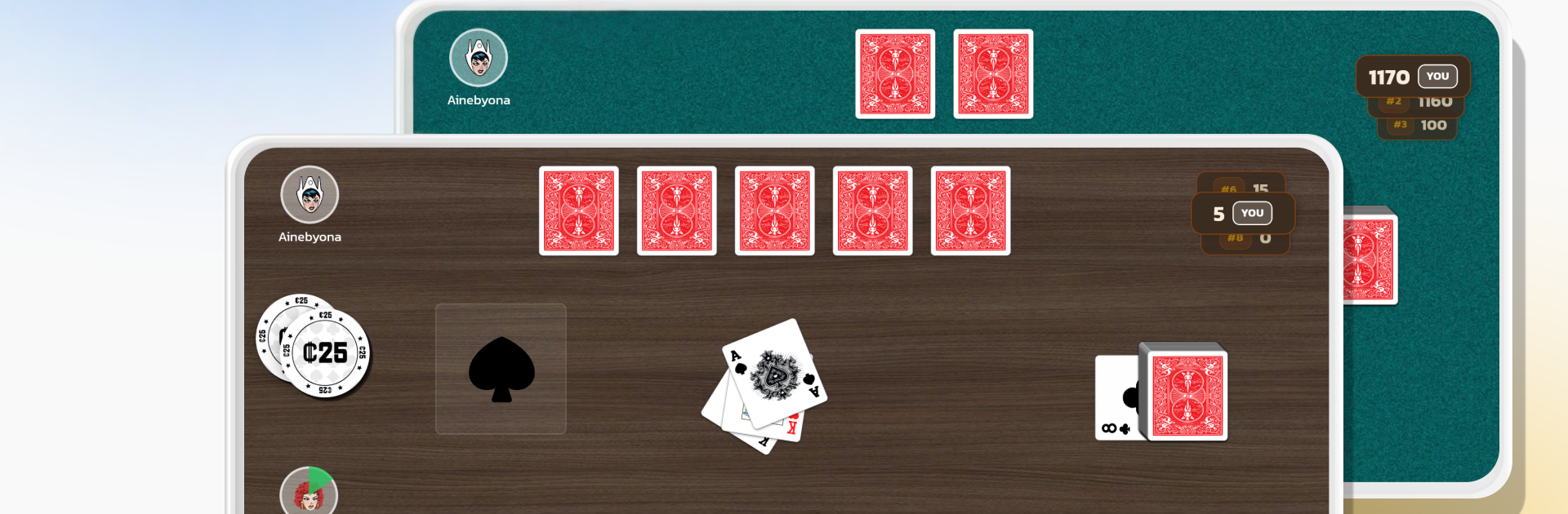
Matatu takes that classic Ugandan card table energy and turns it into a quick, snappy match that feels easy to learn but surprisingly tense. Players match suit or number to keep the chain going, toss in special cards that flip the turn order, make someone draw extra, or switch what can be played next, and race to clear their hand before the other side does. Rounds are short, momentum swings a lot, and there is that tiny moment of panic when someone is down to a single card and the table suddenly gets very quiet. The app handles rules smoothly, so even if someone is new to local Matatu quirks, it still flows. On PC with BlueStacks, clicking cards and reading the layout on a larger screen just feels clean, and the animations do not get in the way.

There is solo play for practice and quick matches against the AI, then online tables for real people who play fast and do not wait around. Friends can set up a room and keep score across a few rounds, or jump into matchmaking when everyone just wants a couple hands after dinner. Progression is there, with tiers and achievements that mark how much someone has played and how many wins they have stacked, so there is always a reason to play one more round. The presentation leans bright and simple, with sounds that pop when a penalty lands, and the pacing works well for short sessions or a long sit-down. If a player likes card shedding games like the classic family ones, but wants something with a local twist and a little bite, this hits that spot without being complicated.

Start your journey now. Download the game on BlueStacks, invite your friends, and march on a new adventure.


Game Features

Enhancements

  • Macros
  • Multi Instance
  • Multi Instance Sync
  • Script
  • Enhancements
Macros

Macros

Automate the predictable in Matatu – Uganda Card Game and transform your gameplay with Macros. Get access to inventive Macros in the BlueStacks Macro Community
Multi Instance

Multi Instance

Play Matatu – Uganda Card Game on one window. And chat with your friend on the other. Press CTRL + Shift + 8 to open the Multi-Instance Manager. And start creating fresh instances or clone an existing one.
Multi Instance Sync

Multi Instance Sync

Play Matatu – Uganda Card Game with the power of Multi-Instance Sync. Replicate what you are doing on the main instance on all other instances. Level up faster, play more.
Script

Script

Script your way to gaming glory in Matatu – Uganda Card Game with BlueStacks Script. Write and run a set of commands to automate repeated tasks. Trigger the command by assigning it to any key.
Read More

How to Download and Play Matatu – Uganda Card Game on PC or Mac

  • Download and install BlueStacks on your PC or Mac

  • Complete Google sign-in to access the Play Store, or do it later

  • Look for Matatu – Uganda Card Game in the search bar at the top right corner

  • Click to install Matatu – Uganda Card Game from the search results

  • Complete Google sign-in (if you skipped step 2) to install Matatu – Uganda Card Game

  • Click the Matatu – Uganda Card Game icon on the home screen to start playing

video
Watch Video

Minimum System Requirements

With BlueStacks 5, you can get started on a PC that fulfills the following requirements.

  • Operating System

    Microsoft Windows 7 or above, macOS 11 (Big Sur) or above

  • Processor

    Intel, AMD or Apple Silicon Processor

  • RAM

    at least 4GB

  • HDD

    10GB Free Disk Space

Note:

* You must be an Administrator on your PC. Up to date graphics drivers from Microsoft or the chipset vendor.

Matatu – Uganda Card Game - FAQs

  • How to play Matatu – Uganda Card Game on Windows PC & Mac?

    Play Matatu – Uganda Card Game on your PC or Mac by following these simple steps.

    • Click on 'Play Matatu – Uganda Card Game on PC’ to download BlueStacks
    • Install it and log-in to Google Play Store
    • Launch and play the game.
  • Why is BlueStacks the fastest and safest platform to play games on PC?

    BlueStacks respects your privacy and is always safe and secure to use. It does not carry any malware, spyware, or any sort of additional software that could harm your PC.

    It is engineered to optimize speed and performance for a seamless gaming experience.

  • What are Matatu – Uganda Card Game PC requirements?

    Minimum requirement to run Matatu – Uganda Card Game on your PC

    • OS: Microsoft Windows 7 or above MacOS 11 (Big Sur) or above
    • Processor: Intel, AMD or Apple Silicon Processor
    • RAM: Your PC must have at least 4GB of RAM. (Note that having 4GB or more disk space is not a substitute for RAM)
    • HDD: 10GB Free Disk Space.
    • You must be an Administrator on your PC.