Muse Gallery
Muse Gallery

Muse Gallery

Casual

| Shahin Soft

Play on PC with BlueStacks or from our cloud

  • Overview
  • Game Features
  • How to Play

Page Modified On: April 13, 2026

Play Muse Gallery on PC or Mac

Bring your A-game to Muse Gallery, the Casual game sensation from Shahin Soft. Give your gameplay the much-needed boost with precise game controls, high FPS graphics, and top-tier features on your PC or Mac with BlueStacks.

About the Game

Muse Gallery is a Casual puzzle from Shahin Soft that blends stacked tile-matching with a slow-burn story about a lineup of distinct muses. You clear cleverly layered boards, earn progress, and unlock short video chapters for each character as you go. It’s relaxed, a bit strategic, and surprisingly satisfying when a plan comes together.

Game Features

  • Stacked Tile Match-3: Boards are built in layers, so the tile you want might be hiding under another. Pick three of a kind to clear them, reveal what’s beneath, and keep the chain going.

  • Planning Over Speed: The order you tap matters. Later levels reward careful observation and smart sequencing just as much as quick reflexes.

  • Smart Boosters, Not Crutches: Three helpers have your back when things get tight—Undo to fix a misstep, Remove to clear a stubborn tile, and Shuffle to refresh the layout and spark new matches.

  • Meet the Muses: Dozens of muses, each with a distinct vibe and a series of story videos that unlock piece by piece. Hit level milestones to open early chapters, with exclusive finales available after a brief ad. New muses roll in as your progress grows.

  • Gentle but Growing Challenge: Difficulty ramps smoothly, so newcomers can settle in while puzzle fans still get plenty to chew on. Miss a run? Try again with a tweaked approach—no harsh penalties.

  • Progress That Feels Good: Daily check-ins and achievement goals give you steady rewards and mini-milestones, making short sessions feel worthwhile.

  • Play How You Like: Perfect for quick breaks on your phone, and it also runs nicely on a bigger screen with BlueStacks if you prefer a desk setup.

Start your journey now. Download the game on BlueStacks, invite your friends, and march on a new adventure.


Game Features

Enhancements

  • Macros
  • Multi Instance
  • Script
  • Repeated Tap
  • Enhancements
Macros

Macros

Automate the predictable in Muse Gallery and transform your gameplay with Macros. Get access to inventive Macros in the BlueStacks Macro Community
Multi Instance

Multi Instance

Play Muse Gallery on one window. And chat with your friend on the other. Press CTRL + Shift + 8 to open the Multi-Instance Manager. And start creating fresh instances or clone an existing one.
Script

Script

Script your way to gaming glory in Muse Gallery with BlueStacks Script. Write and run a set of commands to automate repeated tasks. Trigger the command by assigning it to any key.
Repeated Tap

Repeated Tap

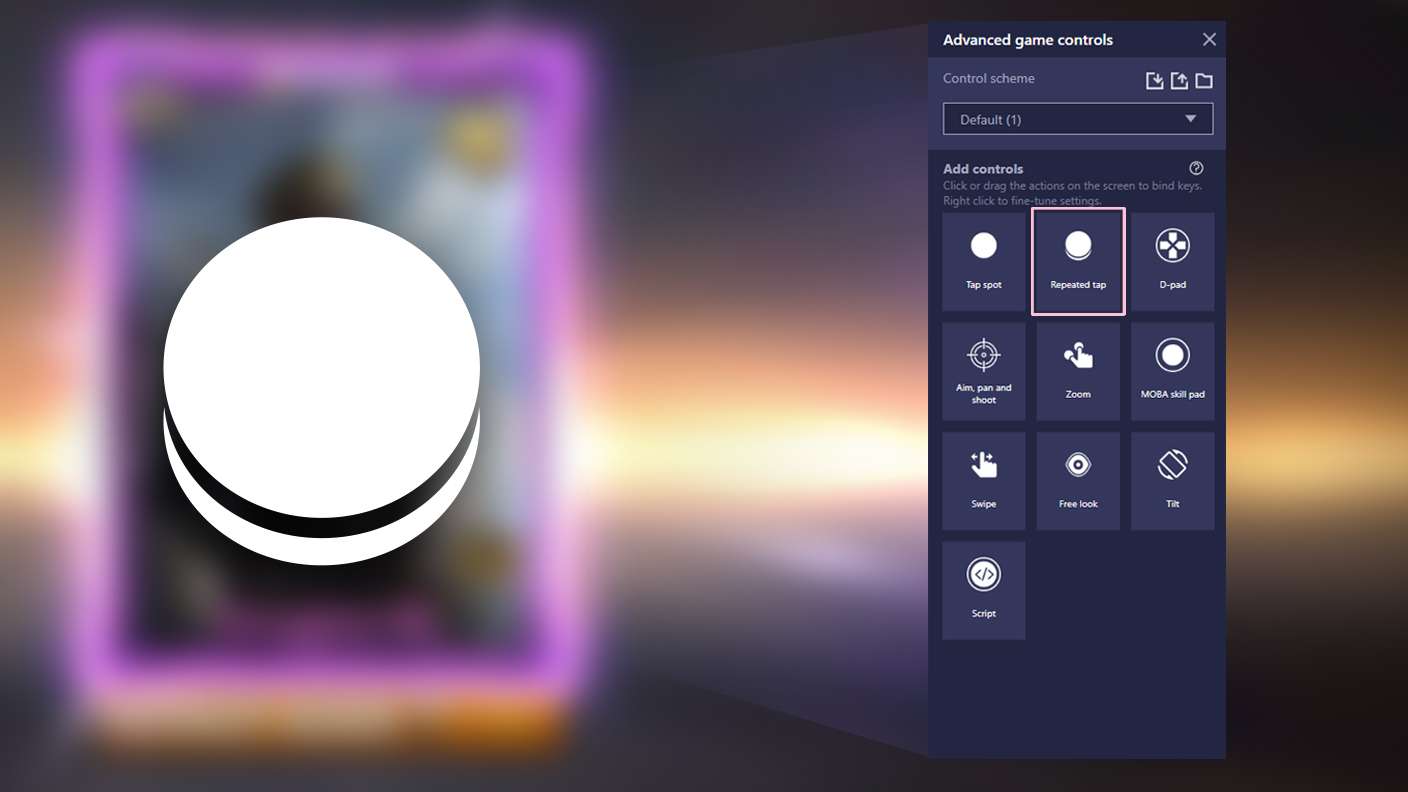
BlueStacks lets you master Muse Gallery with useful features like the Repeated Tap. Now you do not have to press the same key repeatedly to initiate an action. Just assign it to one key and you are good to go.
Read More

How to Download and Play Muse Gallery on PC or Mac

  • Download and install BlueStacks on your PC or Mac

  • Complete Google sign-in to access the Play Store, or do it later

  • Look for Muse Gallery in the search bar at the top right corner

  • Click to install Muse Gallery from the search results

  • Complete Google sign-in (if you skipped step 2) to install Muse Gallery

  • Click the Muse Gallery icon on the home screen to start playing

video
Watch Video

Minimum System Requirements

With BlueStacks 5, you can get started on a PC that fulfills the following requirements.

  • Operating System

    Microsoft Windows 7 or above, macOS 11 (Big Sur) or above

  • Processor

    Intel, AMD or Apple Silicon Processor

  • RAM

    at least 4GB

  • HDD

    10GB Free Disk Space

Note:

* You must be an Administrator on your PC. Up to date graphics drivers from Microsoft or the chipset vendor.

Muse Gallery - FAQs

  • How to play Muse Gallery on Windows PC & Mac?

    Play Muse Gallery on your PC or Mac by following these simple steps.

    • Click on 'Play Muse Gallery on PC’ to download BlueStacks
    • Install it and log-in to Google Play Store
    • Launch and play the game.
  • Why is BlueStacks the fastest and safest platform to play games on PC?

    BlueStacks respects your privacy and is always safe and secure to use. It does not carry any malware, spyware, or any sort of additional software that could harm your PC.

    It is engineered to optimize speed and performance for a seamless gaming experience.

  • What are Muse Gallery PC requirements?

    Minimum requirement to run Muse Gallery on your PC

    • OS: Microsoft Windows 7 or above MacOS 11 (Big Sur) or above
    • Processor: Intel, AMD or Apple Silicon Processor
    • RAM: Your PC must have at least 4GB of RAM. (Note that having 4GB or more disk space is not a substitute for RAM)
    • HDD: 10GB Free Disk Space.
    • You must be an Administrator on your PC.