PewPew Plants—Rogue Garden

PewPew Plants—Rogue Garden

Casual

| LayNetGames

Play on PC with BlueStacks or from our cloud

  • Overview
  • Game Features
  • How to Play

Page Modified On: July 14, 2026

Play PewPew Plants—Rogue Garden on PC or Mac

Explore a whole new adventure with PewPew Plants—Rogue Garden, a Casual game created by LayNetGames. Experience great gameplay with BlueStacks, the most popular gaming platform to play Android games on your PC or Mac.

About the Game

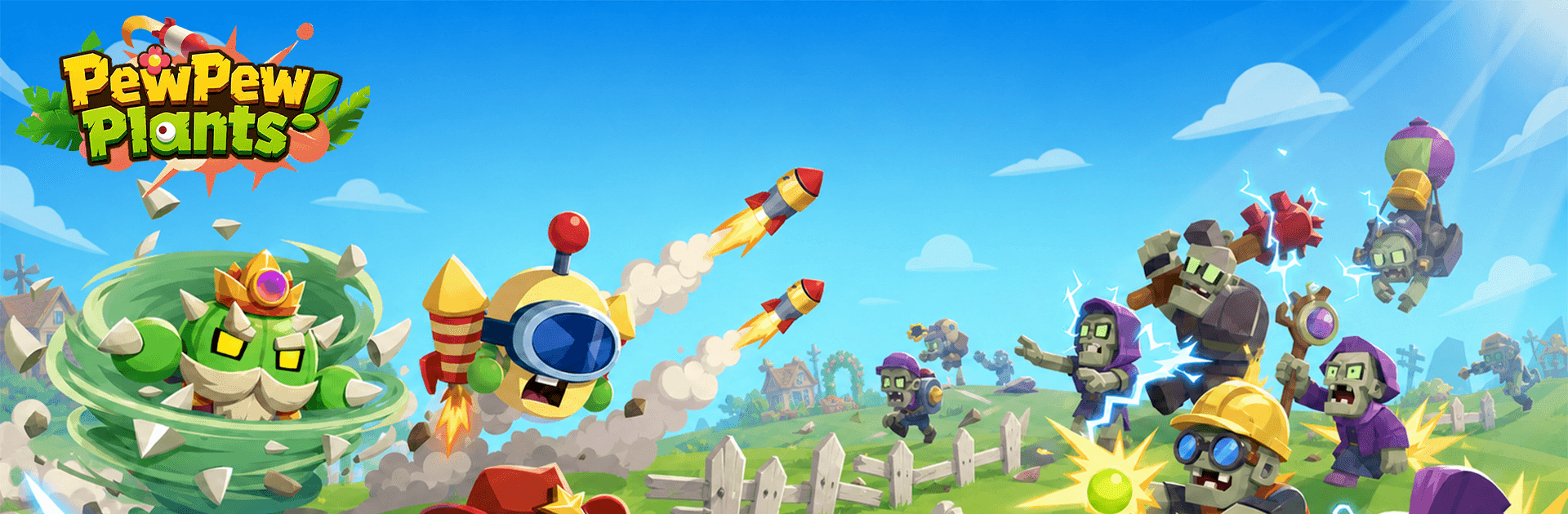
PewPew Plants—Rogue Garden is a snappy, plant-powered shooter with a Casual vibe where you defend your little patch of green from nonstop troublemakers. Runs are quick, surprising, and full of tiny choices that snowball into wild builds. Want to kick back on your phone or get comfy on a bigger screen? It also plays nicely on PC with BlueStacks.

Game Features

  • Plant Fusion: Merge matching plants to evolve them into stronger forms, then watch new combined skills kick in and reshape your strategy on the fly.
  • One-Hand Friendly: Simple, one-finger controls make it easy to hop in for a round, pause when life calls, and pick up right where you left off.
  • Roguelike Builds: Every run shuffles skills, artifacts, and power-ups, so your loadout—and the chaos—feels fresh each time.
  • Satisfying Shoot-and-Grow Combat: Your garden fights back with rapid-fire attacks and quirky abilities that stack into surprisingly punchy combos.
  • Boss Showdowns: Waves ramp up to chunky boss battles that test your reflexes and your build choices without dragging things out.
  • Endless Survival: Push for longer streaks, keep experimenting with new synergies, and see how far your toughest garden can go.
  • Leaderboard Chasing: Compare runs and brag-worthy survivals against other players, perfect for anyone who loves squeezing a little more out of a good build.

Start your journey now. Download the game on BlueStacks, invite your friends, and march on a new adventure.
Game Features

Enhancements

  • Macros
  • Multi Instance
  • Script
  • Repeated Tap
  • Enhancements
Macros

Macros

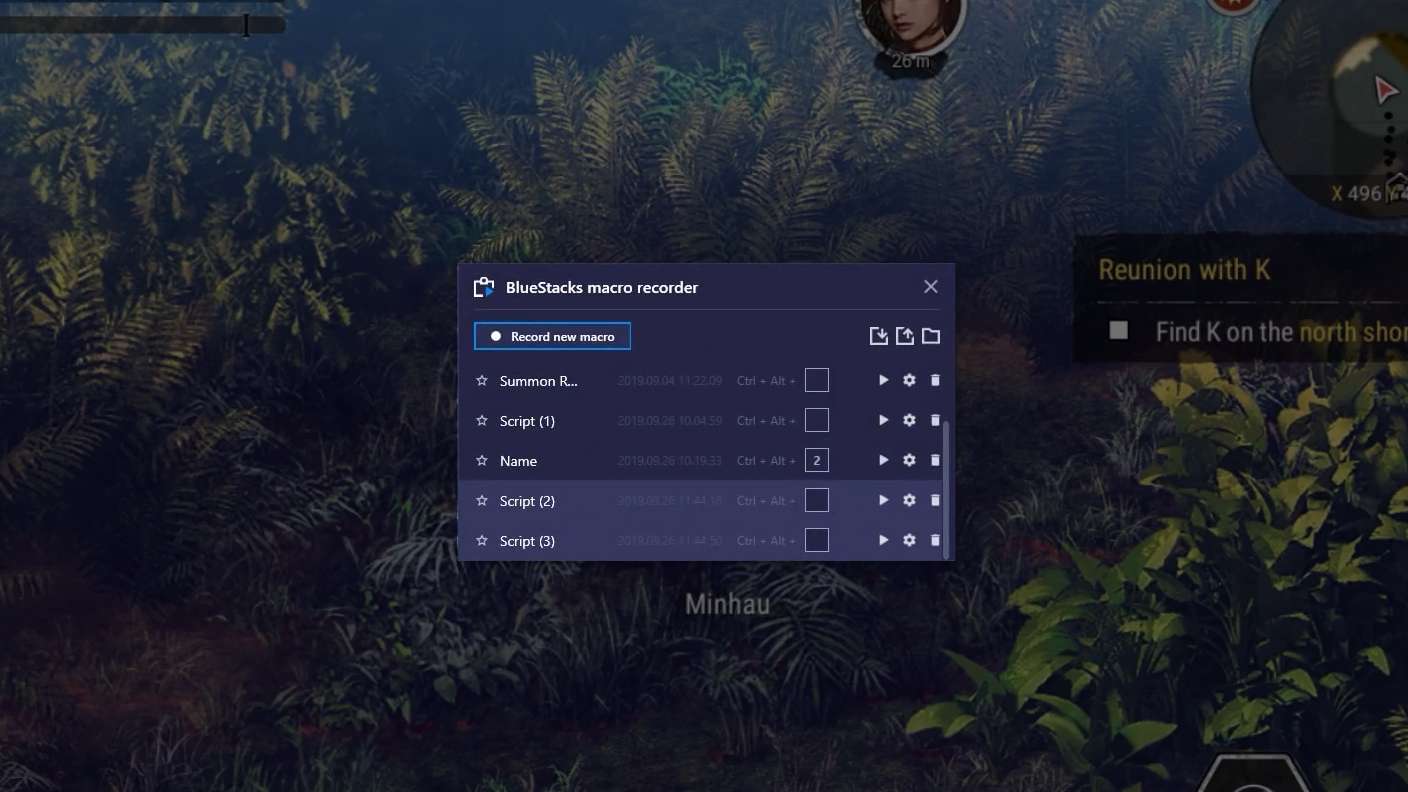
Automate the predictable in PewPew Plants—Rogue Garden and transform your gameplay with Macros. Get access to inventive Macros in the BlueStacks Macro Community
Multi Instance

Multi Instance

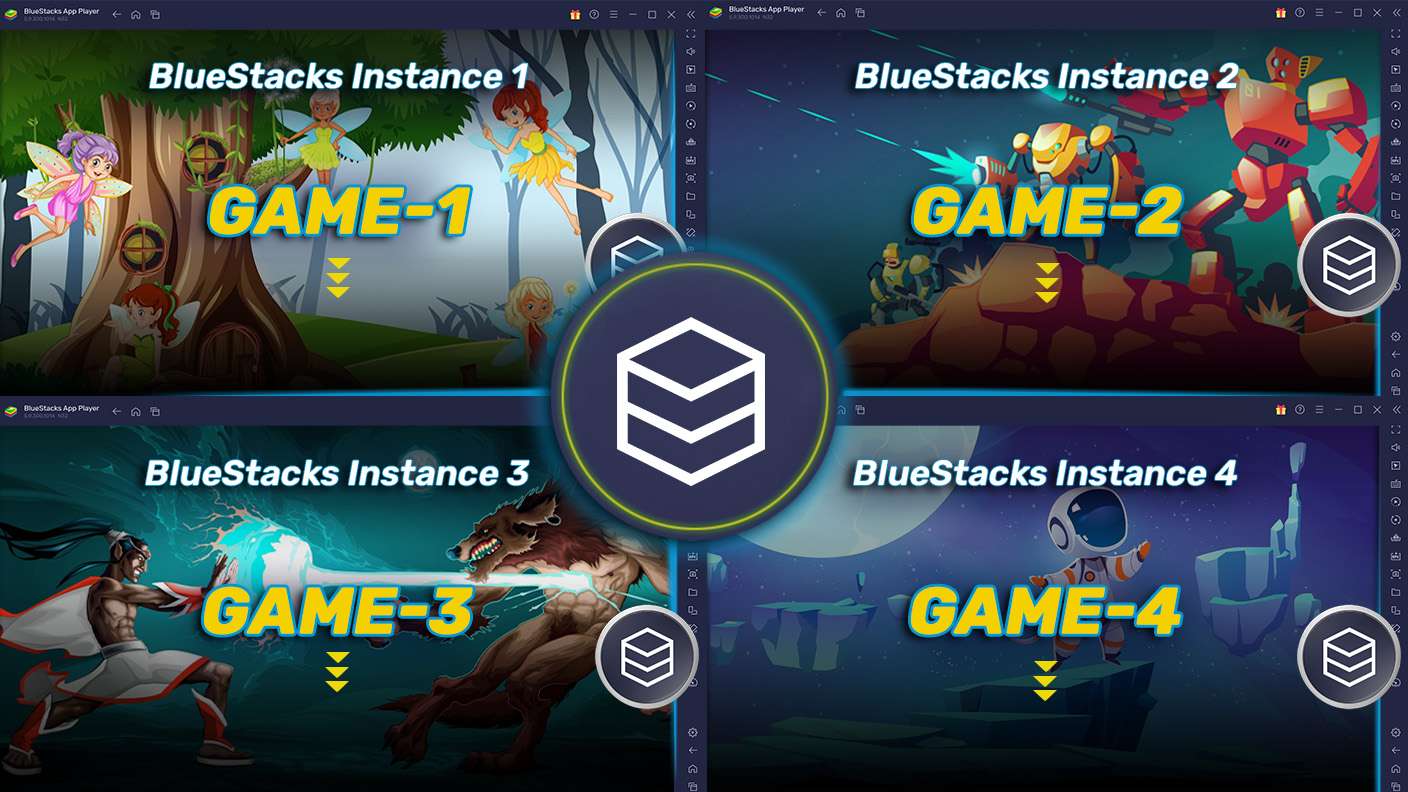
Play PewPew Plants—Rogue Garden on one window. And chat with your friend on the other. Press CTRL + Shift + 8 to open the Multi-Instance Manager. And start creating fresh instances or clone an existing one.
Script

Script

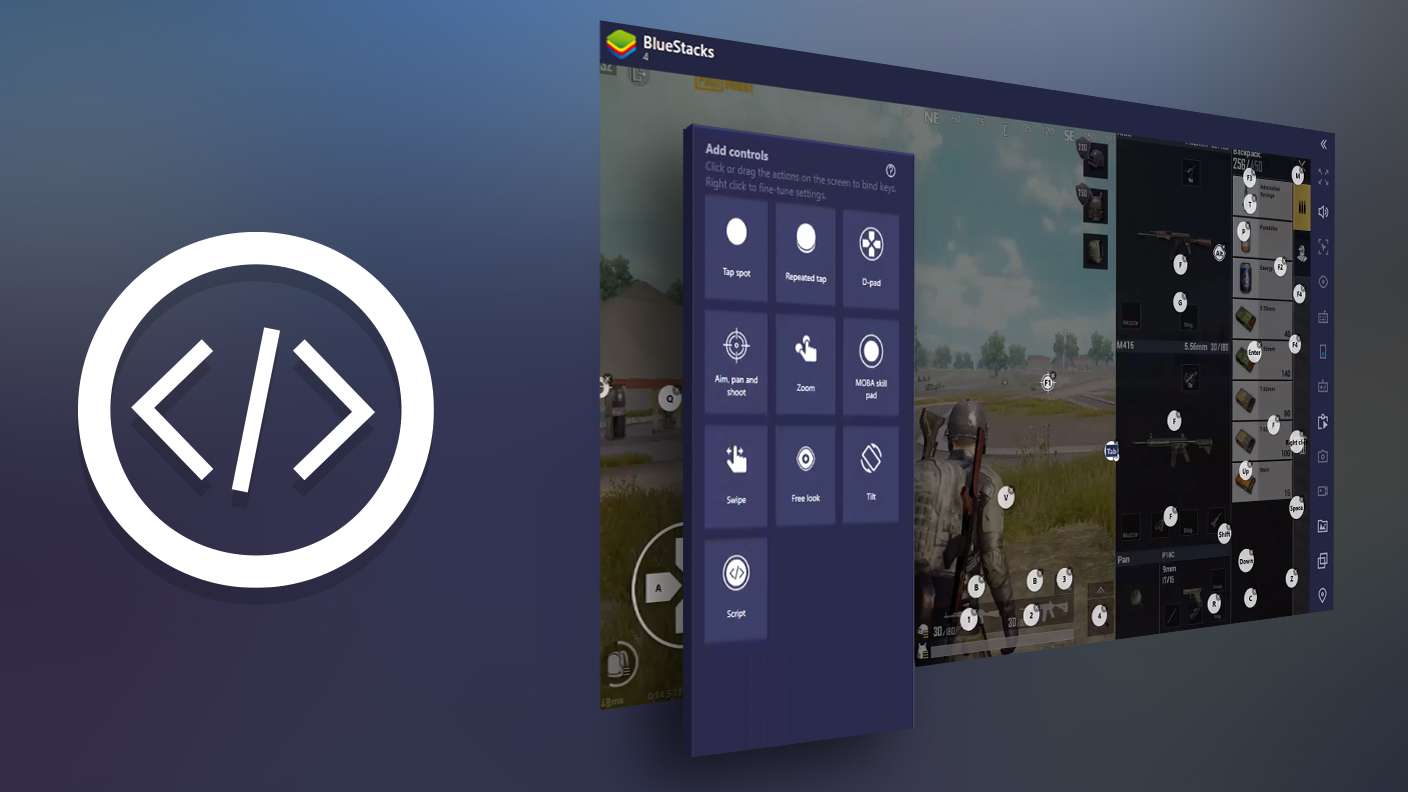
Script your way to gaming glory in PewPew Plants—Rogue Garden with BlueStacks Script. Write and run a set of commands to automate repeated tasks. Trigger the command by assigning it to any key.
Repeated Tap

Repeated Tap

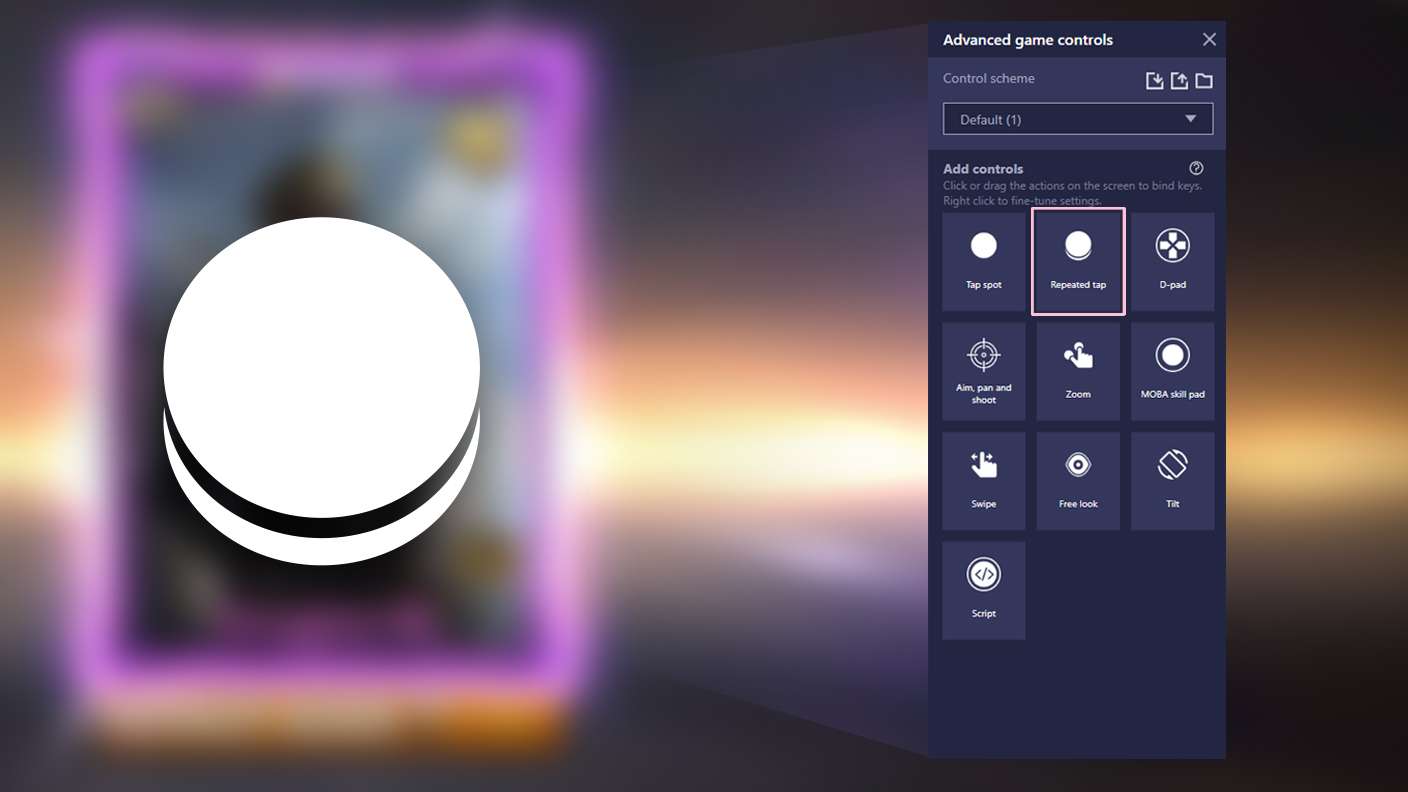
BlueStacks lets you master PewPew Plants—Rogue Garden with useful features like the Repeated Tap. Now you do not have to press the same key repeatedly to initiate an action. Just assign it to one key and you are good to go.
Read More

How to Download and Play PewPew Plants—Rogue Garden on PC or Mac

  • Download and install BlueStacks on your PC or Mac

  • Complete Google sign-in to access the Play Store, or do it later

  • Look for PewPew Plants—Rogue Garden in the search bar at the top right corner

  • Click to install PewPew Plants—Rogue Garden from the search results

  • Complete Google sign-in (if you skipped step 2) to install PewPew Plants—Rogue Garden

  • Click the PewPew Plants—Rogue Garden icon on the home screen to start playing

video
Watch Video

Minimum System Requirements

With BlueStacks 5, you can get started on a PC that fulfills the following requirements.

  • Operating System

    Microsoft Windows 7 or above, macOS 11 (Big Sur) or above

  • Processor

    Intel, AMD or Apple Silicon Processor

  • RAM

    at least 4GB

  • HDD

    10GB Free Disk Space

Note:

* You must be an Administrator on your PC. Up to date graphics drivers from Microsoft or the chipset vendor.

PewPew Plants—Rogue Garden - FAQs

  • How to play PewPew Plants—Rogue Garden on Windows PC & Mac?

    Play PewPew Plants—Rogue Garden on your PC or Mac by following these simple steps.

    • Click on 'Play PewPew Plants—Rogue Garden on PC’ to download BlueStacks
    • Install it and log-in to Google Play Store
    • Launch and play the game.
  • Why is BlueStacks the fastest and safest platform to play games on PC?

    BlueStacks respects your privacy and is always safe and secure to use. It does not carry any malware, spyware, or any sort of additional software that could harm your PC.

    It is engineered to optimize speed and performance for a seamless gaming experience.

  • What are PewPew Plants—Rogue Garden PC requirements?

    Minimum requirement to run PewPew Plants—Rogue Garden on your PC

    • OS: Microsoft Windows 7 or above MacOS 11 (Big Sur) or above
    • Processor: Intel, AMD or Apple Silicon Processor
    • RAM: Your PC must have at least 4GB of RAM. (Note that having 4GB or more disk space is not a substitute for RAM)
    • HDD: 10GB Free Disk Space.
    • You must be an Administrator on your PC.