TypeApp mail - email app

TypeApp mail - email app

Communication

| TypeApp LLC

Play on PC with BlueStacks or from our cloud

  • Overview
  • How to Download

Page Modified On: November 20, 2025

Run TypeApp mail - email app on PC or Mac

What’s better than using TypeApp mail – email app by TypeApp LLC? Well, try it on a big screen, on your PC or Mac, with BlueStacks to see the difference.

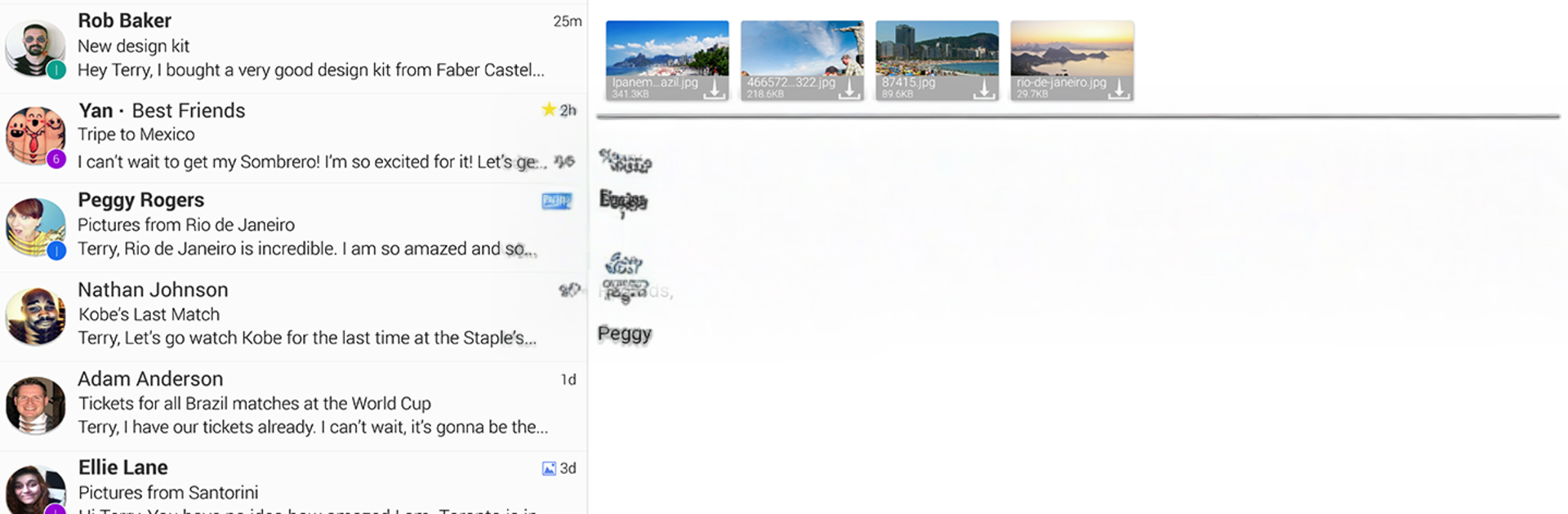
TypeApp feels like the tidy inbox a lot of folks wish the default mail app was. It pulls in mail from multiple accounts, including work servers, into one unified inbox and sets most of it up once they sign in. Messages arrive fast with real push, and there are quiet hours, custom sounds, snooze, even a quick switch that focuses on actual people so newsletters do not bury important notes. Clusters stand out too. It groups related emails into one expandable slot, so clearing promos or moving a whole sender to a folder takes a couple taps. There is VIP notification support, rich text formatting for nicer replies, and a simple mark-as-done flow that gets handled mail out of the way without deleting anything.

On a PC with BlueStacks, the big screen makes the unified inbox and color-coded accounts easier to scan, and typing long replies feels calmer with a full keyboard. The app has calendar and contacts sync for work accounts, configurable menus, wireless printing, and themes with a clean dark mode that can switch by time of day. Widgets and unread badges help on mobile, while security feels thoughtful with encryption, a passcode lock, and optional verification. Little touches, like service icons and contact photos, make the inbox quicker to parse, and smart filters for unread or starred keep focus tight. There is a lot here, yet it stays neat and not noisy.

Eager to take your app experience to the next level? Start right away by downloading BlueStacks on your PC or Mac.


How to Download and Run TypeApp mail - email app on PC or Mac

  • Download and install BlueStacks on your PC or Mac

  • Complete Google sign-in to access the Play Store, or do it later

  • Look for TypeApp mail - email app in the search bar at the top right corner

  • Click to install TypeApp mail - email app from the search results

  • Complete Google sign-in (if you skipped step 2) to install TypeApp mail - email app

  • Click the TypeApp mail - email app icon on the home screen to start playing

video
Watch Video

Minimum System Requirements

With BlueStacks 5, you can get started on a PC that fulfills the following requirements.

  • Operating System

    Microsoft Windows 7 or above, macOS 11 (Big Sur) or above

  • Processor

    Intel, AMD or Apple Silicon Processor

  • RAM

    at least 4GB

  • HDD

    10GB Free Disk Space

Note:

* You must be an Administrator on your PC. Up to date graphics drivers from Microsoft or the chipset vendor.

TypeApp mail - email app - FAQs

  • How to Run TypeApp mail - email app on Windows PC & Mac?

    Run TypeApp mail - email app on your PC or Mac by following these simple steps.

    • Click on ‘Download TypeApp mail - email app on PC’ to download BlueStacks
    • Install it and log-in to Google Play Store
    • Launch and run the app.
  • Why is BlueStacks the fastest and safest platform to play games on PC?

    BlueStacks respects your privacy and is always safe and secure to use. It does not carry any malware, spyware, or any sort of additional software that could harm your PC.

    It is engineered to optimize speed and performance for a seamless gaming experience.

  • What are TypeApp mail - email app PC requirements?

    Minimum requirement to run TypeApp mail - email app on your PC

    • OS: Microsoft Windows 7 and above:
    • Processor: Intel or AMD Processor:
    • RAM: Your PC must have at least 2GB of RAM. (Note that having 2GB or more disk space is not a substitute for RAM):
    • HDD: 5GB Free Disk Space.
    • You must be an Administrator on your PC.