Astronomy Events with Push

Astronomy Events with Push

Education

| Mohammad Odeh

Play on PC with BlueStacks or from our cloud

  • Overview
  • How to Download

Page Modified On: October 04, 2025

Run Astronomy Events with Push on PC or Mac

Let BlueStacks turn your PC, Mac, or laptop into the perfect home for Astronomy Events with Push, a fun Education app from Mohammad Odeh.

Astronomy Events with Push feels like a simple sky calandar that actually taps the shoulder when something worth looking up for is happening. It opens to a clean list of upcoming happenings, and tapping any item gives a short, plain explanation with timing so there is no guessing. Notifications pop up for events as they start, which is the whole point. There is also a News section with bite sized astronomy updates, and it sends alerts for the important stuff, like official notes about the first crescent being seen in a specific country. A dedicated crescent tab shows visibility predictions for the current year and logs what observers reported in previous months, which is neat for anyone who tracks lunar months or just likes chasing that thin moon.

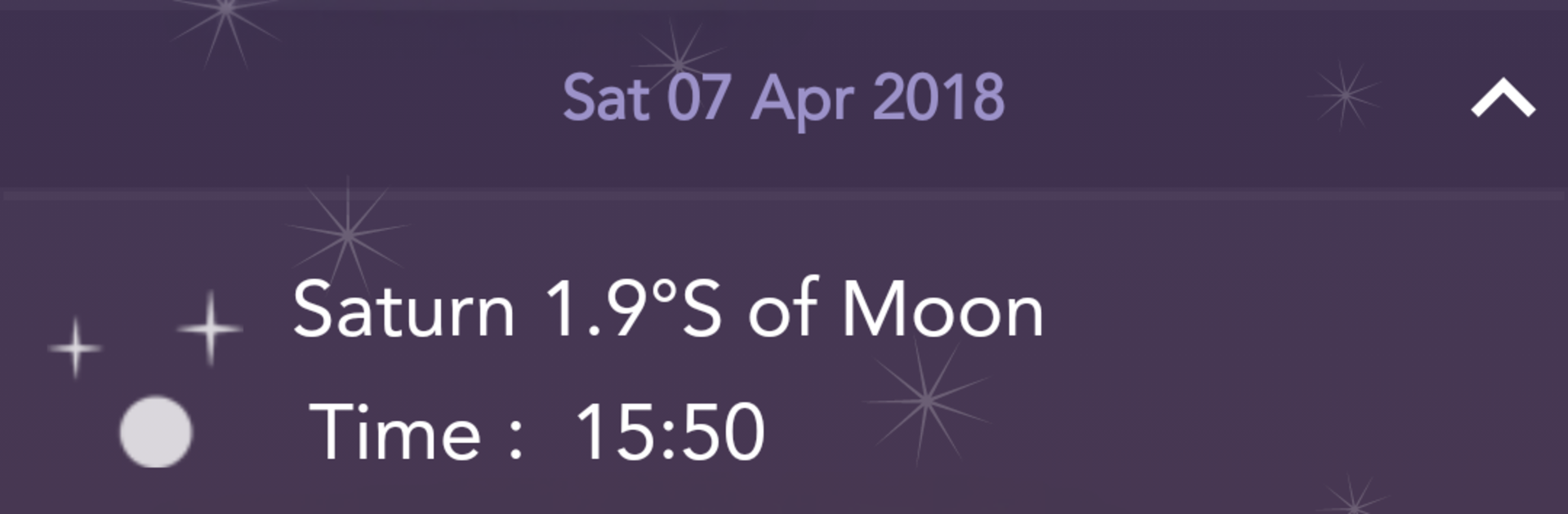
Running it on PC with BlueStacks makes it feel like a desk side dashboard. It is easy to glance at between tasks, and the bigger screen helps when planning the evening. The app covers the usual suspects and a few niche ones too: moon phases, solar and lunar eclipses, meteor showers, the Moon sliding near bright planets or stars, photogenic conjunctions, planetary oppositions, aphelion and perihelion dates for planets and some comets, greatest elongations, ascending and descending nodes, occultations of stars or asteroids, plus the seasonal markers like solstices and equinoxes. No clutter or fancy 3D skies, just straight info and timely nudges so someone knows when to step outside for a five minute look. It is practical, low effort, and does what it says without getting in thier way.

Big screen. Bigger performance. Use BlueStacks on your PC or Mac to run your favorite apps.

How to Download and Run Astronomy Events with Push on PC or Mac

  • Download and install BlueStacks on your PC or Mac

  • Complete Google sign-in to access the Play Store, or do it later

  • Look for Astronomy Events with Push in the search bar at the top right corner

  • Click to install Astronomy Events with Push from the search results

  • Complete Google sign-in (if you skipped step 2) to install Astronomy Events with Push

  • Click the Astronomy Events with Push icon on the home screen to start playing

video
Watch Video

Minimum System Requirements

With BlueStacks 5, you can get started on a PC that fulfills the following requirements.

  • Operating System

    Microsoft Windows 7 or above, macOS 11 (Big Sur) or above

  • Processor

    Intel, AMD or Apple Silicon Processor

  • RAM

    at least 4GB

  • HDD

    10GB Free Disk Space

Note:

* You must be an Administrator on your PC. Up to date graphics drivers from Microsoft or the chipset vendor.

Astronomy Events with Push - FAQs

  • How to Run Astronomy Events with Push on Windows PC & Mac?

    Run Astronomy Events with Push on your PC or Mac by following these simple steps.

    • Click on ‘Download Astronomy Events with Push on PC’ to download BlueStacks
    • Install it and log-in to Google Play Store
    • Launch and run the app.
  • Why is BlueStacks the fastest and safest platform to play games on PC?

    BlueStacks respects your privacy and is always safe and secure to use. It does not carry any malware, spyware, or any sort of additional software that could harm your PC.

    It is engineered to optimize speed and performance for a seamless gaming experience.

  • What are Astronomy Events with Push PC requirements?

    Minimum requirement to run Astronomy Events with Push on your PC

    • OS: Microsoft Windows 7 and above:
    • Processor: Intel or AMD Processor:
    • RAM: Your PC must have at least 2GB of RAM. (Note that having 2GB or more disk space is not a substitute for RAM):
    • HDD: 5GB Free Disk Space.
    • You must be an Administrator on your PC.