Early Learning App For Kids

Early Learning App For Kids

Education

| Early Learn

Play on PC with BlueStacks or from our cloud

  • Overview
  • How to Download

Page Modified On: August 25, 2025

Run Early Learning App For Kids on PC or Mac

Upgrade your experience. Try Early Learning App For Kids, the fantastic Education app from Early Learn, from the comfort of your laptop, PC, or Mac, only on BlueStacks.

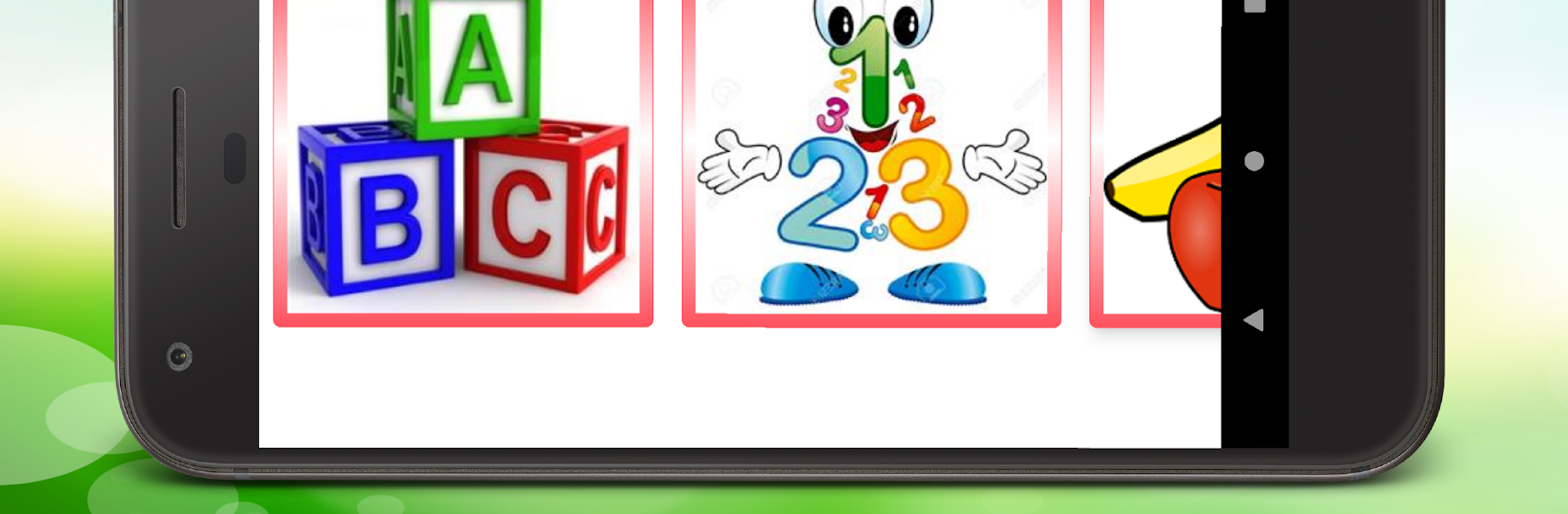
So, Early Learning App For Kids is one of those apps that’s just got a whole bunch of classic learning stuff for little ones, but it pulls it all together in this bright package that’s pretty upbeat. Kids get to play around with the basics—ABC, numbers, animals, fruits, and all those common preschool things. The app’s a mix of tracing letters, listening to sounds, and matching games, which is nice because it switches things up so kids don’t get bored staring at the same thing. Nursery rhymes are included too, which can keep things lively if someone’s got a short attention span.

The app’s interface actually stands out. It keeps the fun stuff front and center while tucking away any menus or buttons that might distract or let kids accidentally exit, so they can do their thing without random pop-ups or outside ads. And no in-app purchases, which is always a relief when handing over the mouse or touchscreen. There are some little rewards like stickers and toys too as kids finish up activities—it’s simple, but young kids seem to really get a kick out of those. On PC with BlueStacks, everything’s bigger and easier to tap, so it works for kids who want to use something larger than a phone or tablet. The app even lets adults poke around in the settings, check progress, or tweak how the tracing and sounds work, so it’s not just a set-and-forget thing. If someone’s after a kid-friendly way to practice the early learning basics, this packs a lot in without making things complicated.

Ready to experience Early Learning App For Kids on a bigger screen, in all its glory? Download BlueStacks now.


How to Download and Run Early Learning App For Kids on PC or Mac

  • Download and install BlueStacks on your PC or Mac

  • Complete Google sign-in to access the Play Store, or do it later

  • Look for Early Learning App For Kids in the search bar at the top right corner

  • Click to install Early Learning App For Kids from the search results

  • Complete Google sign-in (if you skipped step 2) to install Early Learning App For Kids

  • Click the Early Learning App For Kids icon on the home screen to start playing

video
Watch Video

Minimum System Requirements

With BlueStacks 5, you can get started on a PC that fulfills the following requirements.

  • Operating System

    Microsoft Windows 7 or above, macOS 11 (Big Sur) or above

  • Processor

    Intel, AMD or Apple Silicon Processor

  • RAM

    at least 4GB

  • HDD

    10GB Free Disk Space

Note:

* You must be an Administrator on your PC. Up to date graphics drivers from Microsoft or the chipset vendor.

Early Learning App For Kids - FAQs

  • How to Run Early Learning App For Kids on Windows PC & Mac?

    Run Early Learning App For Kids on your PC or Mac by following these simple steps.

    • Click on ‘Download Early Learning App For Kids on PC’ to download BlueStacks
    • Install it and log-in to Google Play Store
    • Launch and run the app.
  • Why is BlueStacks the fastest and safest platform to play games on PC?

    BlueStacks respects your privacy and is always safe and secure to use. It does not carry any malware, spyware, or any sort of additional software that could harm your PC.

    It is engineered to optimize speed and performance for a seamless gaming experience.

  • What are Early Learning App For Kids PC requirements?

    Minimum requirement to run Early Learning App For Kids on your PC

    • OS: Microsoft Windows 7 and above:
    • Processor: Intel or AMD Processor:
    • RAM: Your PC must have at least 2GB of RAM. (Note that having 2GB or more disk space is not a substitute for RAM):
    • HDD: 5GB Free Disk Space.
    • You must be an Administrator on your PC.