eClass Parent App
eClass Parent App

eClass Parent App

Education

| BroadLearning Education (Asia) Limited

Play on PC with BlueStacks or from our cloud

  • Overview
  • How to Download

Page Modified On: November 20, 2025

Run eClass Parent App on PC or Mac

Let BlueStacks turn your PC, Mac, or laptop into the perfect home for eClass Parent App, a fun Education app from BroadLearning Education (Asia) Limited.

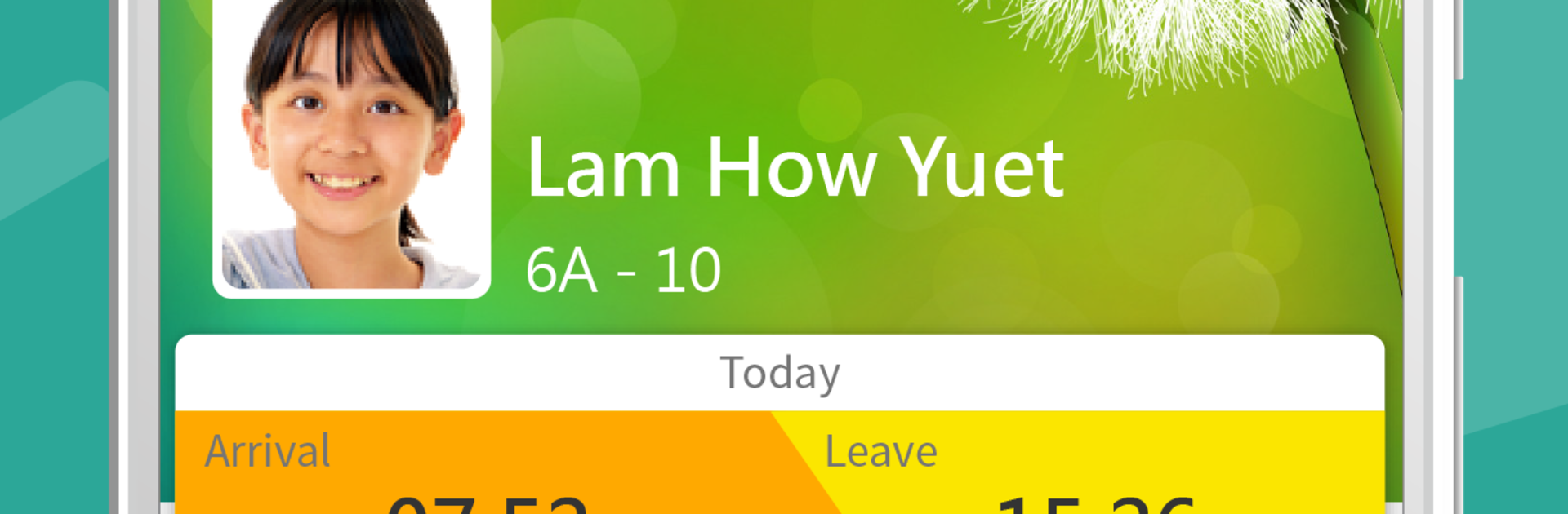
eClass Parent App feels like a tidy control panel for school life, the kind that keeps parents from juggling five different places for the same info. On a PC through BlueStacks it is even nicer, since messages, calendars, and forms sit on a big screen and are easy to click through. The timetable section makes it simple to check what is coming up each day, and the homework bit gives a quick sense of progress without digging. There is a little library tool to reserve books for younger kids, attendance alerts so parents know when a child gets to school or heads out, and a sign up area for activities that looks like it was built to stop paper slips from getting lost.

Most of the back and forth with school lives here. Notices arrive, parents sign them, payments are handled without hunting for cash, and leave requests take a minute instead of a morning. There is group messaging with teachers, access to the school email inbox, a school calender for events, plus photo and video galleries that the school shares. There is even a small shop area for school items. The iPortfolio piece is handy for keeping track of what a student is doing beyond lessons. Features can vary by what the school uses, and parents do need an account from the school to get in, so access depends on that setup.

Ready to experience eClass Parent App on a bigger screen, in all its glory? Download BlueStacks now.


How to Download and Run eClass Parent App on PC or Mac

  • Download and install BlueStacks on your PC or Mac

  • Complete Google sign-in to access the Play Store, or do it later

  • Look for eClass Parent App in the search bar at the top right corner

  • Click to install eClass Parent App from the search results

  • Complete Google sign-in (if you skipped step 2) to install eClass Parent App

  • Click the eClass Parent App icon on the home screen to start playing

video
Watch Video

Minimum System Requirements

With BlueStacks 5, you can get started on a PC that fulfills the following requirements.

  • Operating System

    Microsoft Windows 7 or above, macOS 11 (Big Sur) or above

  • Processor

    Intel, AMD or Apple Silicon Processor

  • RAM

    at least 4GB

  • HDD

    10GB Free Disk Space

Note:

* You must be an Administrator on your PC. Up to date graphics drivers from Microsoft or the chipset vendor.

eClass Parent App - FAQs

  • How to Run eClass Parent App on Windows PC & Mac?

    Run eClass Parent App on your PC or Mac by following these simple steps.

    • Click on ‘Download eClass Parent App on PC’ to download BlueStacks
    • Install it and log-in to Google Play Store
    • Launch and run the app.
  • Why is BlueStacks the fastest and safest platform to play games on PC?

    BlueStacks respects your privacy and is always safe and secure to use. It does not carry any malware, spyware, or any sort of additional software that could harm your PC.

    It is engineered to optimize speed and performance for a seamless gaming experience.

  • What are eClass Parent App PC requirements?

    Minimum requirement to run eClass Parent App on your PC

    • OS: Microsoft Windows 7 and above:
    • Processor: Intel or AMD Processor:
    • RAM: Your PC must have at least 2GB of RAM. (Note that having 2GB or more disk space is not a substitute for RAM):
    • HDD: 5GB Free Disk Space.
    • You must be an Administrator on your PC.