English Verbs
English Verbs

English Verbs

Education

| Studentool

Play on PC with BlueStacks or from our cloud

  • Overview
  • How to Download

Page Modified On: July 21, 2025

Run English Verbs on PC or Mac

Let BlueStacks turn your PC, Mac, or laptop into the perfect home for English Verbs, a fun Education app from Universk.

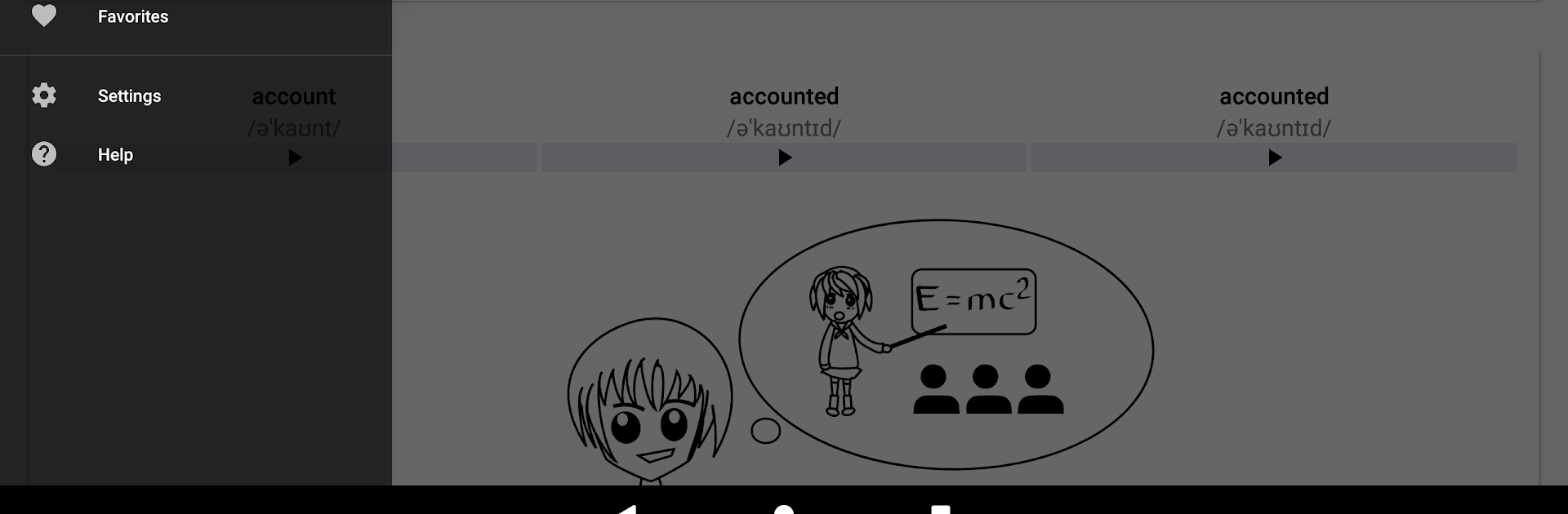
So, playing around with English Verbs on PC (it works smoothly through BlueStacks), it’s kind of like having a whole library of verbs right at your fingertips, without any of the old-fashioned grammar book hassle. Scrolling through, there are just tons of verbs — and not just regular ones, all those oddball irregular verbs show up too, fully sorted. Each verb pops up with all its different forms like past, participle, present, and so on, and the app breaks down the different tenses for you, so it’s not just the basics. Everything’s laid out in a clean way, but you can switch things up with card view or a simple list if you prefer skimming.

The thing that’s clever is you can favorite the verbs you’re learning or just want to keep checking, and there’s even a way to make your own personal verb list, so you don’t lose track. It’s helpful if you’re into examples and pronunciations, since those are there too. Some folks might care that the app’s set up for lots of different languages — so you get translations in a bunch, not just English. Searching is quick, and there are options to sort by how common a verb is or if it’s regular or irregular, which cuts down a lot of scrolling. Notifications can remind you to keep at it, but it doesn’t nag. All in all, it doesn’t feel stuffy or textbook-like. Good if you just want to brush up or make sense of all those weird verb endings without getting bogged down.

Eager to take your app experience to the next level? Start right away by downloading BlueStacks on your PC or Mac.


How to Download and Run English Verbs on PC or Mac

  • Download and install BlueStacks on your PC or Mac

  • Complete Google sign-in to access the Play Store, or do it later

  • Look for English Verbs in the search bar at the top right corner

  • Click to install English Verbs from the search results

  • Complete Google sign-in (if you skipped step 2) to install English Verbs

  • Click the English Verbs icon on the home screen to start playing

video
Watch Video

Minimum System Requirements

With BlueStacks 5, you can get started on a PC that fulfills the following requirements.

  • Operating System

    Microsoft Windows 7 or above, macOS 11 (Big Sur) or above

  • Processor

    Intel, AMD or Apple Silicon Processor

  • RAM

    at least 4GB

  • HDD

    10GB Free Disk Space

Note:

* You must be an Administrator on your PC. Up to date graphics drivers from Microsoft or the chipset vendor.

English Verbs - FAQs

  • How to Run English Verbs on Windows PC & Mac?

    Run English Verbs on your PC or Mac by following these simple steps.

    • Click on ‘Download English Verbs on PC’ to download BlueStacks
    • Install it and log-in to Google Play Store
    • Launch and run the app.
  • Why is BlueStacks the fastest and safest platform to play games on PC?

    BlueStacks respects your privacy and is always safe and secure to use. It does not carry any malware, spyware, or any sort of additional software that could harm your PC.

    It is engineered to optimize speed and performance for a seamless gaming experience.

  • What are English Verbs PC requirements?

    Minimum requirement to run English Verbs on your PC

    • OS: Microsoft Windows 7 and above:
    • Processor: Intel or AMD Processor:
    • RAM: Your PC must have at least 2GB of RAM. (Note that having 2GB or more disk space is not a substitute for RAM):
    • HDD: 5GB Free Disk Space.
    • You must be an Administrator on your PC.