KidsOnline
KidsOnline

KidsOnline

Education

| OMT

Play on PC with BlueStacks or from our cloud

  • Overview
  • How to Download

Page Modified On: October 23, 2025

Run KidsOnline on PC or Mac

Multitask effortlessly on your PC or Mac as you try out KidsOnline, a Education app by OMT on BlueStacks.

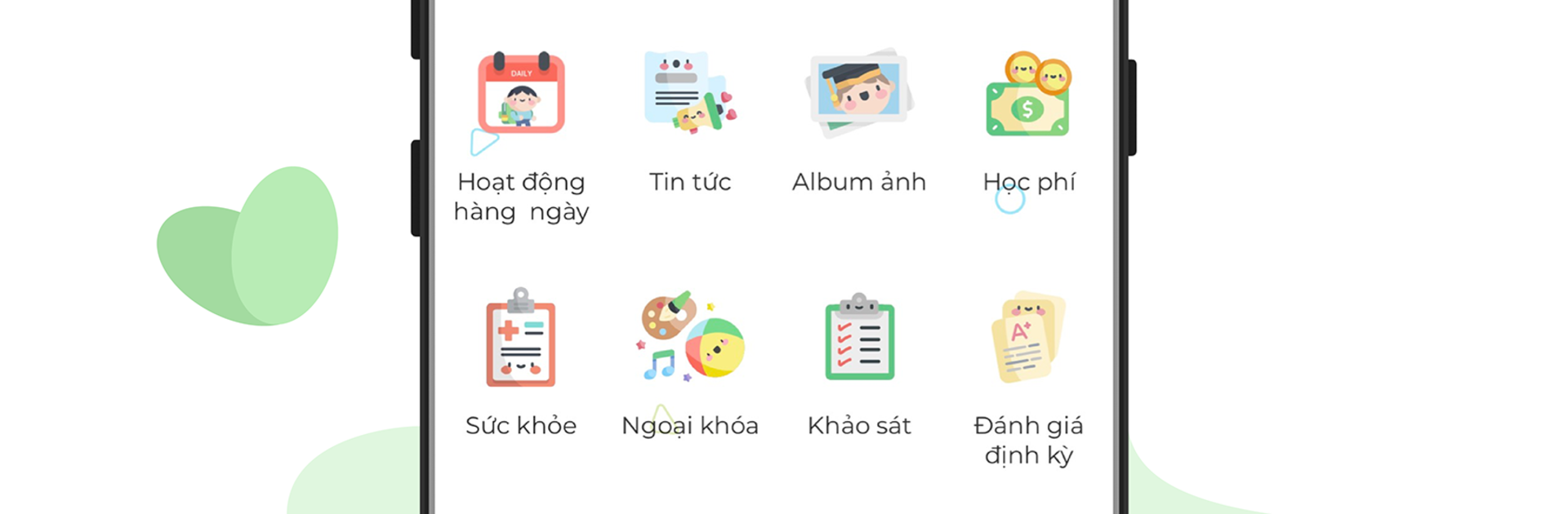
KidsOnline feels like a clean hub for school life, built for parents who want everything in one place. It shows what the child is doing in class, pulls in class and school announcements, and keeps a simple gallery of photos that actually loads fast. On a bigger screen with BlueStacks, the timeline and pictures are easier to read, so checking updates between other windows is not a hassle. The app is not flashy, just practical, and that is kind of the point.

There is a full section for health info where height and weight are tracked over time, so growth charts are not buried in messages. Basic health updates sit there too, which helps when someone needs the latest note from school. Pickup is handled inside the app as well. Parents can register who is allowed to collect the child, and there is support for bus or taxi pickup when that is needed. Signing up for extracurriculars is right there, no paper slips, no chasing forms. Notifications make sense, and the layout is simple enough that someone could teach a grandparent to use it in ten minutes. On PC, typing names and filling those forms is quicker, and seeing a week of updates on a wide screen just reduces the noise of juggling chats.

Switch to BlueStacks and make the most of your apps on your PC or Mac.

How to Download and Run KidsOnline on PC or Mac

  • Download and install BlueStacks on your PC or Mac

  • Complete Google sign-in to access the Play Store, or do it later

  • Look for KidsOnline in the search bar at the top right corner

  • Click to install KidsOnline from the search results

  • Complete Google sign-in (if you skipped step 2) to install KidsOnline

  • Click the KidsOnline icon on the home screen to start playing

video
Watch Video

Minimum System Requirements

With BlueStacks 5, you can get started on a PC that fulfills the following requirements.

  • Operating System

    Microsoft Windows 7 or above, macOS 11 (Big Sur) or above

  • Processor

    Intel, AMD or Apple Silicon Processor

  • RAM

    at least 4GB

  • HDD

    10GB Free Disk Space

Note:

* You must be an Administrator on your PC. Up to date graphics drivers from Microsoft or the chipset vendor.

KidsOnline - FAQs

  • How to Run KidsOnline on Windows PC & Mac?

    Run KidsOnline on your PC or Mac by following these simple steps.

    • Click on ‘Download KidsOnline on PC’ to download BlueStacks
    • Install it and log-in to Google Play Store
    • Launch and run the app.
  • Why is BlueStacks the fastest and safest platform to play games on PC?

    BlueStacks respects your privacy and is always safe and secure to use. It does not carry any malware, spyware, or any sort of additional software that could harm your PC.

    It is engineered to optimize speed and performance for a seamless gaming experience.

  • What are KidsOnline PC requirements?

    Minimum requirement to run KidsOnline on your PC

    • OS: Microsoft Windows 7 and above:
    • Processor: Intel or AMD Processor:
    • RAM: Your PC must have at least 2GB of RAM. (Note that having 2GB or more disk space is not a substitute for RAM):
    • HDD: 5GB Free Disk Space.
    • You must be an Administrator on your PC.