LightSchool – School schedule

LightSchool – School schedule

Education

| ChurkinApps

Play on PC with BlueStacks or from our cloud

  • Overview
  • How to Download

Page Modified On: September 19, 2025

Run LightSchool – School schedule on PC or Mac

Multitask effortlessly on your PC or Mac as you try out LightSchool – School schedule, a Education app by ChurkinApps on BlueStacks.

About the App

LightSchool – School schedule by ChurkinApps is an Education app built to take the chaos out of your school day. It keeps your classes, timing, and study tools in one tidy place, so you always know what’s happening now and what’s coming next. Prefer typing on a keyboard? You can also open it on your computer with BlueStacks for an easy, distraction-free view.

App Features

  • Smart Schedule Management: Create your class timetable in minutes, or import and export it to share or move between devices without starting from scratch.
  • Automatic Bell Timing: Set up bell times the way your school runs, and let the app handle the rest—no more guessing when a period ends or the next one starts.
  • Clear Time Counters: See a live countdown to the beginning or end of the current class, plus how much study time is left today.
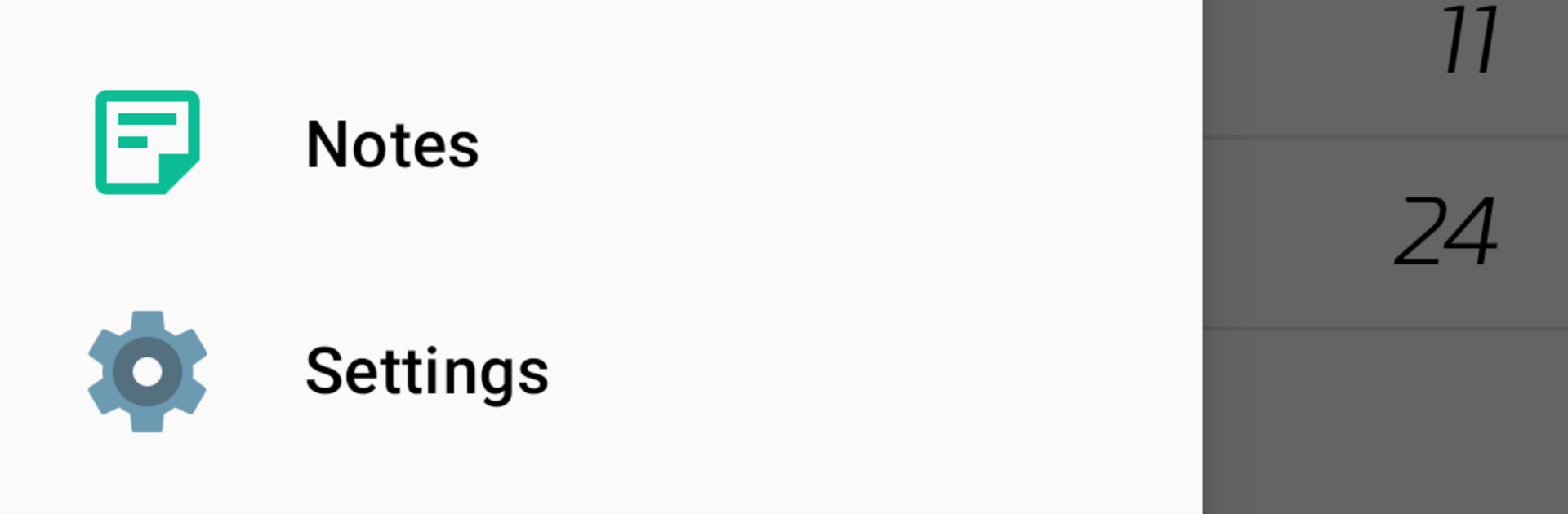
  • Math Helper Toolkit: Need quick trig? Instantly get sine, cosine, tangent, and cotangent values by angle, along with handy theoretical notes for fast understanding.
  • Made for Students and Teachers: Works great whether you’re following a schedule or managing one. It’s flexible enough for classrooms and personal study routines.
  • Simple, Fast, Free: Clean design, no clutter, and it won’t slow you down. Everything you need, without extra hoops to jump through.

Ready to experience LightSchool – School schedule on a bigger screen, in all its glory? Download BlueStacks now.

How to Download and Run LightSchool – School schedule on PC or Mac

  • Download and install BlueStacks on your PC or Mac

  • Complete Google sign-in to access the Play Store, or do it later

  • Look for LightSchool – School schedule in the search bar at the top right corner

  • Click to install LightSchool – School schedule from the search results

  • Complete Google sign-in (if you skipped step 2) to install LightSchool – School schedule

  • Click the LightSchool – School schedule icon on the home screen to start playing

video
Watch Video

Minimum System Requirements

With BlueStacks 5, you can get started on a PC that fulfills the following requirements.

  • Operating System

    Microsoft Windows 7 or above, macOS 11 (Big Sur) or above

  • Processor

    Intel, AMD or Apple Silicon Processor

  • RAM

    at least 4GB

  • HDD

    10GB Free Disk Space

Note:

* You must be an Administrator on your PC. Up to date graphics drivers from Microsoft or the chipset vendor.

LightSchool – School schedule - FAQs

  • How to Run LightSchool – School schedule on Windows PC & Mac?

    Run LightSchool – School schedule on your PC or Mac by following these simple steps.

    • Click on ‘Download LightSchool – School schedule on PC’ to download BlueStacks
    • Install it and log-in to Google Play Store
    • Launch and run the app.
  • Why is BlueStacks the fastest and safest platform to play games on PC?

    BlueStacks respects your privacy and is always safe and secure to use. It does not carry any malware, spyware, or any sort of additional software that could harm your PC.

    It is engineered to optimize speed and performance for a seamless gaming experience.

  • What are LightSchool – School schedule PC requirements?

    Minimum requirement to run LightSchool – School schedule on your PC

    • OS: Microsoft Windows 7 and above:
    • Processor: Intel or AMD Processor:
    • RAM: Your PC must have at least 2GB of RAM. (Note that having 2GB or more disk space is not a substitute for RAM):
    • HDD: 5GB Free Disk Space.
    • You must be an Administrator on your PC.