myHWU
myHWU

myHWU

Education

| myday

Play on PC with BlueStacks or from our cloud

  • Overview
  • How to Download

Page Modified On: September 12, 2025

Run myHWU on PC or Mac

Let BlueStacks turn your PC, Mac, or laptop into the perfect home for myHWU, a fun Education app from myday.

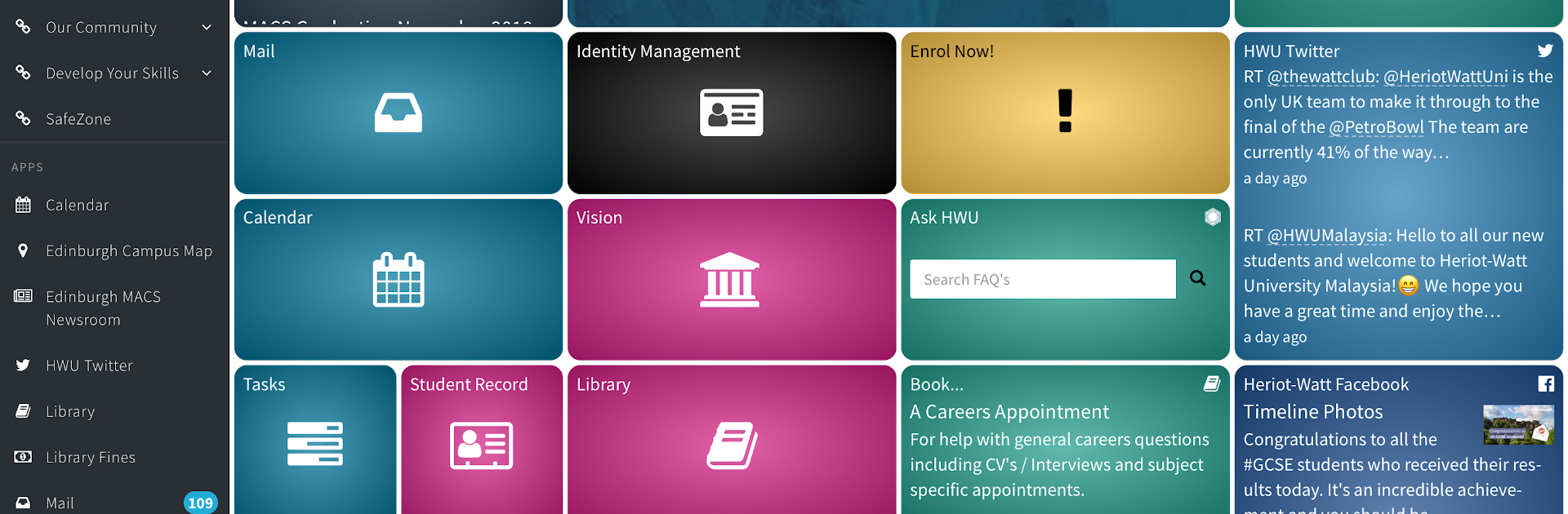
myHWU feels like a single hub for Heriot-Watt life, the kind that keeps a student from bouncing between a dozen tabs. It pulls the usual important stuff into one place and keeps it tidy. There is a light email view so messages are quick to scan, a simple day calendar that shows what is coming up, and course details from Vision without digging around. The Resource Booker is straightforward, pick a study room, pick a time, done. Campus maps list the main buildings and landmarks so a new student does not wander in circles, and the campus news feed keeps an eye on what is happening across the UK, Malaysia, and Dubai. There is LinkedIn Learning tucked in for quick lessons, and the library search gets to databases without wading through a big website. The dashboard is customisable and those changes sync, so tiles moved on one device show up the same everywhere.

On a PC with BlueStacks, it acts like a clean dashboard window. The bigger screen makes the calendar and maps easier to read, typing email is faster with a keyboard, and dragging tiles around to set up a personal layout feels less fiddly. Tailored content quietly pushes relevant notices and links to the front, which helps cut through noise and missed deadlines. Nothing fancy, just clear tools that behave the way a student expects.

Switch to BlueStacks and make the most of your apps on your PC or Mac.

How to Download and Run myHWU on PC or Mac

  • Download and install BlueStacks on your PC or Mac

  • Complete Google sign-in to access the Play Store, or do it later

  • Look for myHWU in the search bar at the top right corner

  • Click to install myHWU from the search results

  • Complete Google sign-in (if you skipped step 2) to install myHWU

  • Click the myHWU icon on the home screen to start playing

video
Watch Video

Minimum System Requirements

With BlueStacks 5, you can get started on a PC that fulfills the following requirements.

  • Operating System

    Microsoft Windows 7 or above, macOS 11 (Big Sur) or above

  • Processor

    Intel, AMD or Apple Silicon Processor

  • RAM

    at least 4GB

  • HDD

    10GB Free Disk Space

Note:

* You must be an Administrator on your PC. Up to date graphics drivers from Microsoft or the chipset vendor.

myHWU - FAQs

  • How to Run myHWU on Windows PC & Mac?

    Run myHWU on your PC or Mac by following these simple steps.

    • Click on ‘Download myHWU on PC’ to download BlueStacks
    • Install it and log-in to Google Play Store
    • Launch and run the app.
  • Why is BlueStacks the fastest and safest platform to play games on PC?

    BlueStacks respects your privacy and is always safe and secure to use. It does not carry any malware, spyware, or any sort of additional software that could harm your PC.

    It is engineered to optimize speed and performance for a seamless gaming experience.

  • What are myHWU PC requirements?

    Minimum requirement to run myHWU on your PC

    • OS: Microsoft Windows 7 and above:
    • Processor: Intel or AMD Processor:
    • RAM: Your PC must have at least 2GB of RAM. (Note that having 2GB or more disk space is not a substitute for RAM):
    • HDD: 5GB Free Disk Space.
    • You must be an Administrator on your PC.