TOEFL English Vocabulary Cards

TOEFL English Vocabulary Cards

Education

| Magoosh

Play on PC with BlueStacks or from our cloud

  • Overview
  • How to Download

Page Modified On: January 06, 2026

Run TOEFL English Vocabulary Cards on PC or Mac

Why limit yourself to your small screen on the phone? Run TOEFL English Vocabulary Cards, an app by Magoosh, best experienced on your PC or Mac with BlueStacks, the world’s #1 Android emulator.

TOEFL English Vocabulary Cards feels like a straightforward study buddy that sticks to what matters. It gives 600 TOEFL words, organized into easy, intermediate, and advanced decks, with a clean card layout that shows a clear definition and a short example sentence. The best bit is the spaced repetition quietly doing its job in the background. Words that need more practice pop up more often, words that are solid show up less, so time does not get wasted scrolling through stuff already learned.

Everything is tracked, so progress does not feel vague. A Magoosh login keeps the study history synced across devices, which makes using it on a PC with BlueStacks surprisingly handy. On a bigger screen the sentences are easier to skim, and clicking through cards with a mouse feels quick and calm. The set is intentionally limited to 600, chosen by TOEFL tutors, so it feels manageable rather than endless. Explanations read like they were written by teachers who actually prepare students for the test, not pulled from a random dictionary.

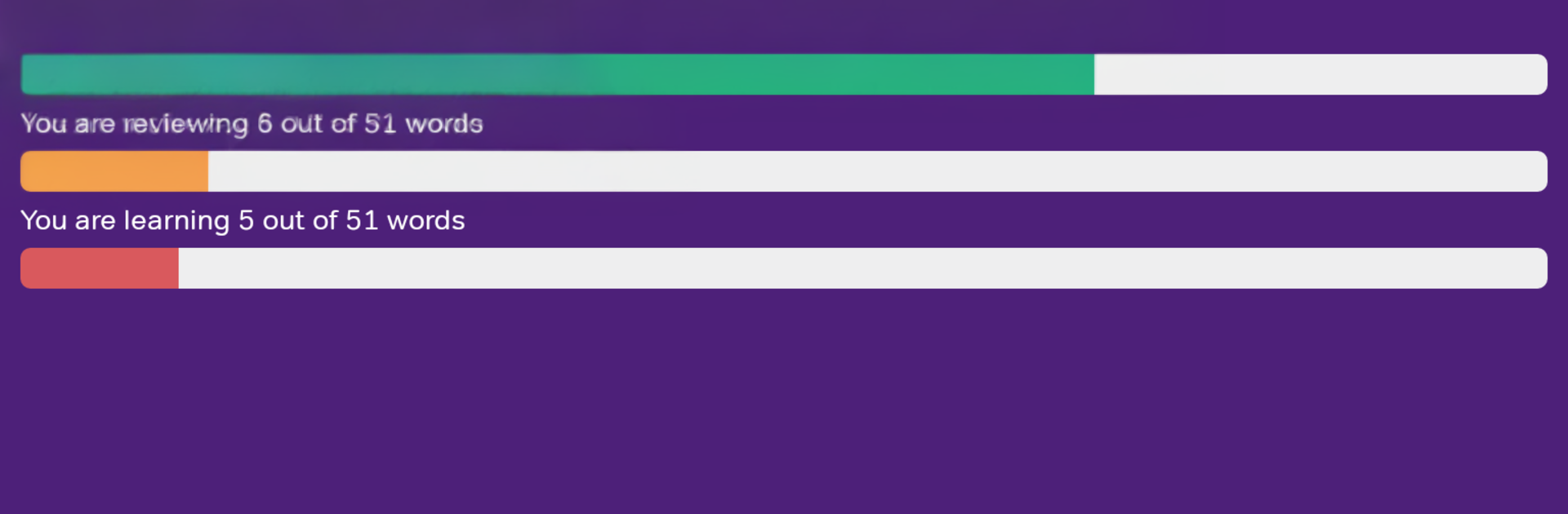
It suits short bursts or longer blocks. Someone can review ten cards between tasks or grind through a full deck before dinner. There is no flashy game layer, just a simple know, learning, do not know flow that keeps momentum without drama. If a person wants focused vocab practice without extra noise, this does what it says and stays out of the way.

Ready to experience TOEFL English Vocabulary Cards on a bigger screen, in all its glory? Download BlueStacks now.


How to Download and Run TOEFL English Vocabulary Cards on PC or Mac

  • Download and install BlueStacks on your PC or Mac

  • Complete Google sign-in to access the Play Store, or do it later

  • Look for TOEFL English Vocabulary Cards in the search bar at the top right corner

  • Click to install TOEFL English Vocabulary Cards from the search results

  • Complete Google sign-in (if you skipped step 2) to install TOEFL English Vocabulary Cards

  • Click the TOEFL English Vocabulary Cards icon on the home screen to start playing

video
Watch Video

Minimum System Requirements

With BlueStacks 5, you can get started on a PC that fulfills the following requirements.

  • Operating System

    Microsoft Windows 7 or above, macOS 11 (Big Sur) or above

  • Processor

    Intel, AMD or Apple Silicon Processor

  • RAM

    at least 4GB

  • HDD

    10GB Free Disk Space

Note:

* You must be an Administrator on your PC. Up to date graphics drivers from Microsoft or the chipset vendor.

TOEFL English Vocabulary Cards - FAQs

  • How to Run TOEFL English Vocabulary Cards on Windows PC & Mac?

    Run TOEFL English Vocabulary Cards on your PC or Mac by following these simple steps.

    • Click on ‘Download TOEFL English Vocabulary Cards on PC’ to download BlueStacks
    • Install it and log-in to Google Play Store
    • Launch and run the app.
  • Why is BlueStacks the fastest and safest platform to play games on PC?

    BlueStacks respects your privacy and is always safe and secure to use. It does not carry any malware, spyware, or any sort of additional software that could harm your PC.

    It is engineered to optimize speed and performance for a seamless gaming experience.

  • What are TOEFL English Vocabulary Cards PC requirements?

    Minimum requirement to run TOEFL English Vocabulary Cards on your PC

    • OS: Microsoft Windows 7 and above:
    • Processor: Intel or AMD Processor:
    • RAM: Your PC must have at least 2GB of RAM. (Note that having 2GB or more disk space is not a substitute for RAM):
    • HDD: 5GB Free Disk Space.
    • You must be an Administrator on your PC.