Victoria University App

Victoria University App

Education

| Victoria University

Play on PC with BlueStacks or from our cloud

  • Overview
  • How to Download

Page Modified On: November 03, 2025

Run Victoria University App on PC or Mac

Upgrade your experience. Try Victoria University App, the fantastic Education app from Victoria University, from the comfort of your laptop, PC, or Mac, only on BlueStacks.

About the App

The Victoria University App keeps your uni life organized in one clean, simple place. Whether you study at VU or VU Polytechnic, it brings your classes, assessments, grades, and campus tools together so you don’t have to jump between tabs. Prefer a bigger screen sometimes? You can use it through BlueStacks on your computer as well.

App Features

  • VU Collaborate
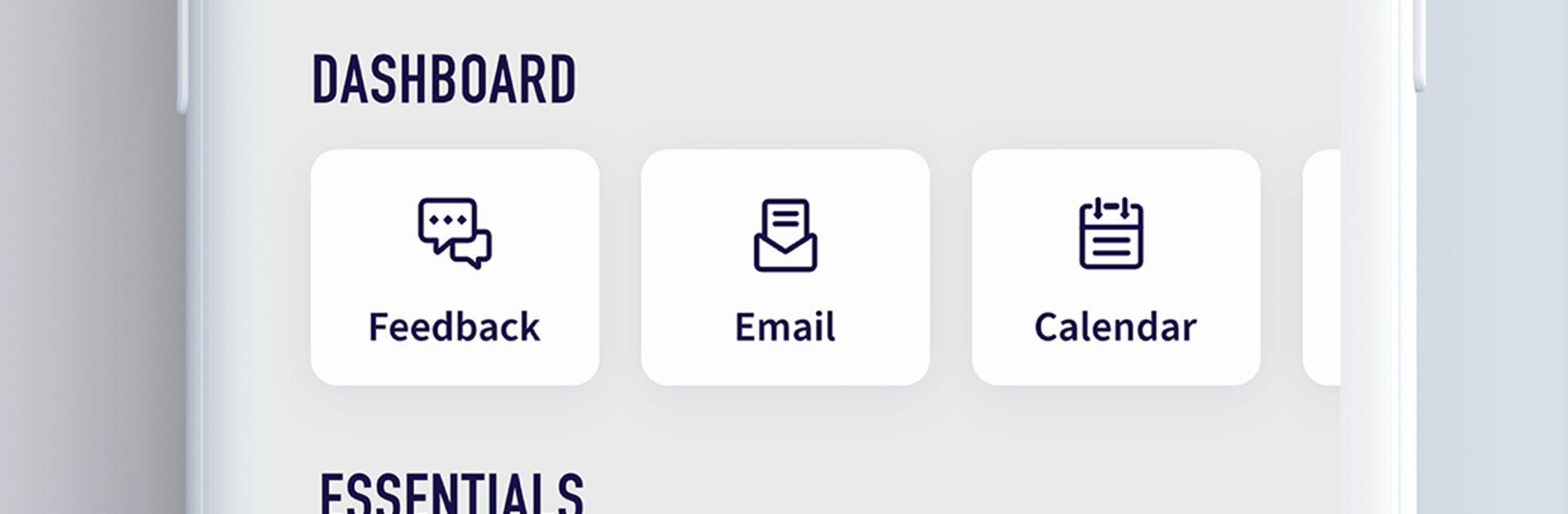
    See current and past unit content, assessment briefs, grades, and messages from your teachers—all from one dashboard.

  • Planner and Reminders
    Know what’s due next and what class is coming up. Get helpful nudges so deadlines don’t sneak up on you.

  • Timetable at a Glance
    Check your day or week schedule in seconds, with quick access to upcoming classes.

  • MyVU Access
    Jump straight into key MyVU tools without digging around for shortcuts.

  • Learning Hub Bookings
    Add what you need, book sessions, and confirm requirements for your study and course essentials.

  • Interactive Campus Map
    Find buildings fast and locate practical spots like bathrooms, elevators, accessible entrances, and stairs across VU campuses.

  • Digital Student ID
    Carry your student card on your phone and use it in places like the VU Library.

  • Services and Support
    Browse a wide range of VU services—Library, ITS, Student Life, Support, and more—whenever you need them.

  • Games and Surveys
    Take quick breaks with light activities and share feedback through in-app surveys.

  • Sign-in and Guest Access
    Log in with your VU student ID and password. Staff can sign in too. No credentials yet? Continue as a Guest to use maps and browse services.

Ready to experience Victoria University App on a bigger screen, in all its glory? Download BlueStacks now.


How to Download and Run Victoria University App on PC or Mac

  • Download and install BlueStacks on your PC or Mac

  • Complete Google sign-in to access the Play Store, or do it later

  • Look for Victoria University App in the search bar at the top right corner

  • Click to install Victoria University App from the search results

  • Complete Google sign-in (if you skipped step 2) to install Victoria University App

  • Click the Victoria University App icon on the home screen to start playing

video
Watch Video

Minimum System Requirements

With BlueStacks 5, you can get started on a PC that fulfills the following requirements.

  • Operating System

    Microsoft Windows 7 or above, macOS 11 (Big Sur) or above

  • Processor

    Intel, AMD or Apple Silicon Processor

  • RAM

    at least 4GB

  • HDD

    10GB Free Disk Space

Note:

* You must be an Administrator on your PC. Up to date graphics drivers from Microsoft or the chipset vendor.

Victoria University App - FAQs

  • How to Run Victoria University App on Windows PC & Mac?

    Run Victoria University App on your PC or Mac by following these simple steps.

    • Click on ‘Download Victoria University App on PC’ to download BlueStacks
    • Install it and log-in to Google Play Store
    • Launch and run the app.
  • Why is BlueStacks the fastest and safest platform to play games on PC?

    BlueStacks respects your privacy and is always safe and secure to use. It does not carry any malware, spyware, or any sort of additional software that could harm your PC.

    It is engineered to optimize speed and performance for a seamless gaming experience.

  • What are Victoria University App PC requirements?

    Minimum requirement to run Victoria University App on your PC

    • OS: Microsoft Windows 7 and above:
    • Processor: Intel or AMD Processor:
    • RAM: Your PC must have at least 2GB of RAM. (Note that having 2GB or more disk space is not a substitute for RAM):
    • HDD: 5GB Free Disk Space.
    • You must be an Administrator on your PC.