English for Kids Learn & Play

English for Kids Learn & Play

Educational

| Atlas4apps.com

Play on PC with BlueStacks or from our cloud

  • Overview
  • Game Features
  • How to Play

Page Modified On: September 02, 2025

Play English for Kids Learn & Play on PC or Mac

From the innovators and creators at Atlas4apps.com, English for Kids Learn & Play is another fun addition to the World of Educational games. Go beyond your mobile screen and play it bigger and better on your PC or Mac. An immersive experience awaits you.

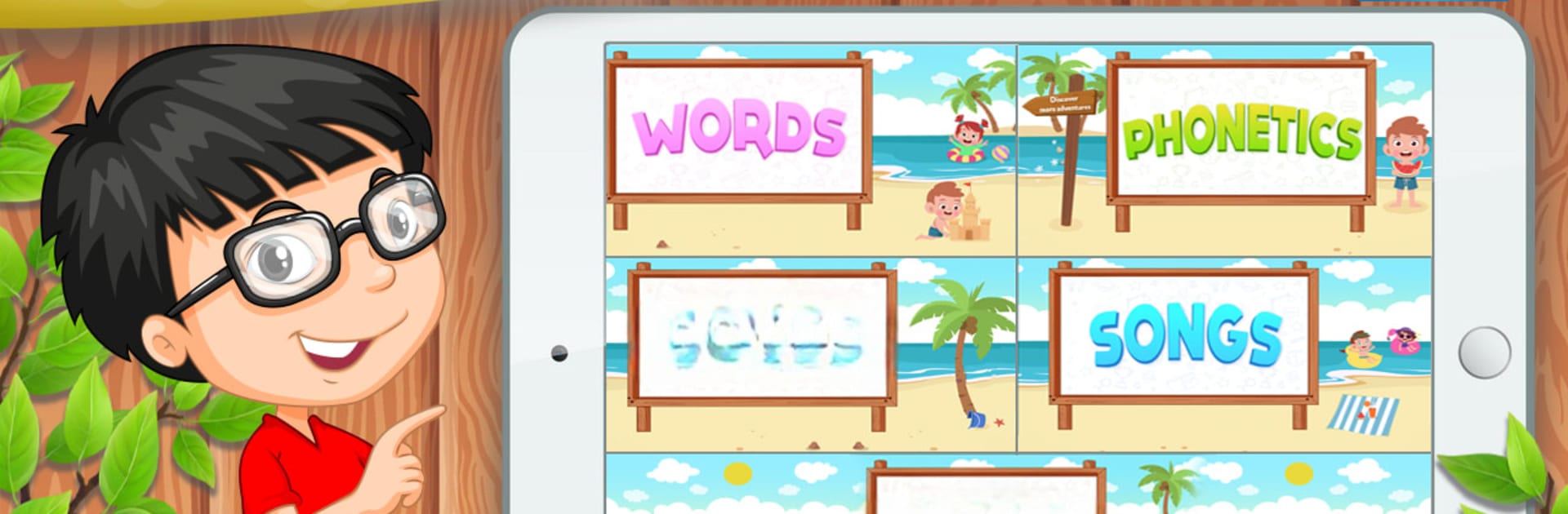
English for Kids Learn & Play feels more like a bright activity box than a strict study app. It splits everything into five clear parts, so a kid can jump to what they need without getting lost. The phonics bit starts at the very beginning, letter sounds and careful pronunciation, with loads of short audio clips that repeat things in a calm, clean voice. The big vocabulary section is the star, with simple pictures and more words than expected, covering letters, numbers, fruits, vegetables, colors, shapes, body parts, opposites, verbs, jobs, foods, days and months, animals with sounds, weather, sports, family, transport, rooms in the house, tools, clothes, instruments, even prepositions and nature stuff. It is a long list, but it is organized well, so it does not feel like homework.

There are songs that are actually catchy, and the little exercises lean into mini games style matching, tapping, and listening tasks. The writing section is handy too, with a smart board that lets kids trace letters and practice freely without a mess. On PC with BlueStacks it is easy to guide a child, since the bigger screen makes pictures clearer and the mouse makes tracing smoother than a small phone screen. The app is very no-pressure, no loud timers or fail screens, just repeat, try again, move on. It suits early learners or kids who are picking up English as a second language, and it lets them hear, see, and practice in small chunks that stick.

Get ready for a buttery smooth, high-performance gaming action only on BlueStacks.

Game Features

Enhancements

  • Macros
  • Multi Instance
  • Multi Instance Sync
  • Script
  • Enhancements
Macros

Macros

Automate the predictable in English for Kids Learn & Play and transform your gameplay with Macros. Get access to inventive Macros in the BlueStacks Macro Community
Multi Instance

Multi Instance

Play English for Kids Learn & Play on one window. And chat with your friend on the other. Press CTRL + Shift + 8 to open the Multi-Instance Manager. And start creating fresh instances or clone an existing one.
Multi Instance Sync

Multi Instance Sync

Play English for Kids Learn & Play with the power of Multi-Instance Sync. Replicate what you are doing on the main instance on all other instances. Level up faster, play more.
Script

Script

Script your way to gaming glory in English for Kids Learn & Play with BlueStacks Script. Write and run a set of commands to automate repeated tasks. Trigger the command by assigning it to any key.
Read More

How to Download and Play English for Kids Learn & Play on PC or Mac

  • Download and install BlueStacks on your PC or Mac

  • Complete Google sign-in to access the Play Store, or do it later

  • Look for English for Kids Learn & Play in the search bar at the top right corner

  • Click to install English for Kids Learn & Play from the search results

  • Complete Google sign-in (if you skipped step 2) to install English for Kids Learn & Play

  • Click the English for Kids Learn & Play icon on the home screen to start playing

video
Watch Video

Minimum System Requirements

With BlueStacks 5, you can get started on a PC that fulfills the following requirements.

  • Operating System

    Microsoft Windows 7 or above, macOS 11 (Big Sur) or above

  • Processor

    Intel, AMD or Apple Silicon Processor

  • RAM

    at least 4GB

  • HDD

    10GB Free Disk Space

Note:

* You must be an Administrator on your PC. Up to date graphics drivers from Microsoft or the chipset vendor.

English for Kids Learn & Play - FAQs

  • How to play English for Kids Learn & Play on Windows PC & Mac?

    Play English for Kids Learn & Play on your PC or Mac by following these simple steps.

    • Click on 'Play English for Kids Learn & Play on PC’ to download BlueStacks
    • Install it and log-in to Google Play Store
    • Launch and play the game.
  • Why is BlueStacks the fastest and safest platform to play games on PC?

    BlueStacks respects your privacy and is always safe and secure to use. It does not carry any malware, spyware, or any sort of additional software that could harm your PC.

    It is engineered to optimize speed and performance for a seamless gaming experience.

  • What are English for Kids Learn & Play PC requirements?

    Minimum requirement to run English for Kids Learn & Play on your PC

    • OS: Microsoft Windows 7 or above MacOS 11 (Big Sur) or above
    • Processor: Intel, AMD or Apple Silicon Processor
    • RAM: Your PC must have at least 4GB of RAM. (Note that having 4GB or more disk space is not a substitute for RAM)
    • HDD: 10GB Free Disk Space.
    • You must be an Administrator on your PC.