Claro video
Claro video

Claro video

Entertainment

| CLARO

Play on PC with BlueStacks or from our cloud

  • Overview
  • How to Download

Page Modified On: August 26, 2025

Run Claro video on PC or Mac

Upgrade your experience. Try Claro video, the fantastic Entertainment app from CLARO, from the comfort of your laptop, PC, or Mac, only on BlueStacks.

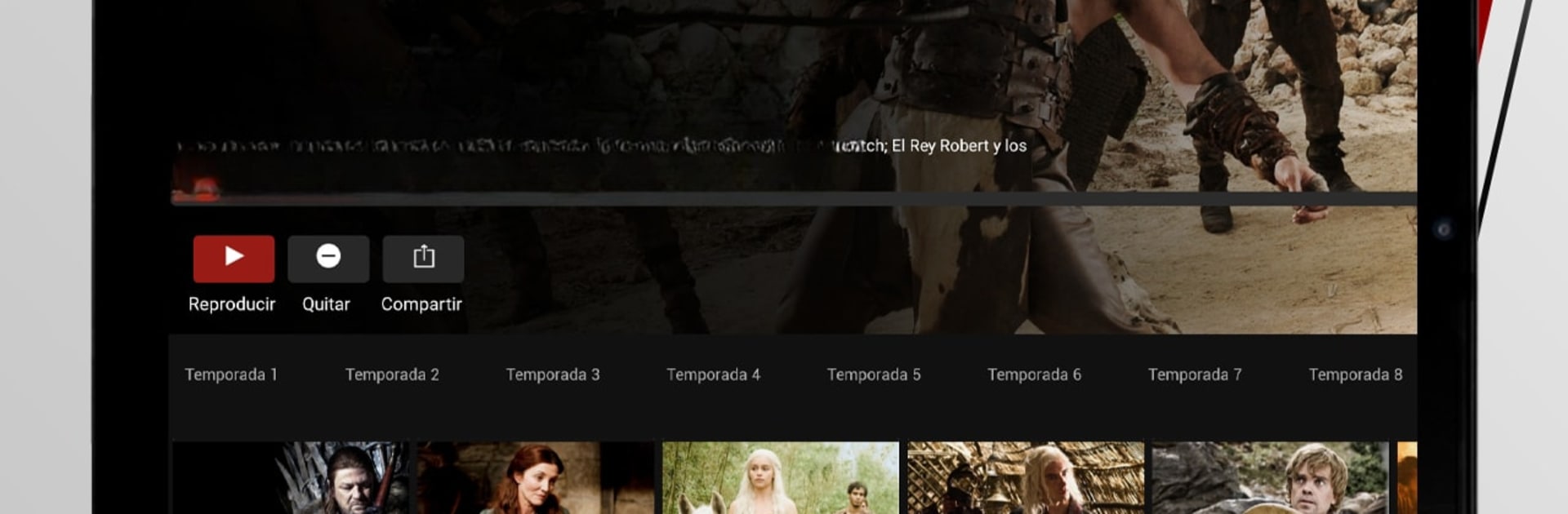
Claro video comes across as a roomy streaming app that piles a lot of choices into a simple layout, so someone browsing will quickly notice movies, series, documentaries, kids shows and even live channels all in one place. The catalog gets frequent updates and it mixes free included content with options to rent or buy recent releases, plus add-on premium channels like HBO, FOX Sports, Noggin and STARZPLAY depending on the country. For parents there is a clear kids section and basic parental control tools, and downloads for offline watching are available if someone needs to save shows for a trip.

On a PC using BlueStacks the app feels less cramped than on a phone, with easier navigation using mouse and keyboard and a nicer sense of scale for posters and menus. Playback controls are straightforward, switching between channels and on-demand is quick, and the promise of Paramount Plus content bundled in some subscriptions shows up as extra variety. It is not the most flashy interface, but it is practical: good for someone who wants a wide selection, the option to rent new films shortly after theaters, and a familiar streaming setup without surprises. Availability and channel lists do change by region, so what appears for one user might differ for another.

Switch to BlueStacks and make the most of your apps on your PC or Mac.

How to Download and Run Claro video on PC or Mac

  • Download and install BlueStacks on your PC or Mac

  • Complete Google sign-in to access the Play Store, or do it later

  • Look for Claro video in the search bar at the top right corner

  • Click to install Claro video from the search results

  • Complete Google sign-in (if you skipped step 2) to install Claro video

  • Click the Claro video icon on the home screen to start playing

video
Watch Video

Minimum System Requirements

With BlueStacks 5, you can get started on a PC that fulfills the following requirements.

  • Operating System

    Microsoft Windows 7 or above, macOS 11 (Big Sur) or above

  • Processor

    Intel, AMD or Apple Silicon Processor

  • RAM

    at least 4GB

  • HDD

    10GB Free Disk Space

Note:

* You must be an Administrator on your PC. Up to date graphics drivers from Microsoft or the chipset vendor.

Claro video - FAQs

  • How to Run Claro video on Windows PC & Mac?

    Run Claro video on your PC or Mac by following these simple steps.

    • Click on ‘Download Claro video on PC’ to download BlueStacks
    • Install it and log-in to Google Play Store
    • Launch and run the app.
  • Why is BlueStacks the fastest and safest platform to play games on PC?

    BlueStacks respects your privacy and is always safe and secure to use. It does not carry any malware, spyware, or any sort of additional software that could harm your PC.

    It is engineered to optimize speed and performance for a seamless gaming experience.

  • What are Claro video PC requirements?

    Minimum requirement to run Claro video on your PC

    • OS: Microsoft Windows 7 and above:
    • Processor: Intel or AMD Processor:
    • RAM: Your PC must have at least 2GB of RAM. (Note that having 2GB or more disk space is not a substitute for RAM):
    • HDD: 5GB Free Disk Space.
    • You must be an Administrator on your PC.