Kyosho Egg
Kyosho Egg

Kyosho Egg

Entertainment

| Zheng Xiang

Play on PC with BlueStacks or from our cloud

  • Overview
  • How to Download

Page Modified On: May 01, 2025

Run Kyosho Egg on PC or Mac

What’s better than using Kyosho Egg by Zheng Xiang? Well, try it on a big screen, on your PC or Mac, with BlueStacks to see the difference.

About the App

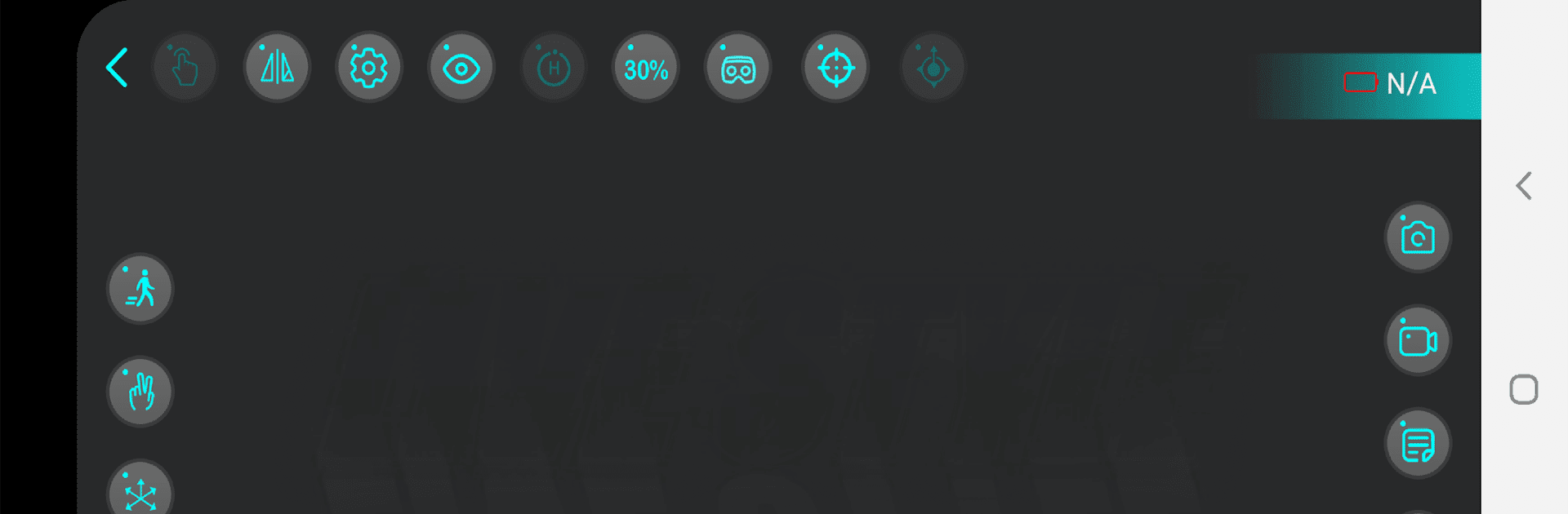
Ever wanted to see the world from above—literally? Kyosho Egg lets you control your very own quadcopter using just your phone, bringing live aerial views right to your screen. Whether you’re curious about what your backyard looks like from the sky or itching to capture unique photos and clips, this Entertainment app by Zheng Xiang is built for that real-time thrill.

App Features

  • Live Video Streaming
    Watch exactly what your quadcopter’s camera sees, straight from the skies. The real-time video feed gives you a front-row seat to every flight, so you’re always in the action.

  • Multiple Video Quality Options
    Choose between VGA, 720P, or 1080P resolutions, depending on how sharp you want your view to be. Whether you’re saving storage or going for HD, you’ve got flexibility.

  • Photo & Video Capture
    Snap photos or record videos as you fly. That epic panorama or blink-and-you’ll-miss-it moment? Capture it and share it—because you never know what you’ll discover up there.

  • 3D Mode
    Craving a more immersive feel? Flip on the 3D function for a flight experience that’s way more engaging and, honestly, just cool.

  • Works Great with BlueStacks
    If you want a bigger, more comfortable view or prefer flying your quadcopter from your PC, Kyosho Egg works seamlessly with BlueStacks. Sometimes a big screen just makes piloting easier, you know?

BlueStacks gives you the much-needed freedom to experience your favorite apps on a bigger screen. Get it now.


How to Download and Run Kyosho Egg on PC or Mac

  • Download and install BlueStacks on your PC or Mac

  • Complete Google sign-in to access the Play Store, or do it later

  • Look for Kyosho Egg in the search bar at the top right corner

  • Click to install Kyosho Egg from the search results

  • Complete Google sign-in (if you skipped step 2) to install Kyosho Egg

  • Click the Kyosho Egg icon on the home screen to start playing

video
Watch Video

Minimum System Requirements

With BlueStacks 5, you can get started on a PC that fulfills the following requirements.

  • Operating System

    Microsoft Windows 7 or above, macOS 11 (Big Sur) or above

  • Processor

    Intel, AMD or Apple Silicon Processor

  • RAM

    at least 4GB

  • HDD

    10GB Free Disk Space

Note:

* You must be an Administrator on your PC. Up to date graphics drivers from Microsoft or the chipset vendor.

Kyosho Egg - FAQs

  • How to Run Kyosho Egg on Windows PC & Mac?

    Run Kyosho Egg on your PC or Mac by following these simple steps.

    • Click on ‘Download Kyosho Egg on PC’ to download BlueStacks
    • Install it and log-in to Google Play Store
    • Launch and run the app.
  • Why is BlueStacks the fastest and safest platform to play games on PC?

    BlueStacks respects your privacy and is always safe and secure to use. It does not carry any malware, spyware, or any sort of additional software that could harm your PC.

    It is engineered to optimize speed and performance for a seamless gaming experience.

  • What are Kyosho Egg PC requirements?

    Minimum requirement to run Kyosho Egg on your PC

    • OS: Microsoft Windows 7 and above:
    • Processor: Intel or AMD Processor:
    • RAM: Your PC must have at least 2GB of RAM. (Note that having 2GB or more disk space is not a substitute for RAM):
    • HDD: 5GB Free Disk Space.
    • You must be an Administrator on your PC.