playtv@unifi
playtv@unifi

playtv@unifi

Entertainment

| Telekom Malaysia Berhad

Play on PC with BlueStacks or from our cloud

  • Overview
  • How to Download

Page Modified On: September 12, 2025

Run playtv@unifi on PC or Mac

Let BlueStacks turn your PC, Mac, or laptop into the perfect home for playtv@unifi, a fun Entertainment app from Telekom Malaysia Berhad.

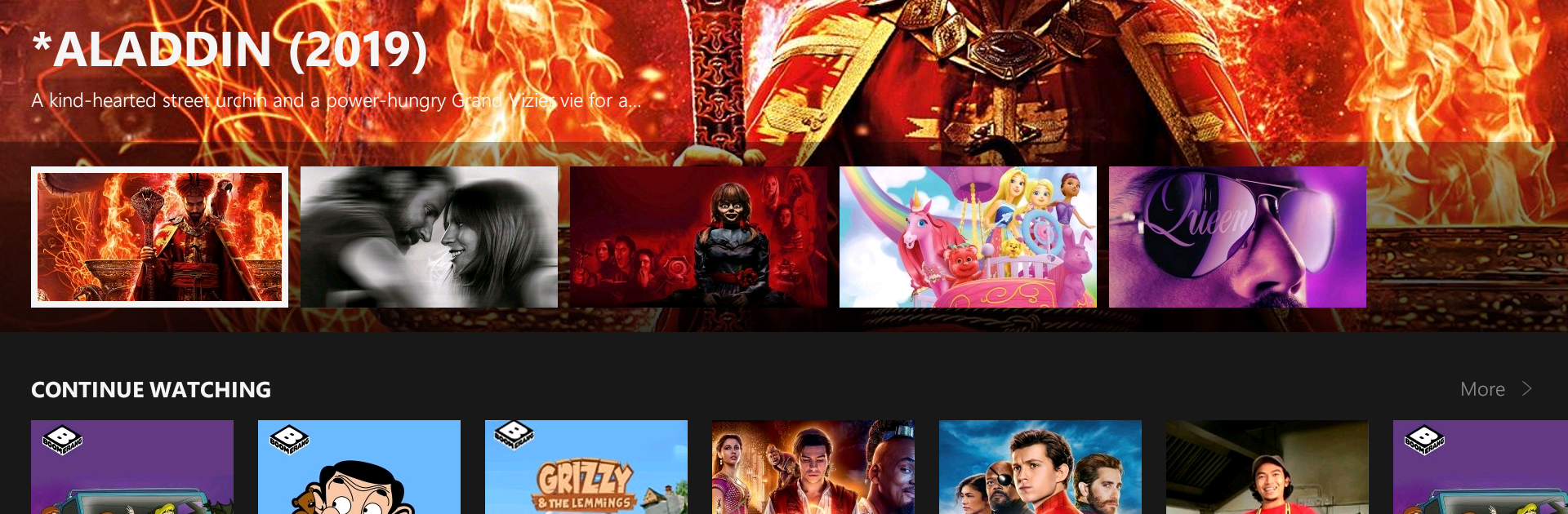
playtv@unifi feels like having a simple TV box inside a phone or PC. It opens to live channels with a clean guide, and flipping between sports, news, K-drama, kids shows, and movies is quick. unifi Home users can link their unifi TV account and whatever they already pay for just appears, which keeps things straightforward. Everyone else can register and try the full set of live channels and on demand for 30 days, which is handy for deciding if it fits. Accounts work on up to five devices, so a phone, a tablet, and a PC running BlueStacks can all be signed in without drama.

The app is not only live TV. There is a big on demand section with recent episodes, older classics, and new releases, plus a catch up area that makes it easy to binge what was missed. Shows can be saved for offline viewing, there is a favourites list for quick jump-in, and reminders can ping a few minutes before a game or episode starts. Parental locks are there for keeping certain channels hidden. Switching from the unifi Media Box on the TV to a mobile screen is smooth, and watch progress follows across devices. Little extras like choosing a profile avatar and sharing a screenshot or short GIF to chats are fun. Works best on solid Wi‑Fi or good mobile data. Content is licensed for Malaysia, so that is the region where it actually plays.

BlueStacks gives you the much-needed freedom to experience your favorite apps on a bigger screen. Get it now.


How to Download and Run playtv@unifi on PC or Mac

  • Download and install BlueStacks on your PC or Mac

  • Complete Google sign-in to access the Play Store, or do it later

  • Look for playtv@unifi in the search bar at the top right corner

  • Click to install playtv@unifi from the search results

  • Complete Google sign-in (if you skipped step 2) to install playtv@unifi

  • Click the playtv@unifi icon on the home screen to start playing

video
Watch Video

Minimum System Requirements

With BlueStacks 5, you can get started on a PC that fulfills the following requirements.

  • Operating System

    Microsoft Windows 7 or above, macOS 11 (Big Sur) or above

  • Processor

    Intel, AMD or Apple Silicon Processor

  • RAM

    at least 4GB

  • HDD

    10GB Free Disk Space

Note:

* You must be an Administrator on your PC. Up to date graphics drivers from Microsoft or the chipset vendor.

playtv@unifi - FAQs

  • How to Run playtv@unifi on Windows PC & Mac?

    Run playtv@unifi on your PC or Mac by following these simple steps.

    • Click on ‘Download playtv@unifi on PC’ to download BlueStacks
    • Install it and log-in to Google Play Store
    • Launch and run the app.
  • Why is BlueStacks the fastest and safest platform to play games on PC?

    BlueStacks respects your privacy and is always safe and secure to use. It does not carry any malware, spyware, or any sort of additional software that could harm your PC.

    It is engineered to optimize speed and performance for a seamless gaming experience.

  • What are playtv@unifi PC requirements?

    Minimum requirement to run playtv@unifi on your PC

    • OS: Microsoft Windows 7 and above:
    • Processor: Intel or AMD Processor:
    • RAM: Your PC must have at least 2GB of RAM. (Note that having 2GB or more disk space is not a substitute for RAM):
    • HDD: 5GB Free Disk Space.
    • You must be an Administrator on your PC.