Creative Rhythm Metronome

Creative Rhythm Metronome

Music & Audio

| AmparoSoft

Play on PC with BlueStacks or from our cloud

  • Overview
  • How to Download

Page Modified On: November 10, 2025

Run Creative Rhythm Metronome on PC or Mac

Let BlueStacks turn your PC, Mac, or laptop into the perfect home for Creative Rhythm Metronome, a fun Music & Audio app from AmparoSoft.

Creative Rhythm Metronome feels less like a plain click and more like a small rhythm studio. The timing is very tight, the tempo range goes from super slow to absolutely blazing fast, and the stereo setup is clever. The left side stays as a solid pulse while the right side plays the pattern, so the ear always knows where the beat is. On a laptop with BlueStacks, the bigger view makes building bars and tweaking accents easier, and it is nice to hit start or change tempo without poking tiny buttons.

The fun part is how it lets someone shape a bar exactly how they want. Different rhythms on each beat, accents wherever needed, and subdivisions that cover the usual suspects and some odd ones. Save a few presets, jump between them during practice, and there is an automatic speed trainer that bumps the tempo up or down so the hands do not tense up. It works for piano, drums, guitar, or anything really, and it is great for drilling a short, tricky measure until it locks. It can even spark ideas for writing parts when a normal metronome would just feel flat.

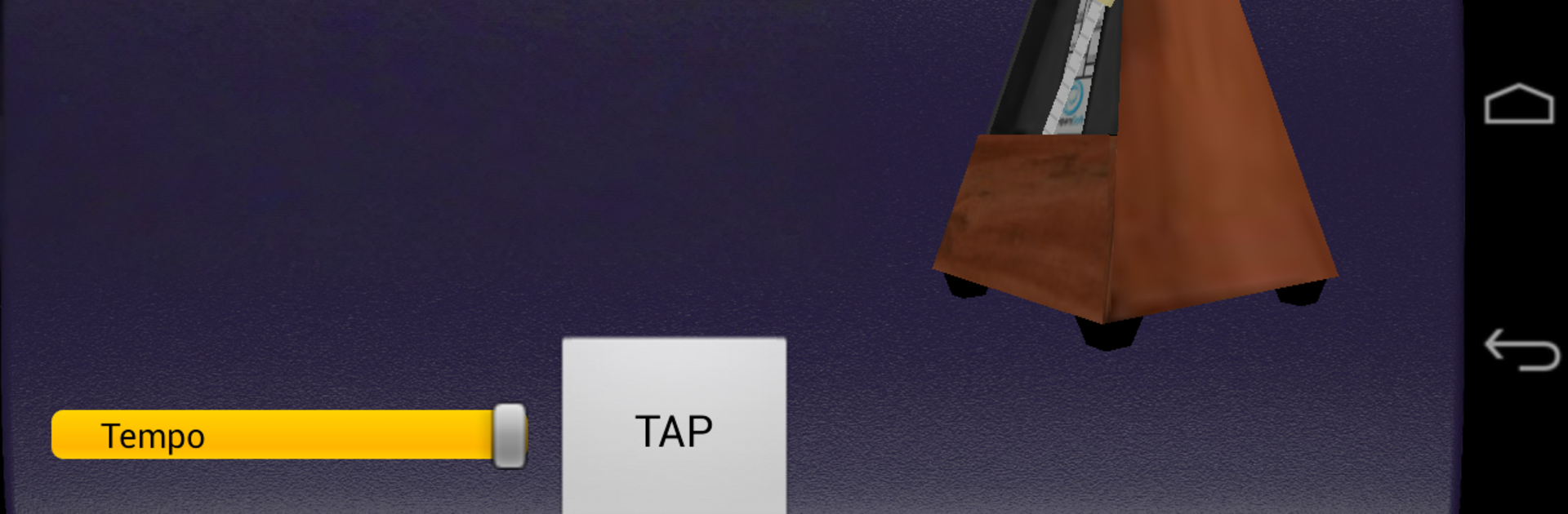
The sounds are clear and not annoying, and the little 3D animation helps keep track of where the bar is without staring at numbers. It keeps ticking if the user checks another app, so the flow does not break. Some people use it to match tempos from songs, do breathing or meditation timing, or just keep a steady pace for exercises. On PC with headphones the stereo split stands out, and the extra space makes the whole thing feel calmer and more controlled during longer practice sessions.

Switch to BlueStacks and make the most of your apps on your PC or Mac.

How to Download and Run Creative Rhythm Metronome on PC or Mac

  • Download and install BlueStacks on your PC or Mac

  • Complete Google sign-in to access the Play Store, or do it later

  • Look for Creative Rhythm Metronome in the search bar at the top right corner

  • Click to install Creative Rhythm Metronome from the search results

  • Complete Google sign-in (if you skipped step 2) to install Creative Rhythm Metronome

  • Click the Creative Rhythm Metronome icon on the home screen to start playing

video
Watch Video

Minimum System Requirements

With BlueStacks 5, you can get started on a PC that fulfills the following requirements.

  • Operating System

    Microsoft Windows 7 or above, macOS 11 (Big Sur) or above

  • Processor

    Intel, AMD or Apple Silicon Processor

  • RAM

    at least 4GB

  • HDD

    10GB Free Disk Space

Note:

* You must be an Administrator on your PC. Up to date graphics drivers from Microsoft or the chipset vendor.

Creative Rhythm Metronome - FAQs

  • How to Run Creative Rhythm Metronome on Windows PC & Mac?

    Run Creative Rhythm Metronome on your PC or Mac by following these simple steps.

    • Click on ‘Download Creative Rhythm Metronome on PC’ to download BlueStacks
    • Install it and log-in to Google Play Store
    • Launch and run the app.
  • Why is BlueStacks the fastest and safest platform to play games on PC?

    BlueStacks respects your privacy and is always safe and secure to use. It does not carry any malware, spyware, or any sort of additional software that could harm your PC.

    It is engineered to optimize speed and performance for a seamless gaming experience.

  • What are Creative Rhythm Metronome PC requirements?

    Minimum requirement to run Creative Rhythm Metronome on your PC

    • OS: Microsoft Windows 7 and above:
    • Processor: Intel or AMD Processor:
    • RAM: Your PC must have at least 2GB of RAM. (Note that having 2GB or more disk space is not a substitute for RAM):
    • HDD: 5GB Free Disk Space.
    • You must be an Administrator on your PC.