My Music Player
My Music Player

My Music Player

Music & Audio

| LemonClip

Play on PC with BlueStacks or from our cloud

  • Overview
  • How to Download

Page Modified On: November 28, 2025

Run My Music Player on PC or Mac

Multitask effortlessly on your PC or Mac as you try out My Music Player, a Music & Audio app by LemonClip on BlueStacks.

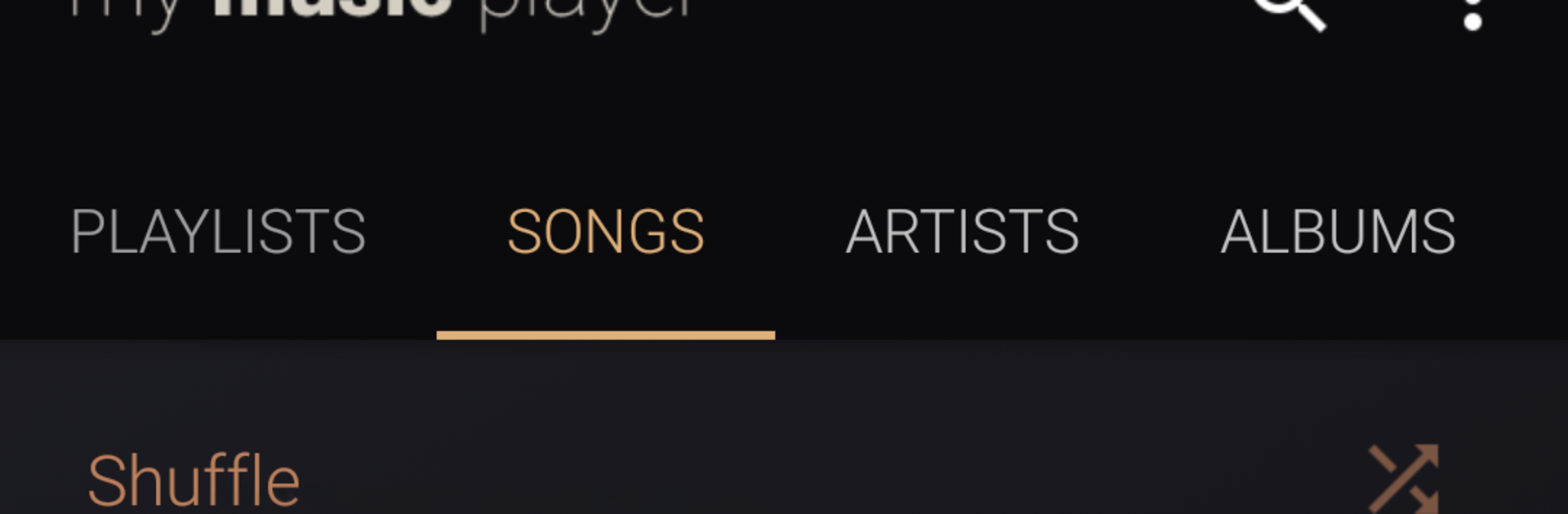
My Music Player feels like a straightforward, no‑nonsense local music app that keeps everything tidy and easy to find. It sticks to a clean Material Design look, scans the device fast, and lays out the library by songs, artists, albums, genres, or straight from folders if someone organizes tracks that way. The queue editor is simple to use and drag and drop works well when lining up a few songs for the next hour. Sorting options help tame big libraries, and there is a sleep timer for falling asleep to playlists without leaving music running all night. It supports a bunch of common audio formats, so most files just play without fuss. No streaming or online extras here, it focuses on files already on the device. Ads are there since it is free, but they do not feel aggressive, and the interface stays uncluttered with big artwork and clear text.

Running it on PC with BlueStacks is surprisingly nice, since the bigger screen makes long folders and album art easier to browse, and dragging the queue with a mouse feels natural. Keyboard control for play and skip is convenient, even if the shake to play next feature is more of a phone thing. It is the kind of player that gets out of the way and lets someone enjoy their collection, whether that is all sorted by album or dumped in a few messy folders. It loads quick, responds fast, and does the basics right without asking for too much attention.

Ready to experience My Music Player on a bigger screen, in all its glory? Download BlueStacks now.


How to Download and Run My Music Player on PC or Mac

  • Download and install BlueStacks on your PC or Mac

  • Complete Google sign-in to access the Play Store, or do it later

  • Look for My Music Player in the search bar at the top right corner

  • Click to install My Music Player from the search results

  • Complete Google sign-in (if you skipped step 2) to install My Music Player

  • Click the My Music Player icon on the home screen to start playing

video
Watch Video

Minimum System Requirements

With BlueStacks 5, you can get started on a PC that fulfills the following requirements.

  • Operating System

    Microsoft Windows 7 or above, macOS 11 (Big Sur) or above

  • Processor

    Intel, AMD or Apple Silicon Processor

  • RAM

    at least 4GB

  • HDD

    10GB Free Disk Space

Note:

* You must be an Administrator on your PC. Up to date graphics drivers from Microsoft or the chipset vendor.

My Music Player - FAQs

  • How to Run My Music Player on Windows PC & Mac?

    Run My Music Player on your PC or Mac by following these simple steps.

    • Click on ‘Download My Music Player on PC’ to download BlueStacks
    • Install it and log-in to Google Play Store
    • Launch and run the app.
  • Why is BlueStacks the fastest and safest platform to play games on PC?

    BlueStacks respects your privacy and is always safe and secure to use. It does not carry any malware, spyware, or any sort of additional software that could harm your PC.

    It is engineered to optimize speed and performance for a seamless gaming experience.

  • What are My Music Player PC requirements?

    Minimum requirement to run My Music Player on your PC

    • OS: Microsoft Windows 7 and above:
    • Processor: Intel or AMD Processor:
    • RAM: Your PC must have at least 2GB of RAM. (Note that having 2GB or more disk space is not a substitute for RAM):
    • HDD: 5GB Free Disk Space.
    • You must be an Administrator on your PC.