Radio Dominican - AM FM Online

Radio Dominican - AM FM Online

Music & Audio

| Msiradio

Play on PC with BlueStacks or from our cloud

  • Overview
  • How to Download

Page Modified On: August 25, 2025

Run Radio Dominican - AM FM Online on PC or Mac

Multitask effortlessly on your PC or Mac as you try out Radio Dominican – AM FM Online, a Music & Audio app by Msiradio on BlueStacks.

About the App

If you’re looking to tune into the sound of the Dominican Republic, Radio Dominican – AM FM Online is your go-to spot. Whether you’re missing your favorite shows from home or just want to discover what’s buzzing in Dominican music and talk, this app brings a real slice of local radio right to your fingertips. You’ll find a mix of classic stations and new voices—all easy to find, easy to use, and streaming without the fuss.

App Features

  • All-in-One Dominican Radio
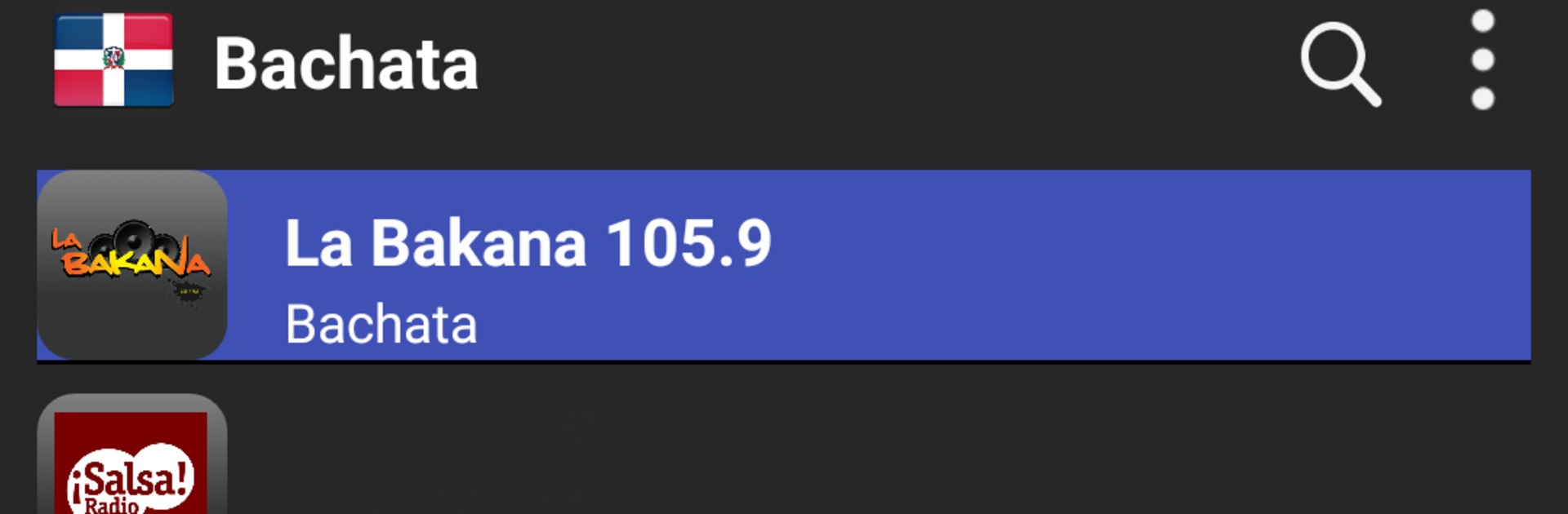
    Jump between top FM and AM stations throughout the Dominican Republic. Sports, news, bachata, merengue—you name it.

  • Favorites at a Tap
    Got a favorite station? Save it! One tap gets you right back to the broadcasts you love most.

  • Background Listening
    Keep your tunes or talk shows rolling while you do other stuff on your device. Perfect for multitaskers or anyone who can’t stand the silence.

  • Smooth, Quick Streaming
    Forget laggy playback. Stations load quickly, and sound quality’s solid—just hit play and you’re listening.

  • Curated Top 100 List
    Not sure where to begin? Check out the app’s curated Top 100 channels. It’s an easy way to catch the biggest and buzziest stations right now.

If you prefer listening on a bigger screen, you can check out Radio Dominican – AM FM Online through BlueStacks, just to make things even more comfortable. Whether it’s for background music while you work or for catching real Dominican shows, this one’s got you covered.

Eager to take your app experience to the next level? Start right away by downloading BlueStacks on your PC or Mac.


How to Download and Run Radio Dominican - AM FM Online on PC or Mac

  • Download and install BlueStacks on your PC or Mac

  • Complete Google sign-in to access the Play Store, or do it later

  • Look for Radio Dominican - AM FM Online in the search bar at the top right corner

  • Click to install Radio Dominican - AM FM Online from the search results

  • Complete Google sign-in (if you skipped step 2) to install Radio Dominican - AM FM Online

  • Click the Radio Dominican - AM FM Online icon on the home screen to start playing

video
Watch Video

Minimum System Requirements

With BlueStacks 5, you can get started on a PC that fulfills the following requirements.

  • Operating System

    Microsoft Windows 7 or above, macOS 11 (Big Sur) or above

  • Processor

    Intel, AMD or Apple Silicon Processor

  • RAM

    at least 4GB

  • HDD

    10GB Free Disk Space

Note:

* You must be an Administrator on your PC. Up to date graphics drivers from Microsoft or the chipset vendor.

Radio Dominican - AM FM Online - FAQs

  • How to Run Radio Dominican - AM FM Online on Windows PC & Mac?

    Run Radio Dominican - AM FM Online on your PC or Mac by following these simple steps.

    • Click on ‘Download Radio Dominican - AM FM Online on PC’ to download BlueStacks
    • Install it and log-in to Google Play Store
    • Launch and run the app.
  • Why is BlueStacks the fastest and safest platform to play games on PC?

    BlueStacks respects your privacy and is always safe and secure to use. It does not carry any malware, spyware, or any sort of additional software that could harm your PC.

    It is engineered to optimize speed and performance for a seamless gaming experience.

  • What are Radio Dominican - AM FM Online PC requirements?

    Minimum requirement to run Radio Dominican - AM FM Online on your PC

    • OS: Microsoft Windows 7 and above:
    • Processor: Intel or AMD Processor:
    • RAM: Your PC must have at least 2GB of RAM. (Note that having 2GB or more disk space is not a substitute for RAM):
    • HDD: 5GB Free Disk Space.
    • You must be an Administrator on your PC.