SDR Touch - Live radio via USB

SDR Touch - Live radio via USB

Music & Audio

| Signalware Ltd

Play on PC with BlueStacks or from our cloud

  • Overview
  • How to Download

Page Modified On: October 04, 2025

Run SDR Touch - Live radio via USB on PC or Mac

Multitask effortlessly on your PC or Mac as you try out SDR Touch – Live radio via USB, a Music & Audio app by Signalware Ltd on BlueStacks.

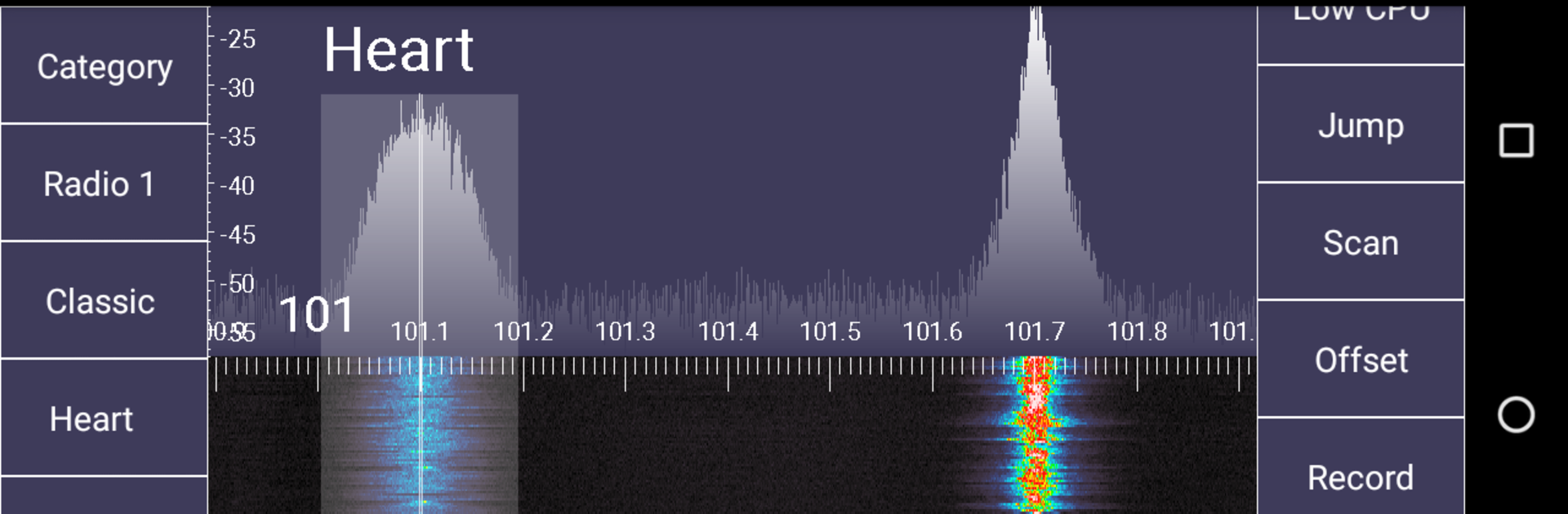
SDR Touch feels like a little radio lab that runs on a phone or, with BlueStacks, on a PC screen where there is more room to play with the dials. It plugs into real USB SDR hardware, so it is not a fake radio. With a compatible dongle like an RTL-SDR, SDRplay, or HackRF and the right cable, it turns into a scanner and spectrum viewer that actually pulls signals out of the air. The interface is simple enough to figure out, with a live spectrum and waterfall that make it obvious where the action is. Tuning around is smooth, switching demod modes is quick, and recording is one tap. It demodulates FM, AM, narrowband FM, plus upper and lower sideband, so everything from local FM stereo with RDS to air traffic, weather, HAM chatter, and even old analog TV audio is on the table. Depending on the tuner, the range can stretch roughly from tens of MHz up to a couple GHz.

The RDS monitor is a neat touch, showing station metadata like program type, country code, time, alternative frequencies, and some nerdy stats most apps ignore. It all runs offline, which is great for field use or just tinkering without internet. The catch is it relies on the USB radio, so setup matters, and the app still feels experimental. Occasional hiccups or crashes happen, especially if the hardware is not fully happy. On a PC through BlueStacks, it is nice having full-size controls and easier recording, as long as the USB passthrough and drivers are lined up. Local laws still apply, so people should listen responsibly.

Eager to take your app experience to the next level? Start right away by downloading BlueStacks on your PC or Mac.


How to Download and Run SDR Touch - Live radio via USB on PC or Mac

  • Download and install BlueStacks on your PC or Mac

  • Complete Google sign-in to access the Play Store, or do it later

  • Look for SDR Touch - Live radio via USB in the search bar at the top right corner

  • Click to install SDR Touch - Live radio via USB from the search results

  • Complete Google sign-in (if you skipped step 2) to install SDR Touch - Live radio via USB

  • Click the SDR Touch - Live radio via USB icon on the home screen to start playing

video
Watch Video

Minimum System Requirements

With BlueStacks 5, you can get started on a PC that fulfills the following requirements.

  • Operating System

    Microsoft Windows 7 or above, macOS 11 (Big Sur) or above

  • Processor

    Intel, AMD or Apple Silicon Processor

  • RAM

    at least 4GB

  • HDD

    10GB Free Disk Space

Note:

* You must be an Administrator on your PC. Up to date graphics drivers from Microsoft or the chipset vendor.

SDR Touch - Live radio via USB - FAQs

  • How to Run SDR Touch - Live radio via USB on Windows PC & Mac?

    Run SDR Touch - Live radio via USB on your PC or Mac by following these simple steps.

    • Click on ‘Download SDR Touch - Live radio via USB on PC’ to download BlueStacks
    • Install it and log-in to Google Play Store
    • Launch and run the app.
  • Why is BlueStacks the fastest and safest platform to play games on PC?

    BlueStacks respects your privacy and is always safe and secure to use. It does not carry any malware, spyware, or any sort of additional software that could harm your PC.

    It is engineered to optimize speed and performance for a seamless gaming experience.

  • What are SDR Touch - Live radio via USB PC requirements?

    Minimum requirement to run SDR Touch - Live radio via USB on your PC

    • OS: Microsoft Windows 7 and above:
    • Processor: Intel or AMD Processor:
    • RAM: Your PC must have at least 2GB of RAM. (Note that having 2GB or more disk space is not a substitute for RAM):
    • HDD: 5GB Free Disk Space.
    • You must be an Administrator on your PC.