iCal Import/Export CalDAV

iCal Import/Export CalDAV

Productivity

| Lukas Aichbauer

Play on PC with BlueStacks or from our cloud

  • Overview
  • How to Download

Page Modified On: January 09, 2026

Run iCal Import/Export CalDAV on PC or Mac

Upgrade your experience. Try iCal Import/Export CalDAV, the fantastic Productivity app from Lukas Aichbauer, from the comfort of your laptop, PC, or Mac, only on BlueStacks.

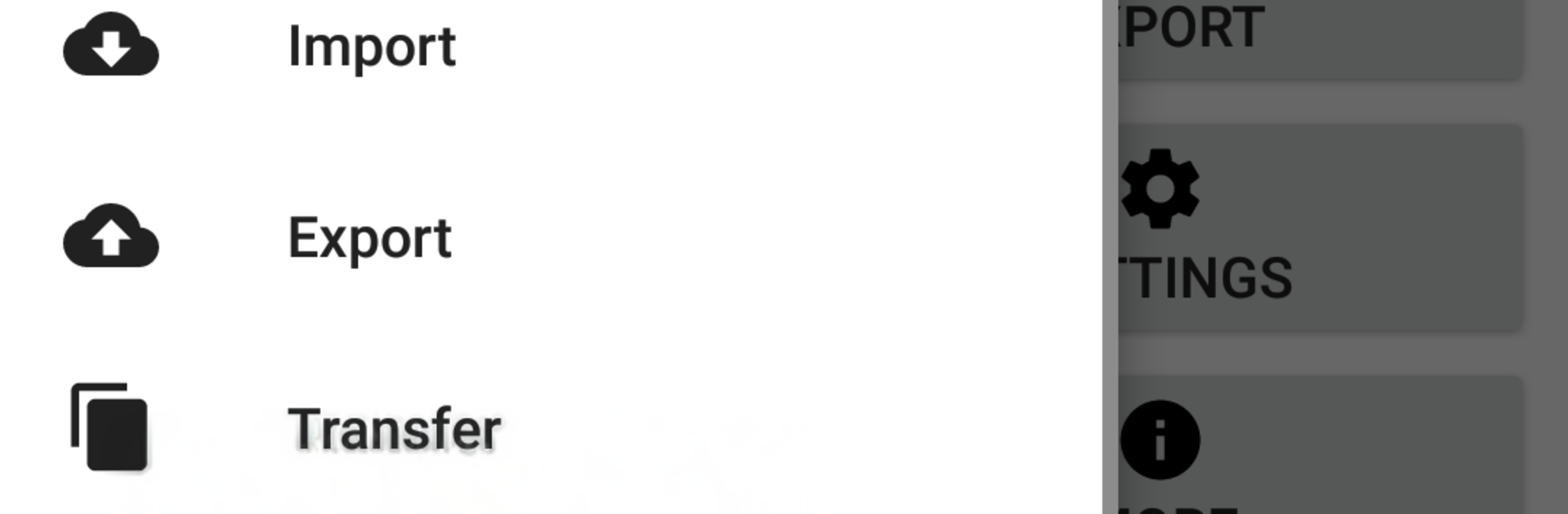
iCal Import/Export CalDAV feels like a proper toolbox for anyone juggling calendars. It is not flashy, it just gives real control. Importing and exporting is the main act, and it handles a bunch of sources without drama: WebDAV, FTP, direct files from storage, even email attachments. Calendars can be created, renamed, edited, transferred, archived or completely purged when a cleanup is needed. Nothing hides behind mystery screens either, it shows what is running and what finished so users are not guessing.

The paid features make it a workhorse. Scheduled imports and exports can run on intervals, and there is a neat option to only run them on a specific Wi Fi network so data does not wander on mobile. CalDAV sync is built in for events, and it plays nicely with services like iCloud, fruux, ownCloud, baikal, Posteo, GMX, Web.de, Synology, mailbox.org, and most SabreDAV style servers. There is a small widget that keeps an eye on planned jobs and sync status right from the home screen. No ads, no tracking, permissions are tied to the tasks a user actually chooses. On PC with BlueStacks, handling big .ics files and dragging them in is easy, and the larger view makes matching calendars less fussy. It suits power users and admins, but anyone who needs to move a holiday calendar or mirror work events will get along after a short setup. There is even a 14 day tryout of the pro pieces so it is simple to see if the automations help.

Ready to experience iCal Import/Export CalDAV on a bigger screen, in all its glory? Download BlueStacks now.


How to Download and Run iCal Import/Export CalDAV on PC or Mac

  • Download and install BlueStacks on your PC or Mac

  • Complete Google sign-in to access the Play Store, or do it later

  • Look for iCal Import/Export CalDAV in the search bar at the top right corner

  • Click to install iCal Import/Export CalDAV from the search results

  • Complete Google sign-in (if you skipped step 2) to install iCal Import/Export CalDAV

  • Click the iCal Import/Export CalDAV icon on the home screen to start playing

video
Watch Video

Minimum System Requirements

With BlueStacks 5, you can get started on a PC that fulfills the following requirements.

  • Operating System

    Microsoft Windows 7 or above, macOS 11 (Big Sur) or above

  • Processor

    Intel, AMD or Apple Silicon Processor

  • RAM

    at least 4GB

  • HDD

    10GB Free Disk Space

Note:

* You must be an Administrator on your PC. Up to date graphics drivers from Microsoft or the chipset vendor.

iCal Import/Export CalDAV - FAQs

  • How to Run iCal Import/Export CalDAV on Windows PC & Mac?

    Run iCal Import/Export CalDAV on your PC or Mac by following these simple steps.

    • Click on ‘Download iCal Import/Export CalDAV on PC’ to download BlueStacks
    • Install it and log-in to Google Play Store
    • Launch and run the app.
  • Why is BlueStacks the fastest and safest platform to play games on PC?

    BlueStacks respects your privacy and is always safe and secure to use. It does not carry any malware, spyware, or any sort of additional software that could harm your PC.

    It is engineered to optimize speed and performance for a seamless gaming experience.

  • What are iCal Import/Export CalDAV PC requirements?

    Minimum requirement to run iCal Import/Export CalDAV on your PC

    • OS: Microsoft Windows 7 and above:
    • Processor: Intel or AMD Processor:
    • RAM: Your PC must have at least 2GB of RAM. (Note that having 2GB or more disk space is not a substitute for RAM):
    • HDD: 5GB Free Disk Space.
    • You must be an Administrator on your PC.