Lock My Phone (Zen Mode)

Lock My Phone (Zen Mode)

Productivity

| Thomas Kahn

Play on PC with BlueStacks or from our cloud

  • Overview
  • How to Download

Page Modified On: September 19, 2025

Run Lock My Phone (Zen Mode) on PC or Mac

Let BlueStacks turn your PC, Mac, or laptop into the perfect home for Lock My Phone (Zen Mode), a fun Productivity app from Thomas Kahn.

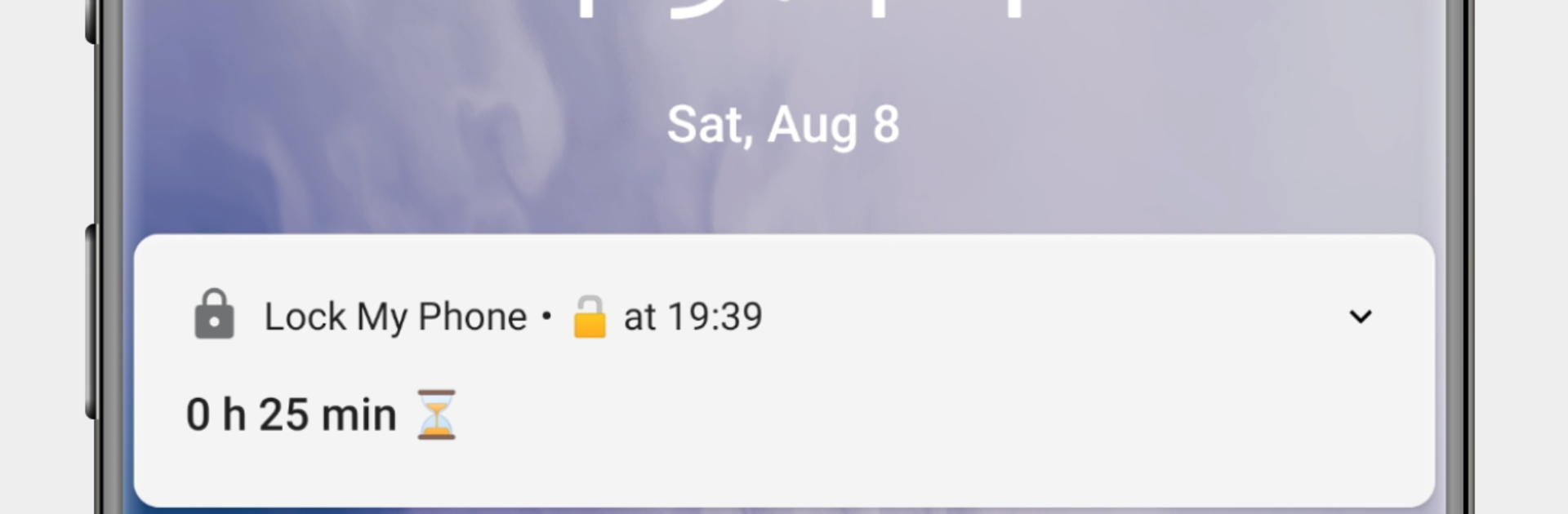
Lock My Phone feels like a strict but fair coach that helps someone stick to a routine when the internet keeps calling. Set it up, give it Device Administrator permission, and it will actually lock the device during the times that were planned. It does not nag, it just follows the schedule. While the phone is locked, the useful stuff still works in a lean way. Lock screen apps are available, calls come through, and emergency numbers are reachable. If someone sneaks a quick unlock, it snaps back into lock right away, which keeps the habit honest rather than harsh.

The core tools are simple and practical. There are recurring lock periods for things like every weeknight after 10 pm, one time locks for a 45 minute study sprint, and a geocheck that only locks in certain places so a night out is not ruined. Setting emergency contacts in Android is smart, since those will still be reachable. On PC with BlueStacks, the planning part feels easier since the bigger screen and mouse make setting multiple periods less fiddly, and the virtual phone window will lock just like a real one.

There are no ads in either version. The free version limits people to a single lock period total, which is fine for testing the waters. The premium version lifts that limit so unlimited recurring and one time locks can be stacked. Uninstalling is not the usual tap and delete, since Device Administrator needs to be turned off first, then removal works normally.

Big screen. Bigger performance. Use BlueStacks on your PC or Mac to run your favorite apps.

How to Download and Run Lock My Phone (Zen Mode) on PC or Mac

  • Download and install BlueStacks on your PC or Mac

  • Complete Google sign-in to access the Play Store, or do it later

  • Look for Lock My Phone (Zen Mode) in the search bar at the top right corner

  • Click to install Lock My Phone (Zen Mode) from the search results

  • Complete Google sign-in (if you skipped step 2) to install Lock My Phone (Zen Mode)

  • Click the Lock My Phone (Zen Mode) icon on the home screen to start playing

video
Watch Video

Minimum System Requirements

With BlueStacks 5, you can get started on a PC that fulfills the following requirements.

  • Operating System

    Microsoft Windows 7 or above, macOS 11 (Big Sur) or above

  • Processor

    Intel, AMD or Apple Silicon Processor

  • RAM

    at least 4GB

  • HDD

    10GB Free Disk Space

Note:

* You must be an Administrator on your PC. Up to date graphics drivers from Microsoft or the chipset vendor.

Lock My Phone (Zen Mode) - FAQs

  • How to Run Lock My Phone (Zen Mode) on Windows PC & Mac?

    Run Lock My Phone (Zen Mode) on your PC or Mac by following these simple steps.

    • Click on ‘Download Lock My Phone (Zen Mode) on PC’ to download BlueStacks
    • Install it and log-in to Google Play Store
    • Launch and run the app.
  • Why is BlueStacks the fastest and safest platform to play games on PC?

    BlueStacks respects your privacy and is always safe and secure to use. It does not carry any malware, spyware, or any sort of additional software that could harm your PC.

    It is engineered to optimize speed and performance for a seamless gaming experience.

  • What are Lock My Phone (Zen Mode) PC requirements?

    Minimum requirement to run Lock My Phone (Zen Mode) on your PC

    • OS: Microsoft Windows 7 and above:
    • Processor: Intel or AMD Processor:
    • RAM: Your PC must have at least 2GB of RAM. (Note that having 2GB or more disk space is not a substitute for RAM):
    • HDD: 5GB Free Disk Space.
    • You must be an Administrator on your PC.