mydlink Lite
mydlink Lite

mydlink Lite

Productivity

| D-Link Corporation

Play on PC with BlueStacks or from our cloud

  • Overview
  • How to Download

Page Modified On: November 10, 2025

Run mydlink Lite on PC or Mac

Why limit yourself to your small screen on the phone? Run mydlink Lite, an app by D-Link Corporation, best experienced on your PC or Mac with BlueStacks, the world’s #1 Android emulator.

mydlink Lite feels like a straight-to-the-point control room for D‑Link stuff. It opens to live camera feeds fast, and the video is smooth on supported models. There is a simple toolbar feel to it, nothing flashy, just the important buttons. Tap to switch day or night modes, pinch to zoom, drag the view around on non‑PT cams, and save a quick snapshot if something looks off. Two‑way audio is there on certain cameras, so talking through the mic to a pet or telling someone at the door is possible, though it mutes the camera mic during talkback to avoid weird feedback. It also plugs into an NVR for viewing, but that is video only. There is a five minute relay viewing limit with a countdown, which at least gives a heads‑up before it cuts.

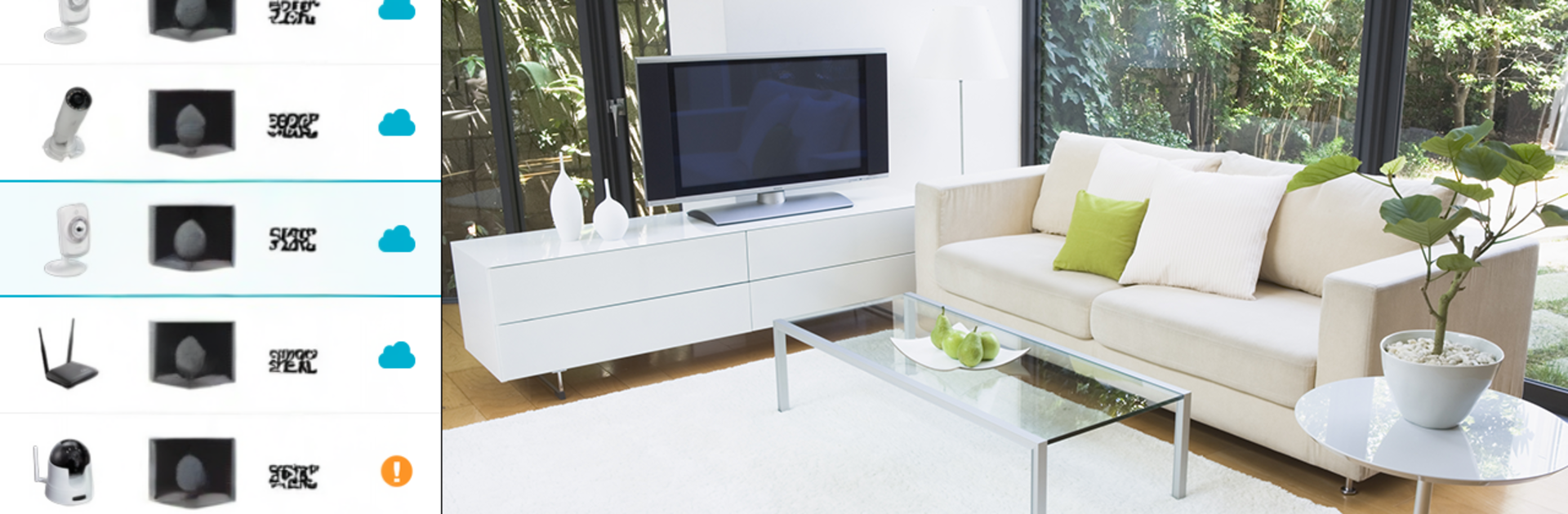
Beyond cameras, it shows router status and bandwidth at a glance, and the parental controls are practical. See what sites were visited, block a device, or unlock it later. Firmware updates and SD card playback live in the app too, plus push notifications that can be toggled per device. Setup is guided, so adding a new camera does not feel like a puzzle. Running it on a PC through BlueStacks gives a bigger, cleaner look at multiple feeds, and mouse dragging to pan feels tidy. Not every feature works on every model, so it helps to check what each camera supports, but the core stuff works reliably and without drama. It is more utility than entertainment, which is exactly the point.

Switch to BlueStacks and make the most of your apps on your PC or Mac.

How to Download and Run mydlink Lite on PC or Mac

  • Download and install BlueStacks on your PC or Mac

  • Complete Google sign-in to access the Play Store, or do it later

  • Look for mydlink Lite in the search bar at the top right corner

  • Click to install mydlink Lite from the search results

  • Complete Google sign-in (if you skipped step 2) to install mydlink Lite

  • Click the mydlink Lite icon on the home screen to start playing

video
Watch Video

Minimum System Requirements

With BlueStacks 5, you can get started on a PC that fulfills the following requirements.

  • Operating System

    Microsoft Windows 7 or above, macOS 11 (Big Sur) or above

  • Processor

    Intel, AMD or Apple Silicon Processor

  • RAM

    at least 4GB

  • HDD

    10GB Free Disk Space

Note:

* You must be an Administrator on your PC. Up to date graphics drivers from Microsoft or the chipset vendor.

mydlink Lite - FAQs

  • How to Run mydlink Lite on Windows PC & Mac?

    Run mydlink Lite on your PC or Mac by following these simple steps.

    • Click on ‘Download mydlink Lite on PC’ to download BlueStacks
    • Install it and log-in to Google Play Store
    • Launch and run the app.
  • Why is BlueStacks the fastest and safest platform to play games on PC?

    BlueStacks respects your privacy and is always safe and secure to use. It does not carry any malware, spyware, or any sort of additional software that could harm your PC.

    It is engineered to optimize speed and performance for a seamless gaming experience.

  • What are mydlink Lite PC requirements?

    Minimum requirement to run mydlink Lite on your PC

    • OS: Microsoft Windows 7 and above:
    • Processor: Intel or AMD Processor:
    • RAM: Your PC must have at least 2GB of RAM. (Note that having 2GB or more disk space is not a substitute for RAM):
    • HDD: 5GB Free Disk Space.
    • You must be an Administrator on your PC.