MyMode
MyMode

MyMode

Productivity

| Bosch Thermotechniek B.V.

Play on PC with BlueStacks or from our cloud

  • Overview
  • How to Download

Page Modified On: January 13, 2026

Run MyMode on PC or Mac

Upgrade your experience. Try MyMode, the fantastic Productivity app from Bosch Thermotechniek B.V., from the comfort of your laptop, PC, or Mac, only on BlueStacks.

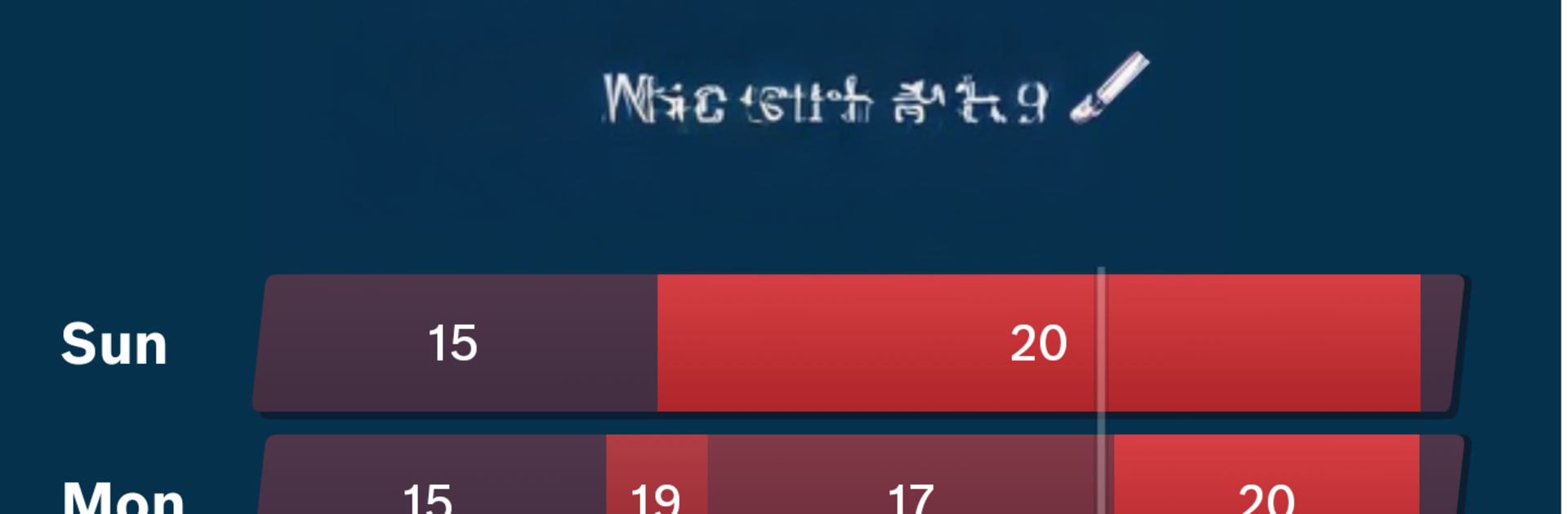
MyMode feels like a clean, no-nonsense remote for the Buderus Logamatic TC100, so instead of fiddling with buttons on the wall, everything sits in one simple app. It is very much about zones and schedules. Up to 18 rooms can each have their own plan and target temps, so the bedroom can stay cool while the living room warms up when it matters. There is a demo mode too, so someone can poke around and see how the timelines, sliders, and energy charts work before buying any hardware. The thermostat itself has a color touch screen, but using the app is quicker and clearer. On PC with BlueStacks, the weekly schedule is easier to drag around and those usage graphs are nicer to read on a big display.

What stands out is how it handles both heating and hot water. Many smart controls skip the hot water part, this one does not. It also tries to be smart behind the scenes with load and weather compensation, lowering water temperature to save energy while keeping rooms steady. There are pre-set schedules that can be tweaked, plus a vacation mode where someone picks start and end dates, and it will take care of the rest. Extra events like a bank holiday or a work from home day can be dropped in without rewriting everything. Setup expects a simple two-wire connection to the boiler and a home Wi-Fi router, and it works with most Buderus models and many on-off boilers if the right accessory is used. The app’s energy view is handy for spotting waste, like that one radiator that keeps creeping on when nobody needs it.

BlueStacks brings your apps to life on a bigger screen—seamless and straightforward.

How to Download and Run MyMode on PC or Mac

  • Download and install BlueStacks on your PC or Mac

  • Complete Google sign-in to access the Play Store, or do it later

  • Look for MyMode in the search bar at the top right corner

  • Click to install MyMode from the search results

  • Complete Google sign-in (if you skipped step 2) to install MyMode

  • Click the MyMode icon on the home screen to start playing

video
Watch Video

Minimum System Requirements

With BlueStacks 5, you can get started on a PC that fulfills the following requirements.

  • Operating System

    Microsoft Windows 7 or above, macOS 11 (Big Sur) or above

  • Processor

    Intel, AMD or Apple Silicon Processor

  • RAM

    at least 4GB

  • HDD

    10GB Free Disk Space

Note:

* You must be an Administrator on your PC. Up to date graphics drivers from Microsoft or the chipset vendor.

MyMode - FAQs

  • How to Run MyMode on Windows PC & Mac?

    Run MyMode on your PC or Mac by following these simple steps.

    • Click on ‘Download MyMode on PC’ to download BlueStacks
    • Install it and log-in to Google Play Store
    • Launch and run the app.
  • Why is BlueStacks the fastest and safest platform to play games on PC?

    BlueStacks respects your privacy and is always safe and secure to use. It does not carry any malware, spyware, or any sort of additional software that could harm your PC.

    It is engineered to optimize speed and performance for a seamless gaming experience.

  • What are MyMode PC requirements?

    Minimum requirement to run MyMode on your PC

    • OS: Microsoft Windows 7 and above:
    • Processor: Intel or AMD Processor:
    • RAM: Your PC must have at least 2GB of RAM. (Note that having 2GB or more disk space is not a substitute for RAM):
    • HDD: 5GB Free Disk Space.
    • You must be an Administrator on your PC.