PrintHand Mobile Print Premium

PrintHand Mobile Print Premium

Productivity

| PrintHand

Play on PC with BlueStacks or from our cloud

  • Overview
  • How to Download

Page Modified On: August 22, 2025

Run PrintHand Mobile Print Premium on PC or Mac

What’s better than using PrintHand Mobile Print Premium by PrintHand? Well, try it on a big screen, on your PC or Mac, with BlueStacks to see the difference.

About the App

PrintHand Mobile Print Premium from PrintHand gives you a quick, hassle-free way to print files, photos, and more right from your Android device. No more scrambling to send stuff to your computer first—just send your docs, images, or emails straight to your printer, all from your phone or tablet. Whether you’re fixing up a last-minute presentation at work or need a birthday invite printed on a whim, this Productivity app keeps you covered wherever you are.

App Features

  • Simple Wireless Printing:
    Connect to a huge range of printers over WiFi, Bluetooth, or even USB if your device allows it. No complicated setup needed—just a few taps and you’re printing.

  • Print Just About Anything:
    Documents, PDFs, photos, spreadsheets, web pages, even things like emails, calendar events, and contacts can all be printed out directly from your device.

  • Cloud Storage Access:
    Got important files on Google Drive, Dropbox, OneDrive, Creative Cloud, Box, or SugarSync? Pull up your files and print them without needing to download to your phone first.

  • Print From Other Apps:
    Need to print a file someone shared with you in another app? Just hit the share button and let PrintHand Mobile Print Premium take care of the rest.

  • Scan on The Go:
    For selected multifunction printers, you can scan documents directly to your device. Super handy for keeping digital copies without extra fuss.

  • Seamless Printer Detection:
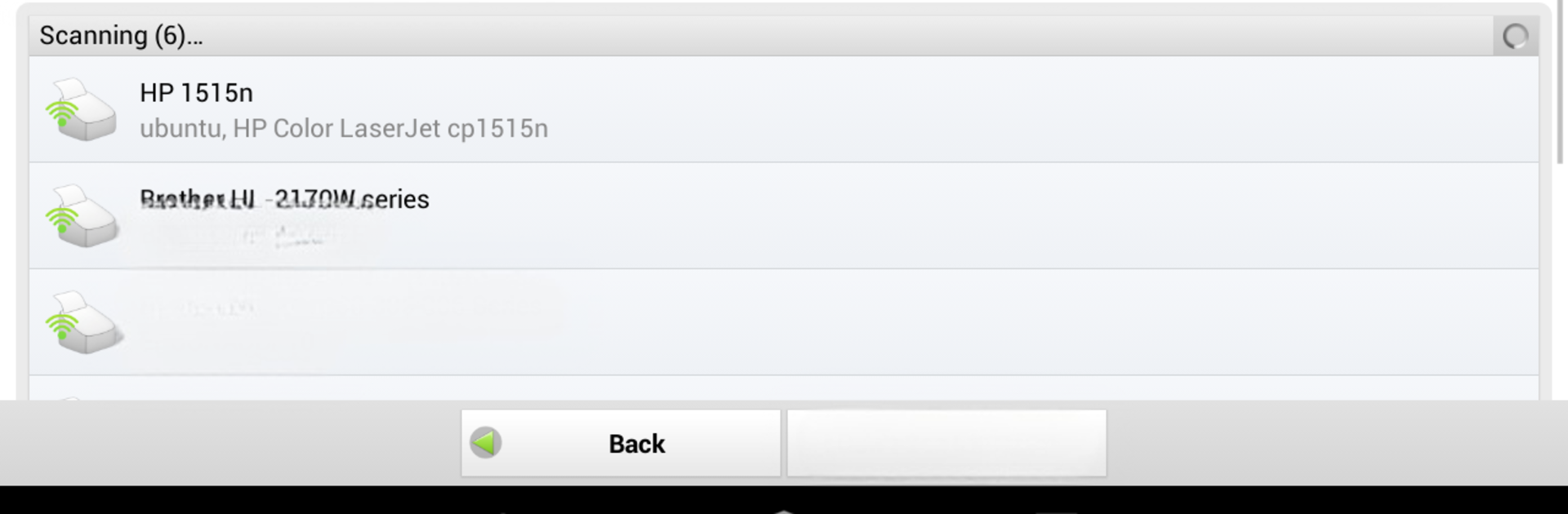
    The app’s built-in setup wizard searches for printers nearby and helps you connect, even with shared Mac or Windows printers. No digging through confusing settings menus.

  • Google Cloud Print Ready:
    Take advantage of Google Cloud Print for even more flexibility, so your printer doesn’t have to sit nearby to be useful.

  • Works Well With BlueStacks:
    If you run Android apps on your computer using BlueStacks, this app integrates smoothly, making desktop printing just as easy as mobile.

  • Wide Printer Support:
    Supports a big list of both standard and portable printers, so chances are your device is ready to go.

  • Frequent Updates:
    New features and expanded compatibility roll out regularly, so printing just keeps getting easier and more reliable.

BlueStacks brings your apps to life on a bigger screen—seamless and straightforward.

How to Download and Run PrintHand Mobile Print Premium on PC or Mac

  • Download and install BlueStacks on your PC or Mac

  • Complete Google sign-in to access the Play Store, or do it later

  • Look for PrintHand Mobile Print Premium in the search bar at the top right corner

  • Click to install PrintHand Mobile Print Premium from the search results

  • Complete Google sign-in (if you skipped step 2) to install PrintHand Mobile Print Premium

  • Click the PrintHand Mobile Print Premium icon on the home screen to start playing

video
Watch Video

Minimum System Requirements

With BlueStacks 5, you can get started on a PC that fulfills the following requirements.

  • Operating System

    Microsoft Windows 7 or above, macOS 11 (Big Sur) or above

  • Processor

    Intel, AMD or Apple Silicon Processor

  • RAM

    at least 4GB

  • HDD

    10GB Free Disk Space

Note:

* You must be an Administrator on your PC. Up to date graphics drivers from Microsoft or the chipset vendor.

PrintHand Mobile Print Premium - FAQs

  • How to Run PrintHand Mobile Print Premium on Windows PC & Mac?

    Run PrintHand Mobile Print Premium on your PC or Mac by following these simple steps.

    • Click on ‘Download PrintHand Mobile Print Premium on PC’ to download BlueStacks
    • Install it and log-in to Google Play Store
    • Launch and run the app.
  • Why is BlueStacks the fastest and safest platform to play games on PC?

    BlueStacks respects your privacy and is always safe and secure to use. It does not carry any malware, spyware, or any sort of additional software that could harm your PC.

    It is engineered to optimize speed and performance for a seamless gaming experience.

  • What are PrintHand Mobile Print Premium PC requirements?

    Minimum requirement to run PrintHand Mobile Print Premium on your PC

    • OS: Microsoft Windows 7 and above:
    • Processor: Intel or AMD Processor:
    • RAM: Your PC must have at least 2GB of RAM. (Note that having 2GB or more disk space is not a substitute for RAM):
    • HDD: 5GB Free Disk Space.
    • You must be an Administrator on your PC.