Project Schedule
Project Schedule

Project Schedule

Productivity

| Thorsten Krämer

Play on PC with BlueStacks or from our cloud

  • Overview
  • How to Download

Page Modified On: October 13, 2025

Run Project Schedule on PC or Mac

Let BlueStacks turn your PC, Mac, or laptop into the perfect home for Project Schedule, a fun Productivity app from Thorsten Krämer.

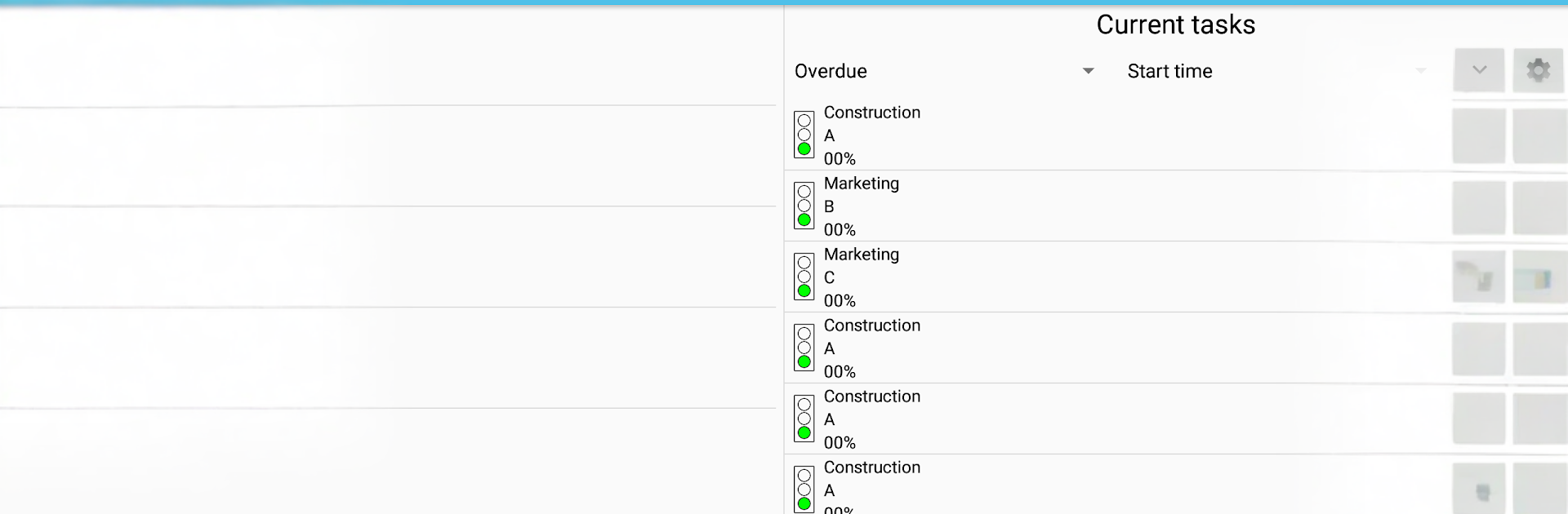
Project Schedule feels like a no-nonsense project manager that actually fits on a phone, and it gets even nicer on a PC with BlueStacks since the Gantt chart and columns have room to breathe. It is very spreadsheet-y in a good way. Multiple projects sit side by side, there is an overview that highlights tasks that need attention, and switching between a clean task list and the Gantt view is quick. Custom calendars let someone set work hours, days off, and holidays so the timeline respects real life. Resources can be added to track cost and work per task or per project, and contacts can be attached to those resources so it is clear who is doing what. Notifications pop up when a task starts or finishes, or tasks can be pushed to the device calendar if that is easier to see next to everything else.

The app plays nice with real formats. It reads MS Project .mpp with a plugin, writes and reads Excel .xls with another plugin, handles MSPDI XML and plain CSV both ways, and can spit out PNG images. The paid version flips on PDF export for Gantt, task lists, and cost reports, adds resource cost and duration data to Excel exports, syncs tasks with the device calendar, and lets users pick the exact export folder. There is optional CloudSync as a separate plugin, and Android Backup Service support if automatic backups are wanted. It is not flashy, but it feels practical and steady, which is all many folks want when deadlines and budgets are the main thing.

Big screen. Bigger performance. Use BlueStacks on your PC or Mac to run your favorite apps.

How to Download and Run Project Schedule on PC or Mac

  • Download and install BlueStacks on your PC or Mac

  • Complete Google sign-in to access the Play Store, or do it later

  • Look for Project Schedule in the search bar at the top right corner

  • Click to install Project Schedule from the search results

  • Complete Google sign-in (if you skipped step 2) to install Project Schedule

  • Click the Project Schedule icon on the home screen to start playing

video
Watch Video

Minimum System Requirements

With BlueStacks 5, you can get started on a PC that fulfills the following requirements.

  • Operating System

    Microsoft Windows 7 or above, macOS 11 (Big Sur) or above

  • Processor

    Intel, AMD or Apple Silicon Processor

  • RAM

    at least 4GB

  • HDD

    10GB Free Disk Space

Note:

* You must be an Administrator on your PC. Up to date graphics drivers from Microsoft or the chipset vendor.

Project Schedule - FAQs

  • How to Run Project Schedule on Windows PC & Mac?

    Run Project Schedule on your PC or Mac by following these simple steps.

    • Click on ‘Download Project Schedule on PC’ to download BlueStacks
    • Install it and log-in to Google Play Store
    • Launch and run the app.
  • Why is BlueStacks the fastest and safest platform to play games on PC?

    BlueStacks respects your privacy and is always safe and secure to use. It does not carry any malware, spyware, or any sort of additional software that could harm your PC.

    It is engineered to optimize speed and performance for a seamless gaming experience.

  • What are Project Schedule PC requirements?

    Minimum requirement to run Project Schedule on your PC

    • OS: Microsoft Windows 7 and above:
    • Processor: Intel or AMD Processor:
    • RAM: Your PC must have at least 2GB of RAM. (Note that having 2GB or more disk space is not a substitute for RAM):
    • HDD: 5GB Free Disk Space.
    • You must be an Administrator on your PC.