World Clock - Timezones Widget

World Clock - Timezones Widget

Productivity

| Alessandro Sperotti

Play on PC with BlueStacks or from our cloud

  • Overview
  • How to Download

Page Modified On: October 24, 2025

Run World Clock - Timezones Widget on PC or Mac

Get freedom from your phone’s obvious limitations. Use World Clock – Timezones Widget, made by Alessandro Sperotti, a Productivity app on your PC or Mac with BlueStacks, and level up your experience.

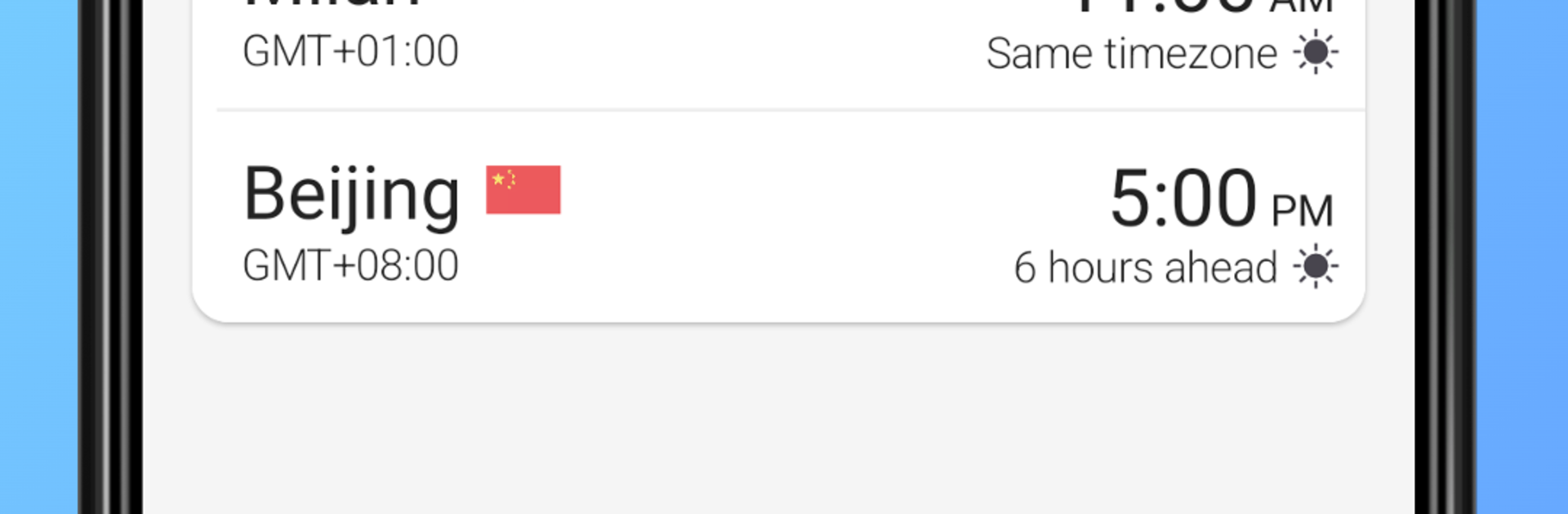
World Clock feels like a clean, no-nonsense way to keep several cities on the screen without juggling mental math. It shows multiple clocks at once, looks tidy, and the widget blends in so it does not scream for attention. The timezone converter is the bit that stands out. Pick a city, slide the time, and it tells exactly what that means elsewhere, so no guessing if that meeting in Tokyo lands at 7 am or 9 am locally. There are alarms and reminders that respect the city’s timezone, which is super useful when someone schedules something overnight. Dark mode is easy on the eyes, and the city search is fast, so adding places is not a chore.

It also packs extras like weather for each city, quick links to photos and info, and even points of interest if someone is planning a trip. None of that gets in the way, it just sits there if needed. The lock screen and home screen widgets are the real everyday win, since the time is visible without opening anything. On PC with BlueStacks, it is nice to keep the app open in a small window while working, almost like a desk clock for remote teams or family in different zones. It works offline too, so the saved cities still show the correct local time after the last sync. Simple, practical, and a little calmer than hopping between search tabs.

BlueStacks brings your apps to life on a bigger screen—seamless and straightforward.

How to Download and Run World Clock - Timezones Widget on PC or Mac

  • Download and install BlueStacks on your PC or Mac

  • Complete Google sign-in to access the Play Store, or do it later

  • Look for World Clock - Timezones Widget in the search bar at the top right corner

  • Click to install World Clock - Timezones Widget from the search results

  • Complete Google sign-in (if you skipped step 2) to install World Clock - Timezones Widget

  • Click the World Clock - Timezones Widget icon on the home screen to start playing

video
Watch Video

Minimum System Requirements

With BlueStacks 5, you can get started on a PC that fulfills the following requirements.

  • Operating System

    Microsoft Windows 7 or above, macOS 11 (Big Sur) or above

  • Processor

    Intel, AMD or Apple Silicon Processor

  • RAM

    at least 4GB

  • HDD

    10GB Free Disk Space

Note:

* You must be an Administrator on your PC. Up to date graphics drivers from Microsoft or the chipset vendor.

World Clock - Timezones Widget - FAQs

  • How to Run World Clock - Timezones Widget on Windows PC & Mac?

    Run World Clock - Timezones Widget on your PC or Mac by following these simple steps.

    • Click on ‘Download World Clock - Timezones Widget on PC’ to download BlueStacks
    • Install it and log-in to Google Play Store
    • Launch and run the app.
  • Why is BlueStacks the fastest and safest platform to play games on PC?

    BlueStacks respects your privacy and is always safe and secure to use. It does not carry any malware, spyware, or any sort of additional software that could harm your PC.

    It is engineered to optimize speed and performance for a seamless gaming experience.

  • What are World Clock - Timezones Widget PC requirements?

    Minimum requirement to run World Clock - Timezones Widget on your PC

    • OS: Microsoft Windows 7 and above:
    • Processor: Intel or AMD Processor:
    • RAM: Your PC must have at least 2GB of RAM. (Note that having 2GB or more disk space is not a substitute for RAM):
    • HDD: 5GB Free Disk Space.
    • You must be an Administrator on your PC.