Arrow Puzzle - Brain Challenge

Arrow Puzzle - Brain Challenge

Puzzle

| Tiffany Apps

Play on PC with BlueStacks or from our cloud

  • Overview
  • Game Features
  • How to Play

Page Modified On: August 11, 2026

Play Arrow Puzzle - Brain Challenge on PC or Mac

Arrow Puzzle – Brain Challenge by Tiffany Apps has plenty to keep you busy. BlueStacks lets you play it on PC or Mac with more screen space, better control, and fewer mobile limits.

About the Game

Arrow Puzzle – Brain Challenge is a clean, no-fuss Puzzle experience built around one simple idea: tap arrows in the right order to clear the board. Sounds easy… until a few wrong taps box you in. It’s all about planning a route, spotting patterns, and keeping a cool head as the maze-like layouts get trickier. Prefer a bigger screen? It plays smoothly on BlueStacks, too.

Game Features

  • Tap-to-clear gameplay: Each arrow points a way out. Tap in the right sequence to remove every piece without trapping yourself.
  • Think-first puzzles: Study the board, map your path, and commit. One impulsive tap can close off your escape.
  • Maze-style boards: Grids feel like tiny labyrinths where direction matters—every arrow changes what’s possible next.
  • Smooth and calm vibe: Low-friction controls and a relaxed pace let you focus on problem-solving, not micromanaging.
  • Progressive difficulty: Early stages teach the rules; later ones ask you to chain smarter moves and see a few steps ahead.
  • Helpful hints: Stuck? Use hints to nudge your thinking without spoiling the entire solution.
  • Offline play: No connection needed, so it’s perfect for commutes, flights, or quick breaks.
  • Pick-up-and-play sessions: Levels are bite-sized, making it easy to jump in, solve a board or two, and come back later.

Start playing Arrow Puzzle – Brain Challenge on BlueStacks and get a smoother, more comfortable PC or Mac setup.
Game Features

Enhancements

  • Macros
  • Multi Instance
  • Multi Instance Sync
  • Script
  • Enhancements
Macros

Macros

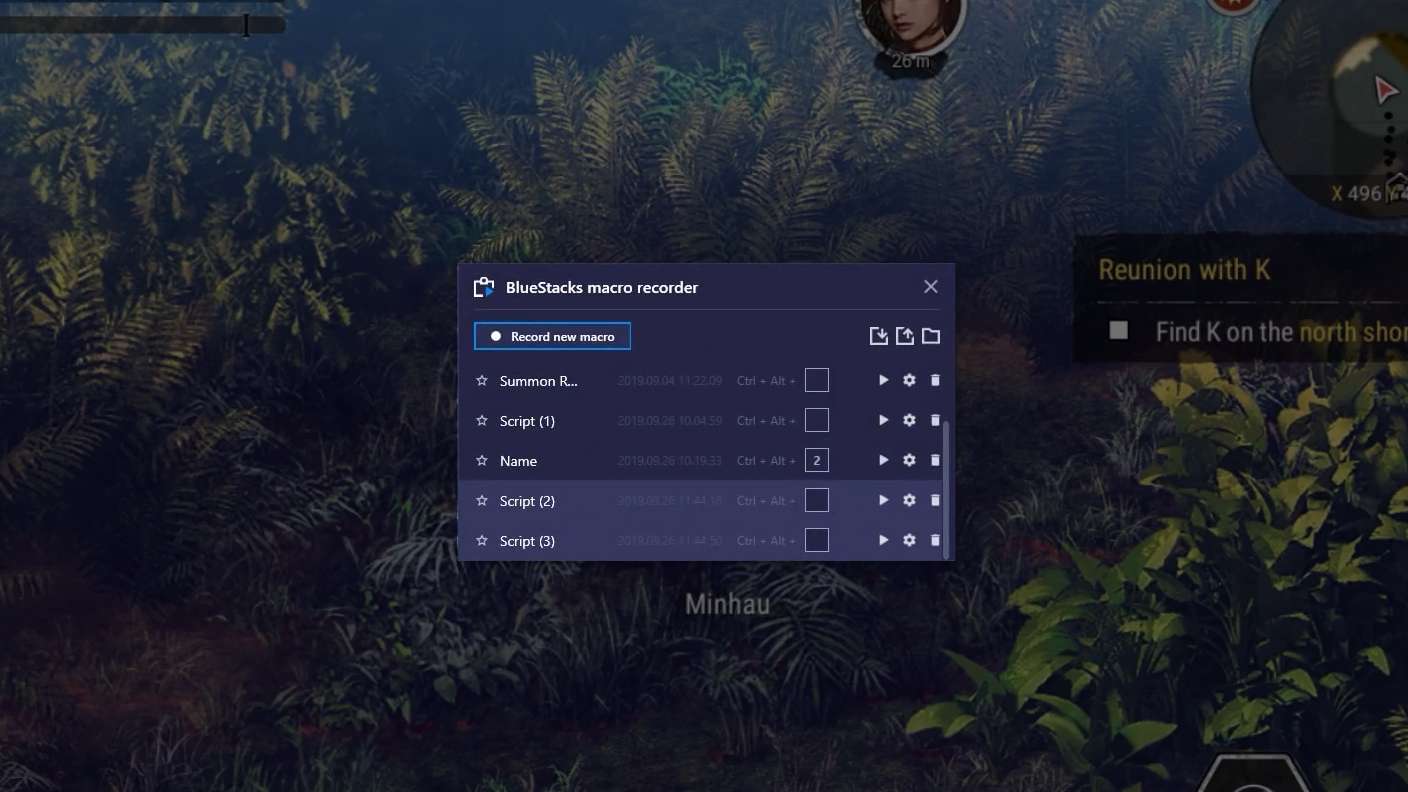
Automate the predictable in Arrow Puzzle - Brain Challenge and transform your gameplay with Macros. Get access to inventive Macros in the BlueStacks Macro Community
Multi Instance

Multi Instance

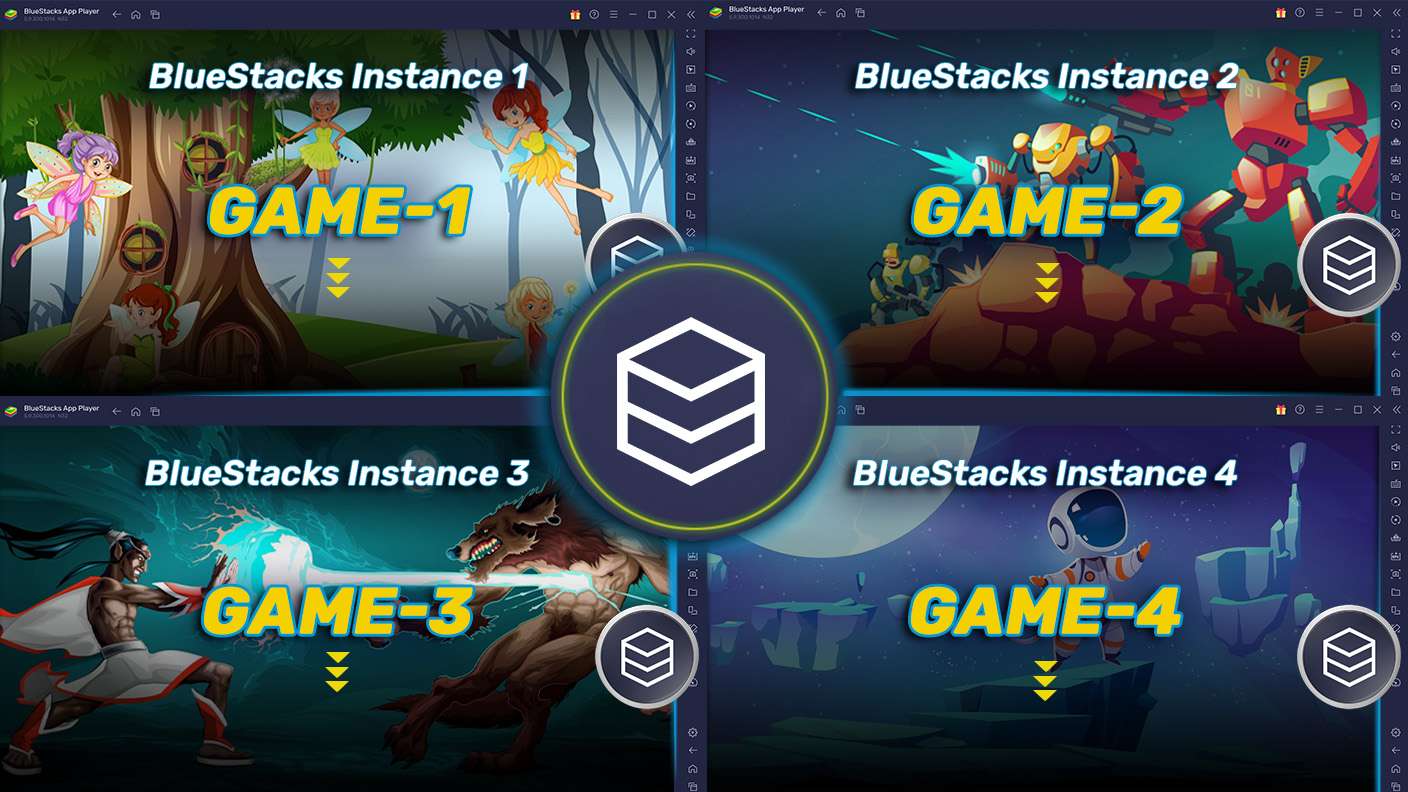
Play Arrow Puzzle - Brain Challenge on one window. And chat with your friend on the other. Press CTRL + Shift + 8 to open the Multi-Instance Manager. And start creating fresh instances or clone an existing one.
Multi Instance Sync

Multi Instance Sync

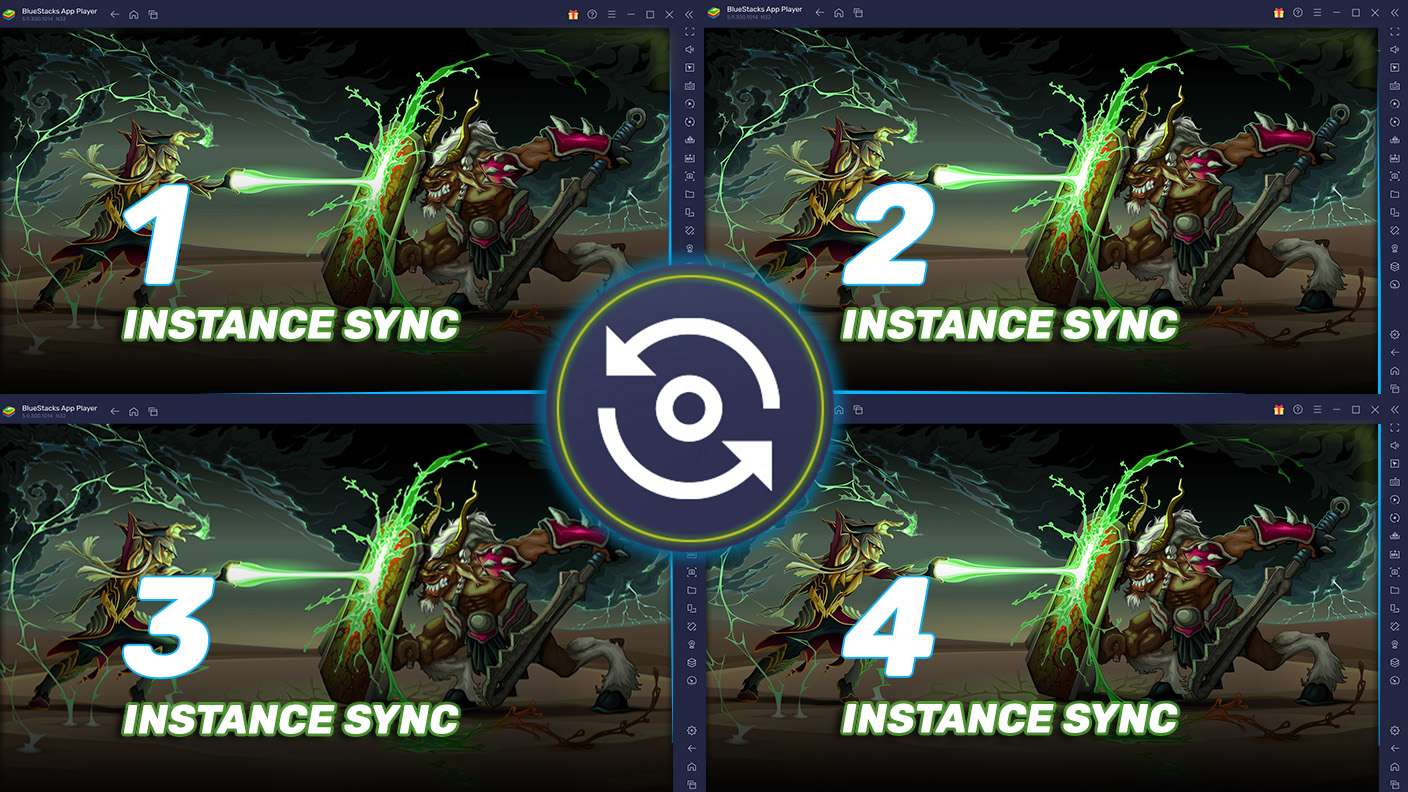
Play Arrow Puzzle - Brain Challenge with the power of Multi-Instance Sync. Replicate what you are doing on the main instance on all other instances. Level up faster, play more.
Script

Script

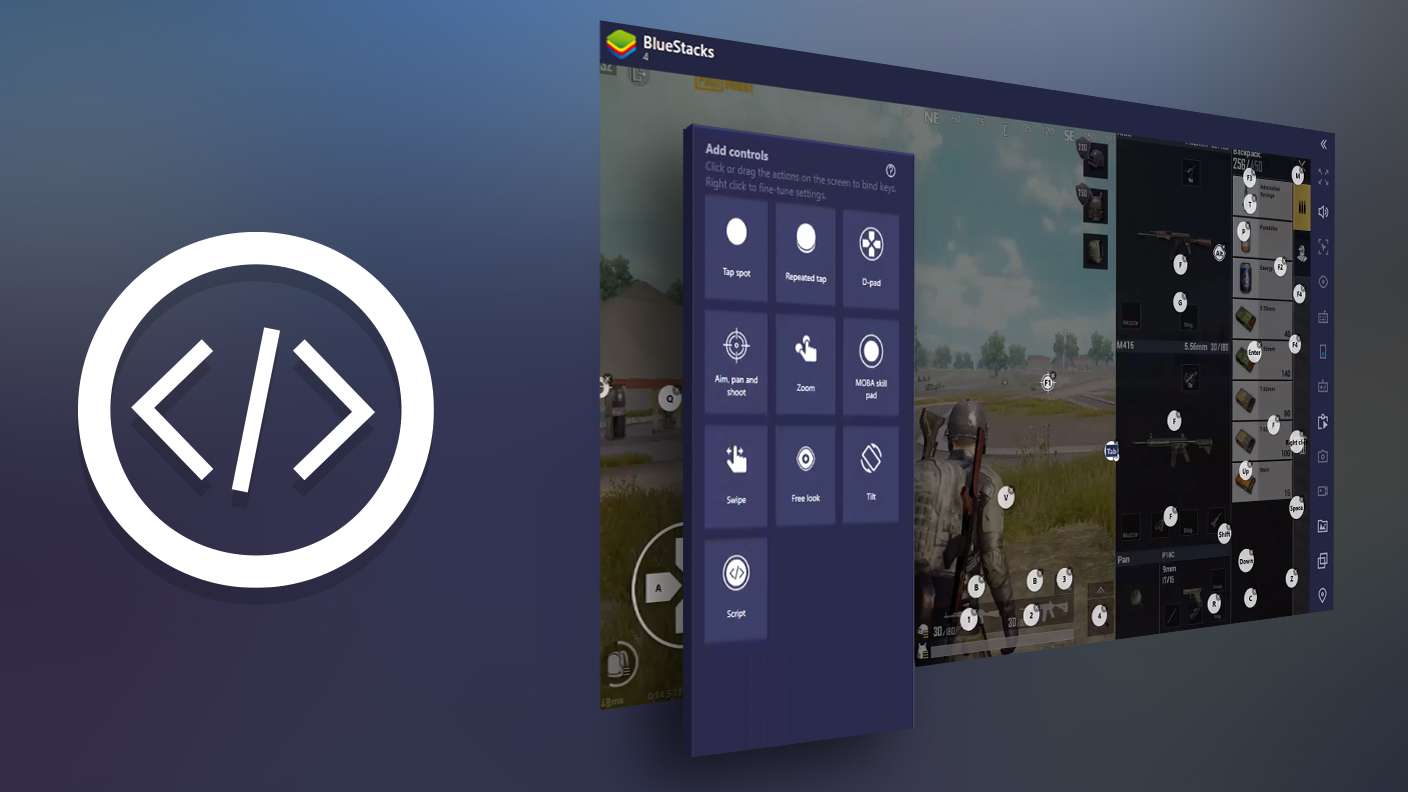
Script your way to gaming glory in Arrow Puzzle - Brain Challenge with BlueStacks Script. Write and run a set of commands to automate repeated tasks. Trigger the command by assigning it to any key.
Read More

How to Download and Play Arrow Puzzle - Brain Challenge on PC or Mac

  • Download and install BlueStacks on your PC or Mac

  • Complete Google sign-in to access the Play Store, or do it later

  • Look for Arrow Puzzle - Brain Challenge in the search bar at the top right corner

  • Click to install Arrow Puzzle - Brain Challenge from the search results

  • Complete Google sign-in (if you skipped step 2) to install Arrow Puzzle - Brain Challenge

  • Click the Arrow Puzzle - Brain Challenge icon on the home screen to start playing

video
Watch Video

Minimum System Requirements

With BlueStacks 5, you can get started on a PC that fulfills the following requirements.

  • Operating System

    Microsoft Windows 7 or above, macOS 11 (Big Sur) or above

  • Processor

    Intel, AMD or Apple Silicon Processor

  • RAM

    at least 4GB

  • HDD

    10GB Free Disk Space

Note:

* You must be an Administrator on your PC. Up to date graphics drivers from Microsoft or the chipset vendor.

Arrow Puzzle - Brain Challenge - FAQs

  • How to play Arrow Puzzle - Brain Challenge on Windows PC & Mac?

    Play Arrow Puzzle - Brain Challenge on your PC or Mac by following these simple steps.

    • Click on 'Play Arrow Puzzle - Brain Challenge on PC’ to download BlueStacks
    • Install it and log-in to Google Play Store
    • Launch and play the game.
  • Why is BlueStacks the fastest and safest platform to play games on PC?

    BlueStacks respects your privacy and is always safe and secure to use. It does not carry any malware, spyware, or any sort of additional software that could harm your PC.

    It is engineered to optimize speed and performance for a seamless gaming experience.

  • What are Arrow Puzzle - Brain Challenge PC requirements?

    Minimum requirement to run Arrow Puzzle - Brain Challenge on your PC

    • OS: Microsoft Windows 7 or above MacOS 11 (Big Sur) or above
    • Processor: Intel, AMD or Apple Silicon Processor
    • RAM: Your PC must have at least 4GB of RAM. (Note that having 4GB or more disk space is not a substitute for RAM)
    • HDD: 10GB Free Disk Space.
    • You must be an Administrator on your PC.