Cube Solver: Camera & 3D

Cube Solver: Camera & 3D

Puzzle

| Sparkappz

Play on PC with BlueStacks or from our cloud

  • Overview
  • Game Features
  • How to Play

Page Modified On: July 27, 2026

Play Cube Solver: Camera & 3D on PC or Mac

Play Cube Solver: Camera & 3D by Sparkappz on PC or Mac with BlueStacks. Use a bigger screen, mouse and keyboard controls, and smoother performance while you play.

About the Game

Staring at a scrambled cube and not sure what to try next? Cube Solver: Camera & 3D is a Puzzle companion that turns confusion into clear, doable steps. Snap your cube or enter colors by hand, then follow along on a smooth 3D model as it shows every move from start to solved.

Game Features

  • Quick Scan Solve — Point your camera at the puzzle and let the app read the stickers, then get a move-by-move path tailored to your exact scramble.
  • Hands-on 3D Guide — Watch an animated model perform each turn. Rotate, pan, and zoom so the on-screen view lines up with the cube in your hands.
  • Speed and Control — Pause, step through one move at a time, or let it auto-play. Dial the animation speed down to study or crank it up when you’re in a hurry.
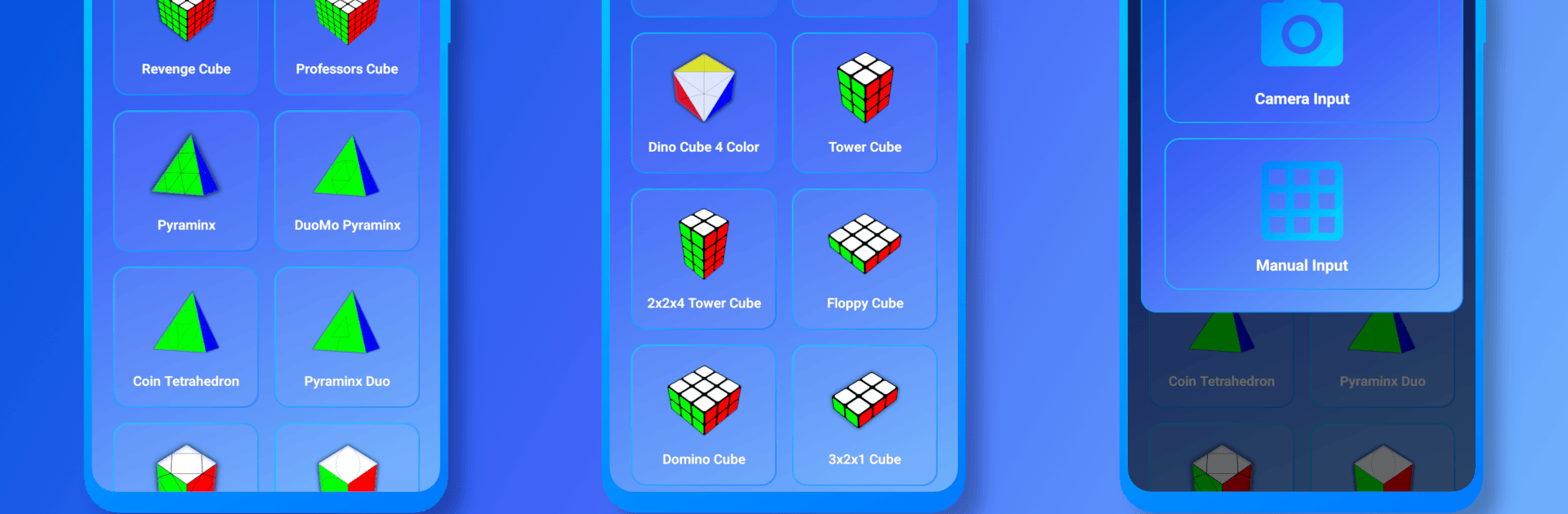
  • Manual Entry Done Right — No good lighting for scanning? Use a clean, intuitive color picker to fill in each face precisely.
  • Wide Puzzle Coverage — Go beyond the standard: 2×2, 3×3, 4×4, 5×5; pyramids like Pyraminx and Pyraminx Duo; shape mods including Skewb, Ivy, and Six Spot; Dino variants (6‑color and 4‑color); and towers/cuboids such as 2×2×3, 2×2×4, 3×3×2, 3×3×1, and 3×2×1—plus specialty pieces like the Coin Tetrahedron.
  • Move‑Efficient Solutions — Smart algorithms aim to keep turns to a minimum, making it great for learning new techniques or shaving time off solves.
  • PC Perks with BlueStacks — Prefer a bigger view? Running it on BlueStacks gives the 3D model extra clarity, and using a mouse makes rotating the puzzle feel especially natural.

BlueStacks gives you more room to focus on the game and less time adjusting around mobile limitations.
Game Features

Enhancements

  • Macros
  • Multi Instance
  • Multi Instance Sync
  • Script
  • Enhancements
Macros

Macros

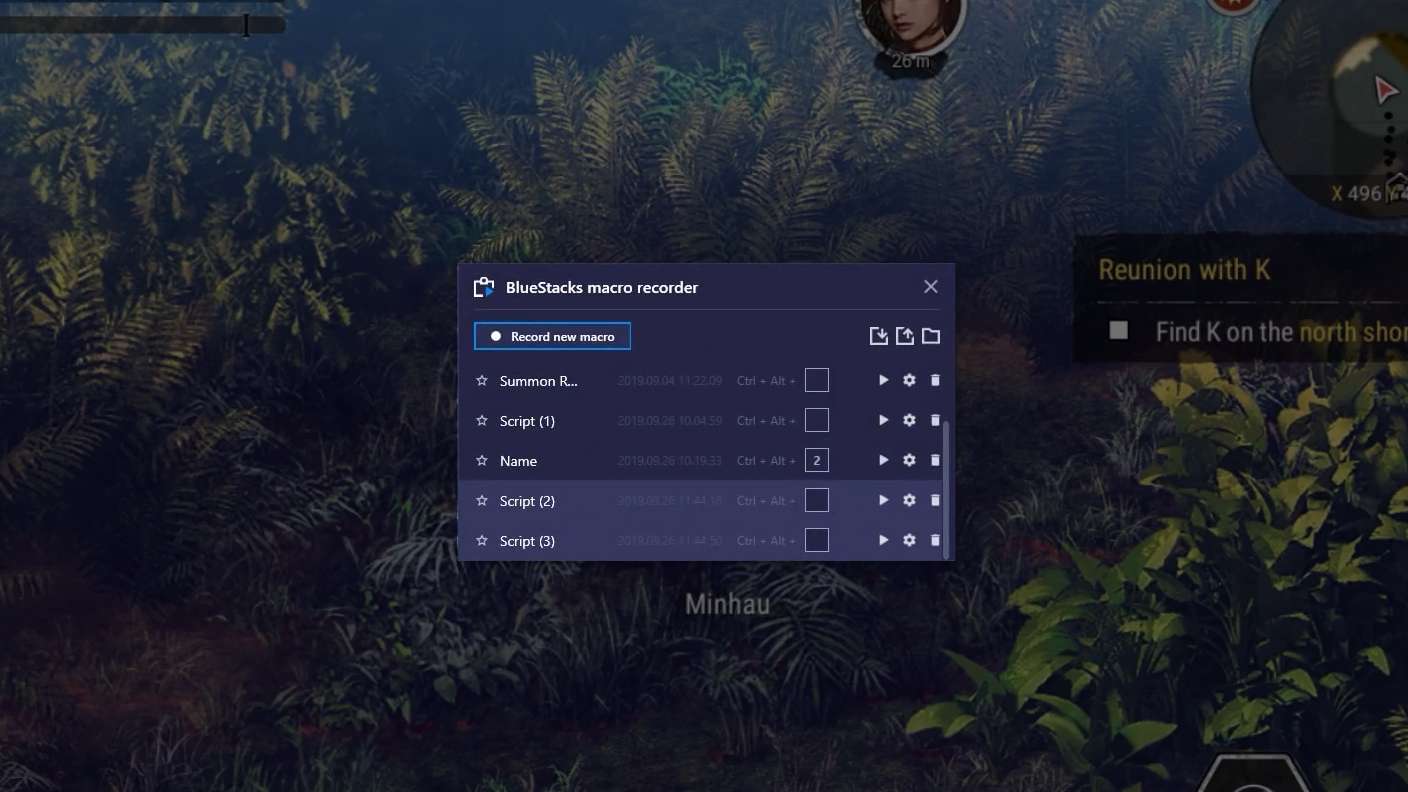
Automate the predictable in Cube Solver: Camera & 3D and transform your gameplay with Macros. Get access to inventive Macros in the BlueStacks Macro Community
Multi Instance

Multi Instance

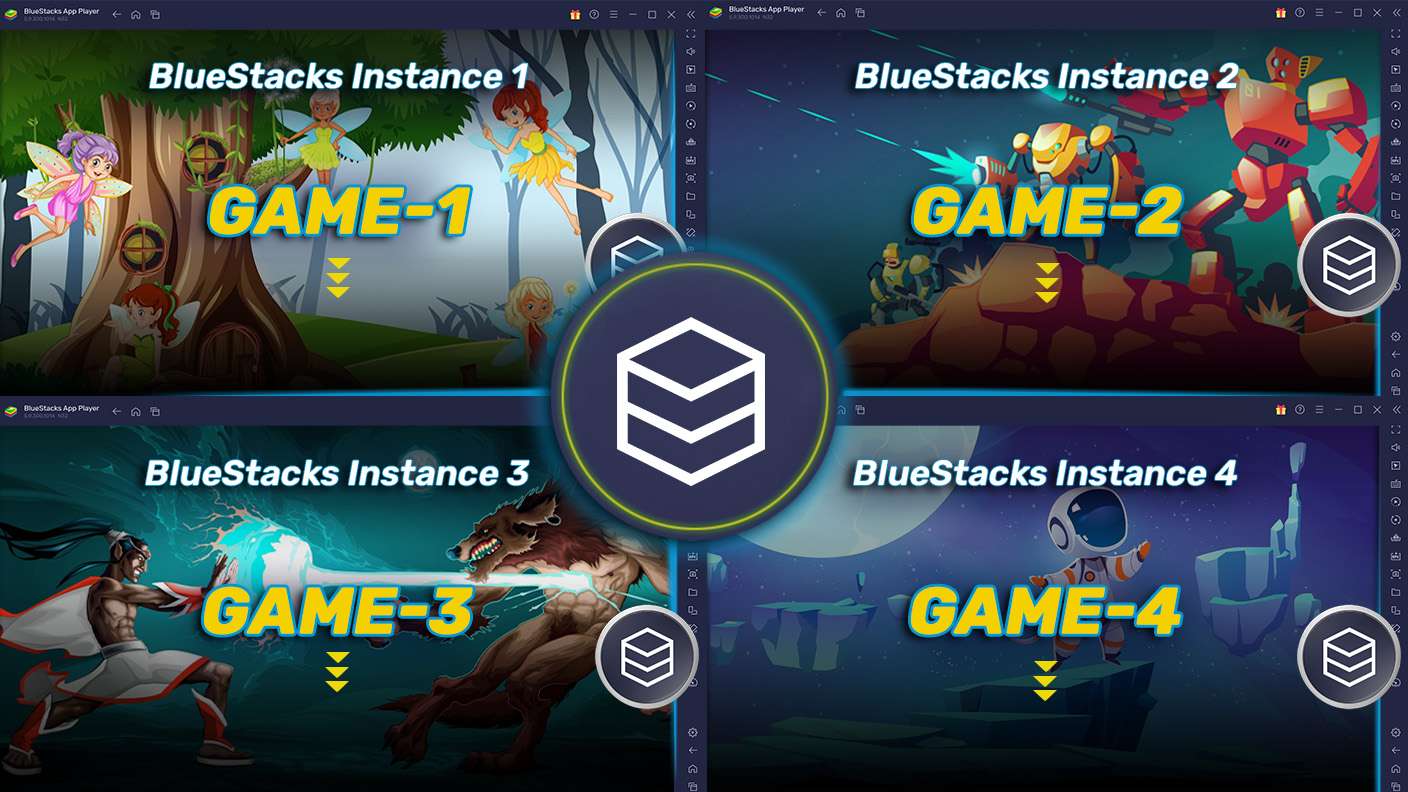
Play Cube Solver: Camera & 3D on one window. And chat with your friend on the other. Press CTRL + Shift + 8 to open the Multi-Instance Manager. And start creating fresh instances or clone an existing one.
Multi Instance Sync

Multi Instance Sync

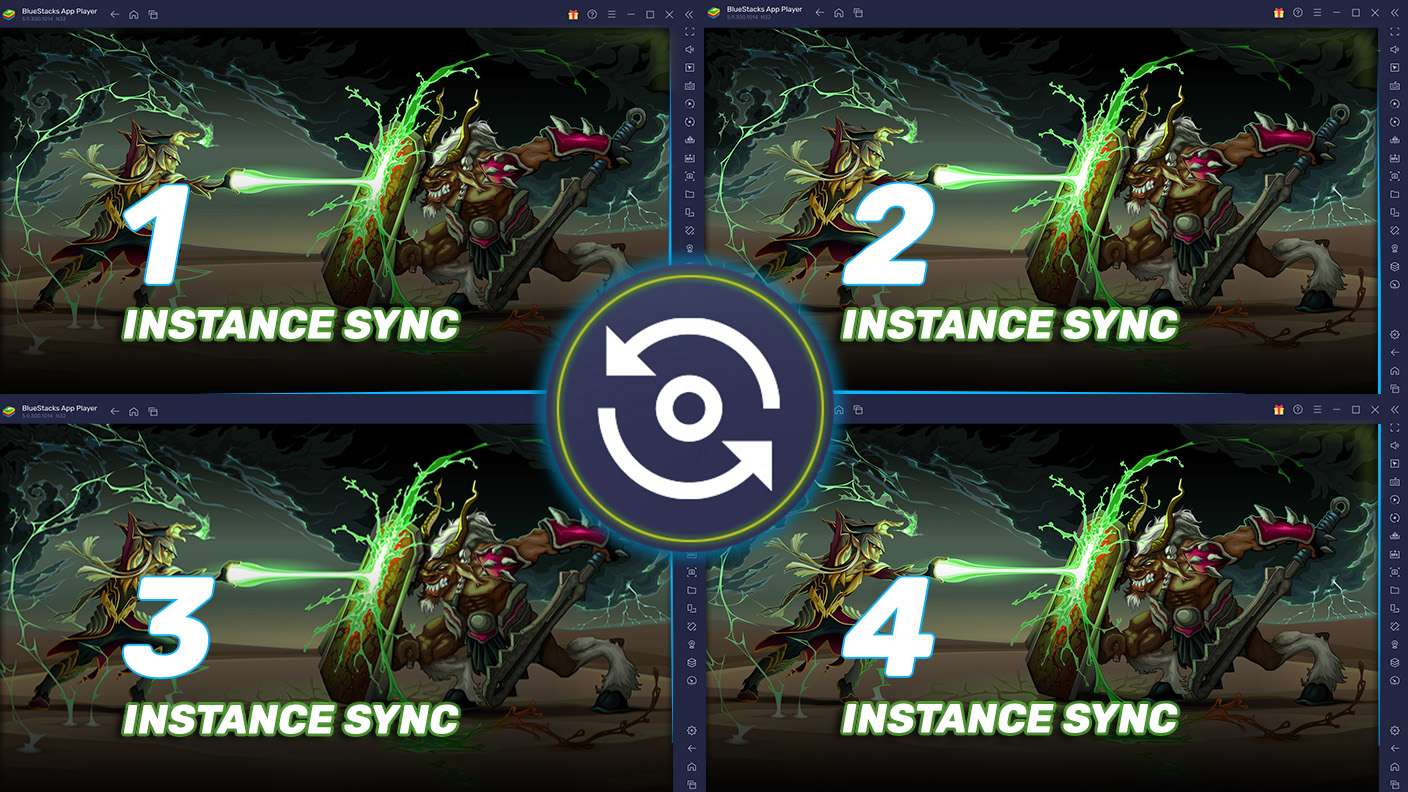
Play Cube Solver: Camera & 3D with the power of Multi-Instance Sync. Replicate what you are doing on the main instance on all other instances. Level up faster, play more.
Script

Script

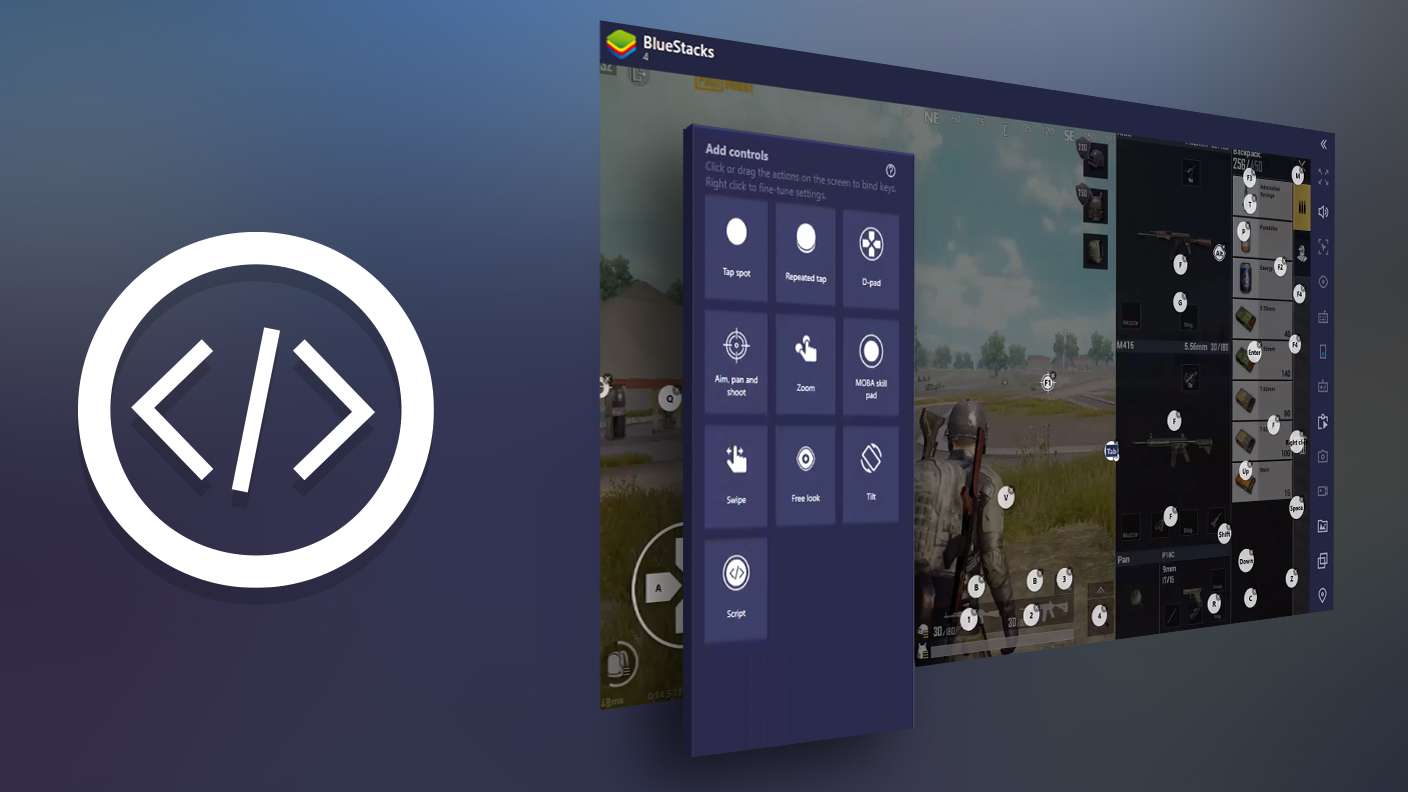
Script your way to gaming glory in Cube Solver: Camera & 3D with BlueStacks Script. Write and run a set of commands to automate repeated tasks. Trigger the command by assigning it to any key.
Read More

How to Download and Play Cube Solver: Camera & 3D on PC or Mac

  • Download and install BlueStacks on your PC or Mac

  • Complete Google sign-in to access the Play Store, or do it later

  • Look for Cube Solver: Camera & 3D in the search bar at the top right corner

  • Click to install Cube Solver: Camera & 3D from the search results

  • Complete Google sign-in (if you skipped step 2) to install Cube Solver: Camera & 3D

  • Click the Cube Solver: Camera & 3D icon on the home screen to start playing

video
Watch Video

Minimum System Requirements

With BlueStacks 5, you can get started on a PC that fulfills the following requirements.

  • Operating System

    Microsoft Windows 7 or above, macOS 11 (Big Sur) or above

  • Processor

    Intel, AMD or Apple Silicon Processor

  • RAM

    at least 4GB

  • HDD

    10GB Free Disk Space

Note:

* You must be an Administrator on your PC. Up to date graphics drivers from Microsoft or the chipset vendor.

Cube Solver: Camera & 3D - FAQs

  • How to play Cube Solver: Camera & 3D on Windows PC & Mac?

    Play Cube Solver: Camera & 3D on your PC or Mac by following these simple steps.

    • Click on 'Play Cube Solver: Camera & 3D on PC’ to download BlueStacks
    • Install it and log-in to Google Play Store
    • Launch and play the game.
  • Why is BlueStacks the fastest and safest platform to play games on PC?

    BlueStacks respects your privacy and is always safe and secure to use. It does not carry any malware, spyware, or any sort of additional software that could harm your PC.

    It is engineered to optimize speed and performance for a seamless gaming experience.

  • What are Cube Solver: Camera & 3D PC requirements?

    Minimum requirement to run Cube Solver: Camera & 3D on your PC

    • OS: Microsoft Windows 7 or above MacOS 11 (Big Sur) or above
    • Processor: Intel, AMD or Apple Silicon Processor
    • RAM: Your PC must have at least 4GB of RAM. (Note that having 4GB or more disk space is not a substitute for RAM)
    • HDD: 10GB Free Disk Space.
    • You must be an Administrator on your PC.