Fix My School
Fix My School

Fix My School

Simulation

| Andréa Didier

Play on PC with BlueStacks or from our cloud

  • Overview
  • Game Features
  • How to Play

Page Modified On: July 14, 2026

Play Fix My School on PC or Mac

Step into the World of Fix My School, a thrilling Simulation game from the house of Andréa Didier. Play this Android game on BlueStacks App Player and experience immersive gaming on PC or Mac.

About the Game

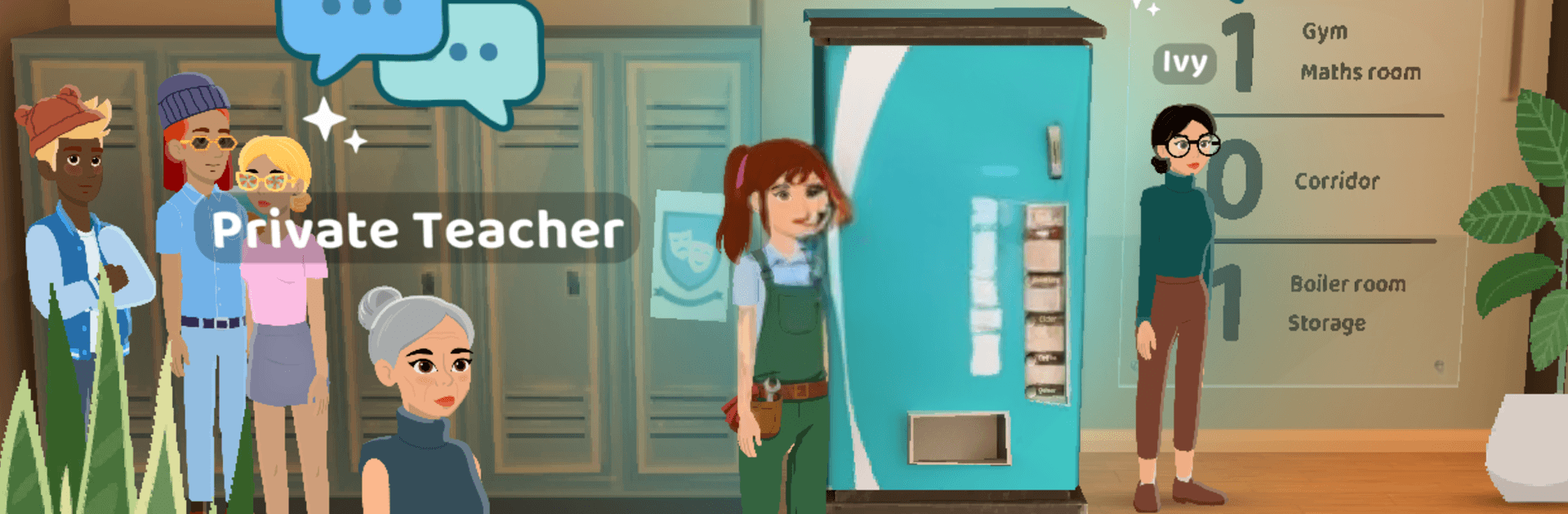
Fix My School is a Simulation game where you take charge of a tired, messy campus and bring it back to life. You’re the student council president, so the buck stops with you—clean it up, fix what’s broken, open new spaces, and make the place actually feel good to be in. Between studying, working out, making friends, and earning cash, you’ll shape both the school’s future and your own reputation.

Game Features

  • Hands-on rebuild: Sweep trash, repair busted spots, repaint, and reopen classrooms, labs, and clubs as you restore the campus piece by piece.
  • Choose what matters: Decide which projects deserve funding and which complaints need action first—your priorities change how the school grows.
  • Stats with impact: Hit the books to boost smarts, train to get stronger, and socialize to build charisma. These stats unlock new dialogue options and help with tougher tasks.
  • Food truck hustle: Run a small food truck to make money for upgrades. Juggle rush hours, improve your setup, and keep the renovations rolling.
  • Real student stories: Talk to classmates, hear what’s going on, and help fix problems. Earn trust, make friends, even handle a few rival vibes.
  • Explore and expand: Wander through halls and courtyards, uncover new wings, and unlock fresh areas that open more activities and challenges.
  • Plan your day: Balance classes, training, work, and repairs. Good time management pays off with faster progress and better results.
  • Play comfortably: Prefer a bigger screen and smoother controls? Fix My School runs great on PC with BlueStacks.

Start your journey now. Download the game on BlueStacks, invite your friends, and march on a new adventure.
Game Features

Enhancements

  • Macros
  • Multi Instance
  • Multi Instance Sync
  • Script
  • Enhancements
Macros

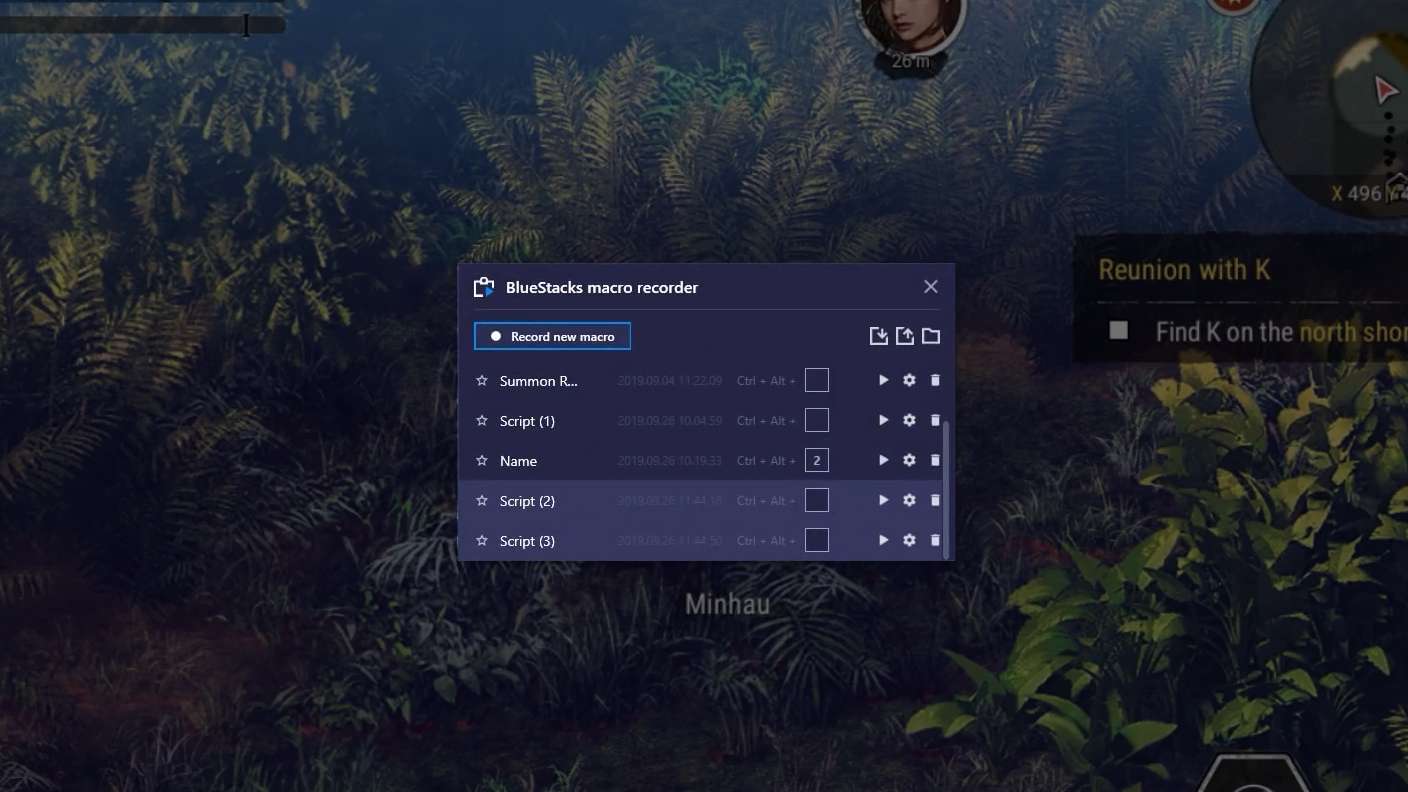
Macros

Automate the predictable in Fix My School and transform your gameplay with Macros. Get access to inventive Macros in the BlueStacks Macro Community
Multi Instance

Multi Instance

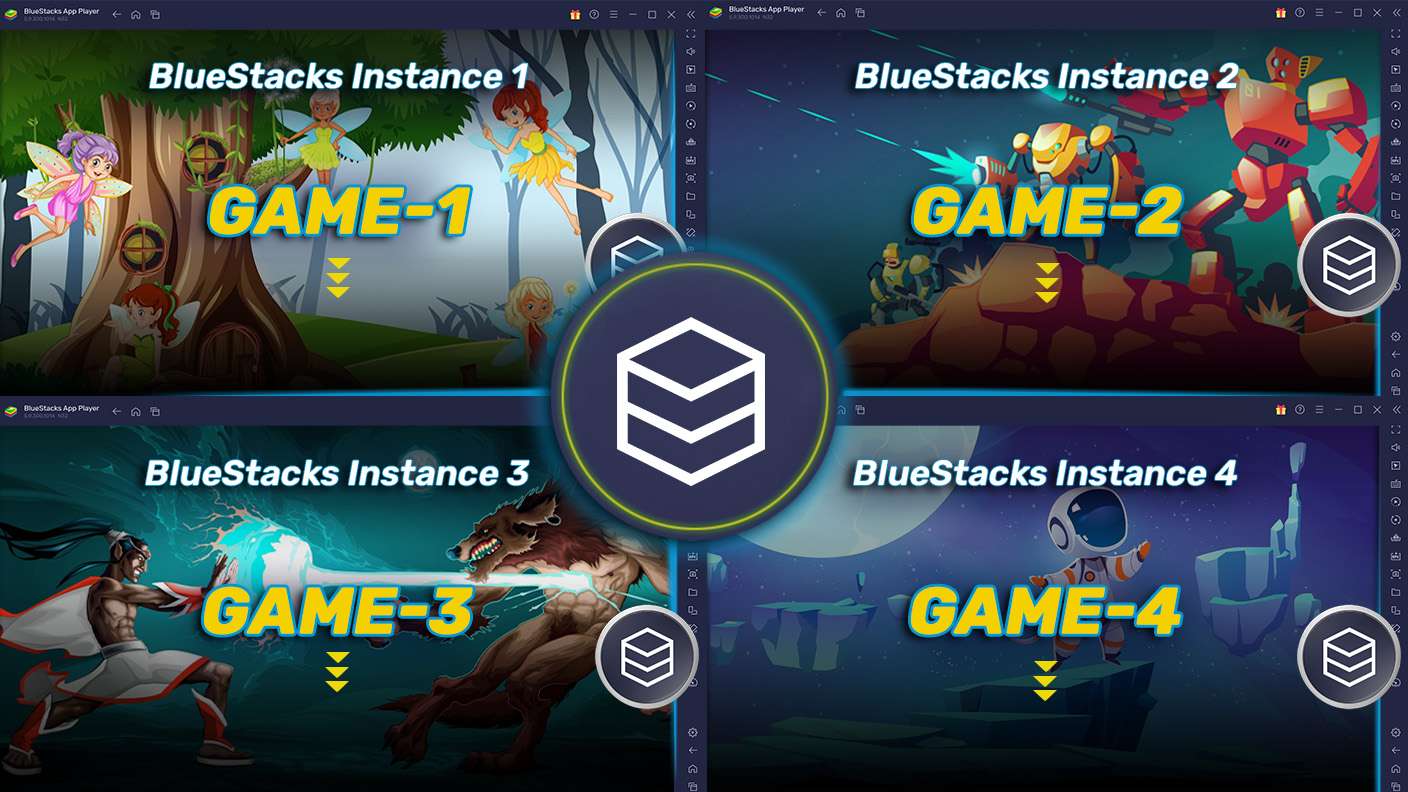
Play Fix My School on one window. And chat with your friend on the other. Press CTRL + Shift + 8 to open the Multi-Instance Manager. And start creating fresh instances or clone an existing one.
Multi Instance Sync

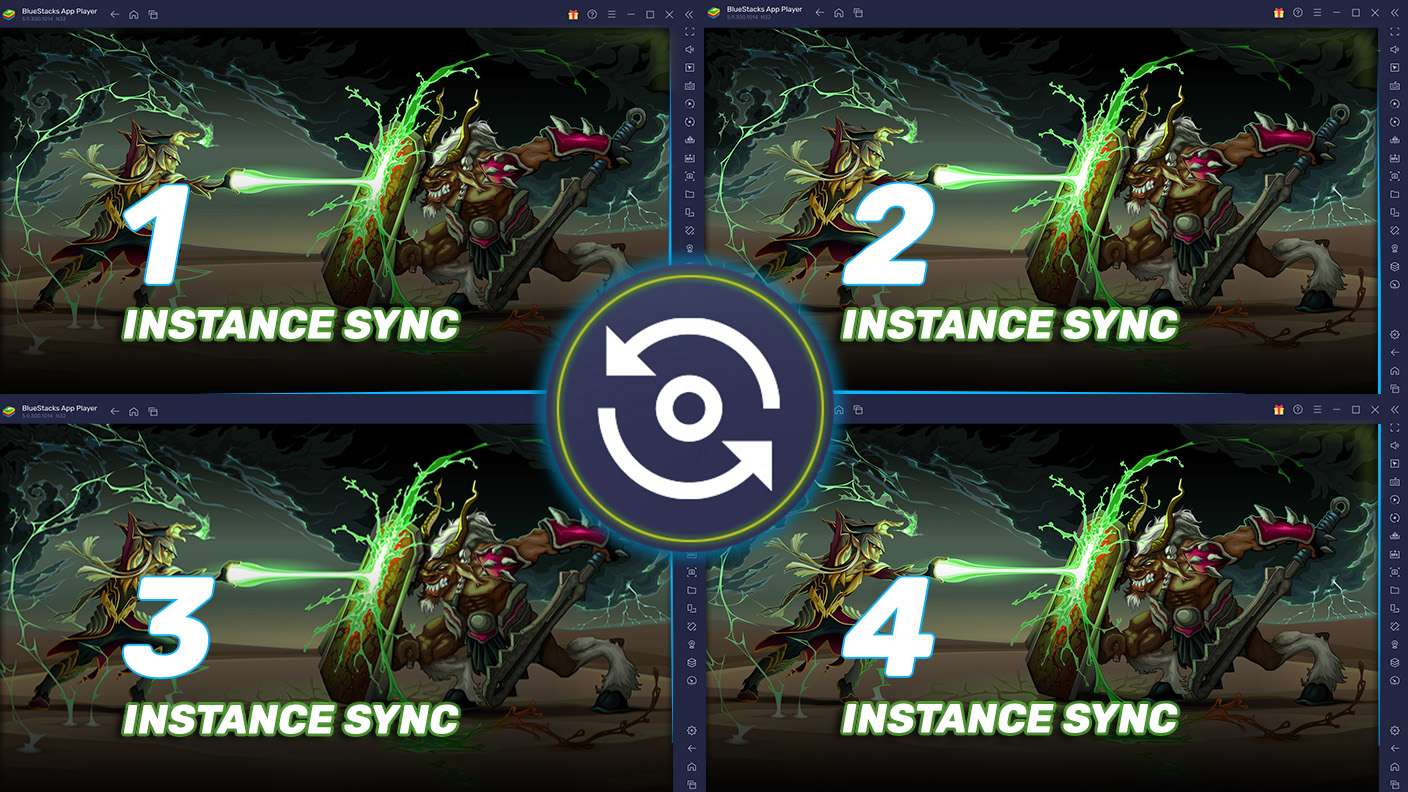
Multi Instance Sync

Play Fix My School with the power of Multi-Instance Sync. Replicate what you are doing on the main instance on all other instances. Level up faster, play more.
Script

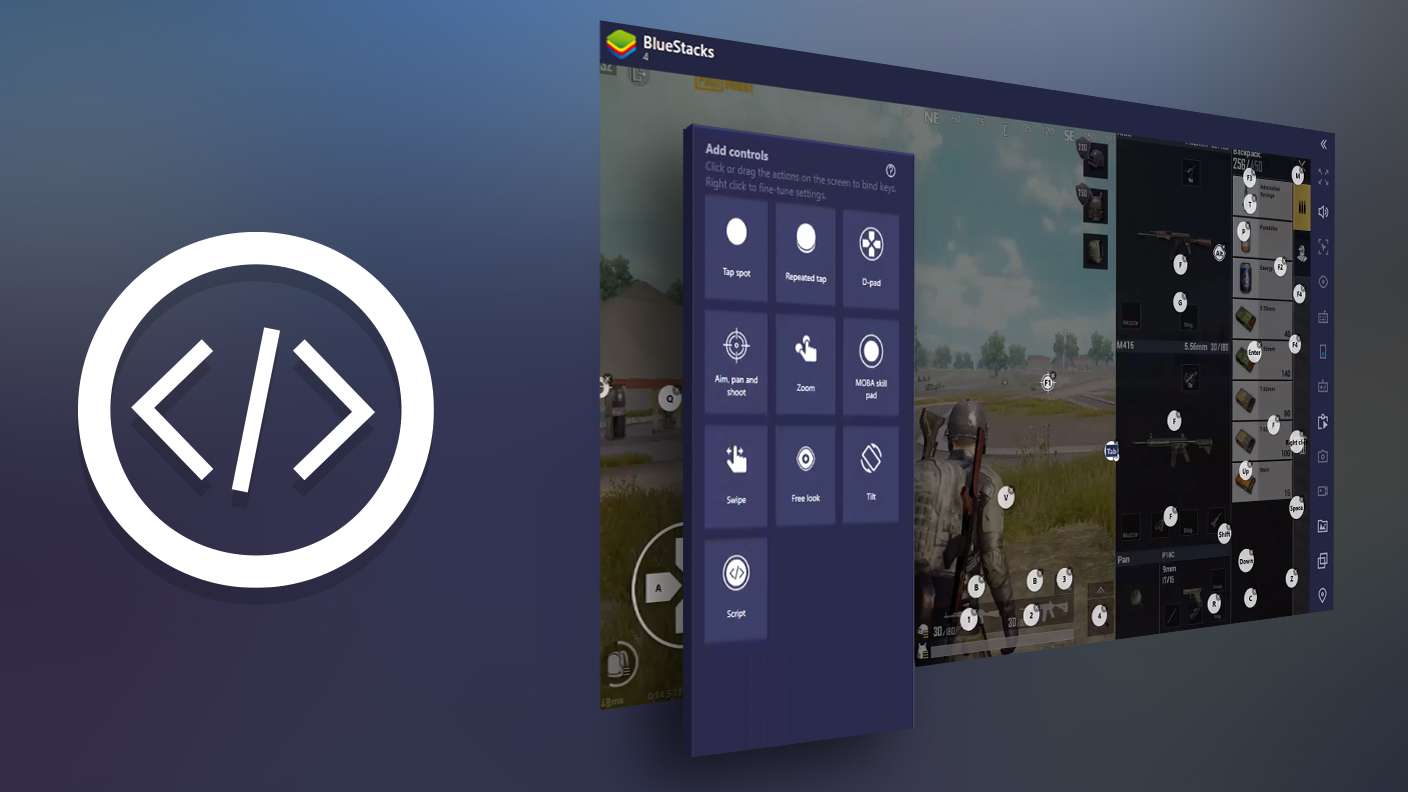
Script

Script your way to gaming glory in Fix My School with BlueStacks Script. Write and run a set of commands to automate repeated tasks. Trigger the command by assigning it to any key.
Read More

How to Download and Play Fix My School on PC or Mac

  • Download and install BlueStacks on your PC or Mac

  • Complete Google sign-in to access the Play Store, or do it later

  • Look for Fix My School in the search bar at the top right corner

  • Click to install Fix My School from the search results

  • Complete Google sign-in (if you skipped step 2) to install Fix My School

  • Click the Fix My School icon on the home screen to start playing

video
Watch Video

Minimum System Requirements

With BlueStacks 5, you can get started on a PC that fulfills the following requirements.

  • Operating System

    Microsoft Windows 7 or above, macOS 11 (Big Sur) or above

  • Processor

    Intel, AMD or Apple Silicon Processor

  • RAM

    at least 4GB

  • HDD

    10GB Free Disk Space

Note:

* You must be an Administrator on your PC. Up to date graphics drivers from Microsoft or the chipset vendor.

Fix My School - FAQs

  • How to play Fix My School on Windows PC & Mac?

    Play Fix My School on your PC or Mac by following these simple steps.

    • Click on 'Play Fix My School on PC’ to download BlueStacks
    • Install it and log-in to Google Play Store
    • Launch and play the game.
  • Why is BlueStacks the fastest and safest platform to play games on PC?

    BlueStacks respects your privacy and is always safe and secure to use. It does not carry any malware, spyware, or any sort of additional software that could harm your PC.

    It is engineered to optimize speed and performance for a seamless gaming experience.

  • What are Fix My School PC requirements?

    Minimum requirement to run Fix My School on your PC

    • OS: Microsoft Windows 7 or above MacOS 11 (Big Sur) or above
    • Processor: Intel, AMD or Apple Silicon Processor
    • RAM: Your PC must have at least 4GB of RAM. (Note that having 4GB or more disk space is not a substitute for RAM)
    • HDD: 10GB Free Disk Space.
    • You must be an Administrator on your PC.