All sensors in phone

All sensors in phone

Tools

| VanLife

Play on PC with BlueStacks or from our cloud

  • Overview
  • How to Download

Page Modified On: January 23, 2025

Run All sensors in phone on PC or Mac

Why limit yourself to your small screen on the phone? Run All sensors in phone, an app by VanLife, best experienced on your PC or Mac with BlueStacks, the world’s #1 Android emulator.

About the App

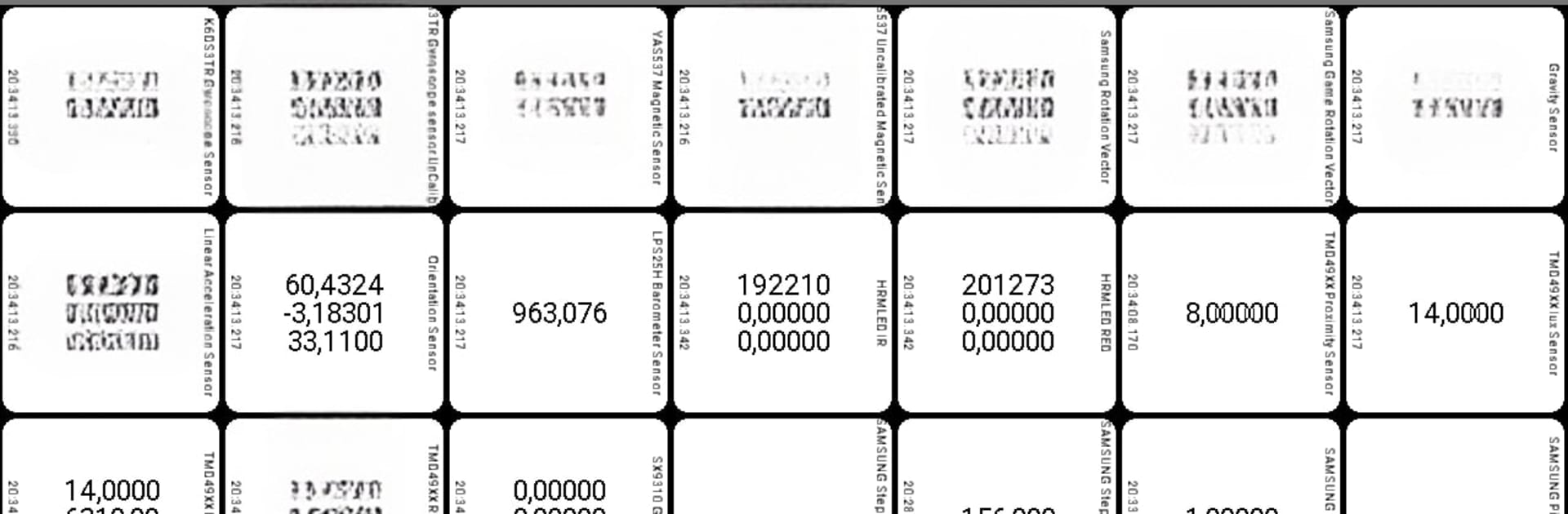
“All sensors in phone” by VanLife is your go-to tool for diving deep into the world of smartphone sensors. Want to know what’s under the hood of your device? This app displays all available sensors and their measured values, right at your fingertips. It’s perfect for tech enthusiasts eager to explore and compare the sensor capabilities across various phones without the hassle of additional installations.

App Features

  • Energy-Conscious Organization
    Sensors are sorted by energy consumption. Those with the highest current use are at the top, making it easy to identify the most power-draining components.

  • Customizable Sensor Cards
    Interested in only a few sensors? Simply long-press to close unnecessary cards, leaving just what you need for focused exploration.

  • Offline Data Security
    No worries about privacy! Sensor data stays secure on your phone, never touching the Internet, and you can even view it in a graph form.

  • Phone Comparison
    Want to compare sensor arrays across devices? This app lets you do exactly that, showcasing sensor quantities in an accessible way.

Experience the app’s capabilities seamlessly on BlueStacks!

BlueStacks gives you the much-needed freedom to experience your favorite apps on a bigger screen. Get it now.


How to Download and Run All sensors in phone on PC or Mac

  • Download and install BlueStacks on your PC or Mac

  • Complete Google sign-in to access the Play Store, or do it later

  • Look for All sensors in phone in the search bar at the top right corner

  • Click to install All sensors in phone from the search results

  • Complete Google sign-in (if you skipped step 2) to install All sensors in phone

  • Click the All sensors in phone icon on the home screen to start playing

video
Watch Video

Minimum System Requirements

With BlueStacks 5, you can get started on a PC that fulfills the following requirements.

  • Operating System

    Microsoft Windows 7 or above, macOS 11 (Big Sur) or above

  • Processor

    Intel, AMD or Apple Silicon Processor

  • RAM

    at least 4GB

  • HDD

    10GB Free Disk Space

Note:

* You must be an Administrator on your PC. Up to date graphics drivers from Microsoft or the chipset vendor.

All sensors in phone - FAQs

  • How to Run All sensors in phone on Windows PC & Mac?

    Run All sensors in phone on your PC or Mac by following these simple steps.

    • Click on ‘Download All sensors in phone on PC’ to download BlueStacks
    • Install it and log-in to Google Play Store
    • Launch and run the app.
  • Why is BlueStacks the fastest and safest platform to play games on PC?

    BlueStacks respects your privacy and is always safe and secure to use. It does not carry any malware, spyware, or any sort of additional software that could harm your PC.

    It is engineered to optimize speed and performance for a seamless gaming experience.

  • What are All sensors in phone PC requirements?

    Minimum requirement to run All sensors in phone on your PC

    • OS: Microsoft Windows 7 and above:
    • Processor: Intel or AMD Processor:
    • RAM: Your PC must have at least 2GB of RAM. (Note that having 2GB or more disk space is not a substitute for RAM):
    • HDD: 5GB Free Disk Space.
    • You must be an Administrator on your PC.