Android TV Launcher
Android TV Launcher

Android TV Launcher

Tools

| Google LLC

Play on PC with BlueStacks or from our cloud

  • Overview
  • How to Download

Page Modified On: January 06, 2026

Run Android TV Launcher on PC or Mac

Why limit yourself to your small screen on the phone? Run Android TV Launcher, an app by Google LLC, best experienced on your PC or Mac with BlueStacks, the world’s #1 Android emulator.

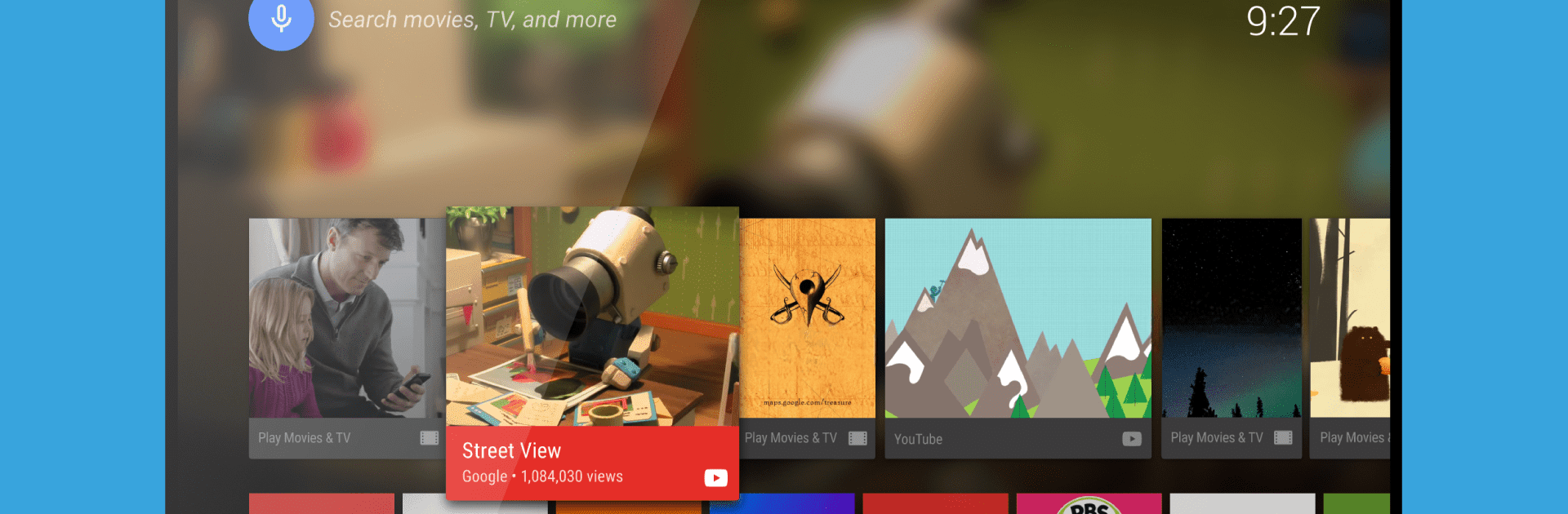
Android TV Launcher feels like a no nonsense home base for a TV device. It puts shows, games, and apps right in the middle of the screen so there is very little hunting around. On PC through BlueStacks, the desktop turns into a big screen style homepage with rows you can scroll through, cards for content, and a simple app strip that keeps the usual stuff close. The whole thing is built to get someone into what they want fast, not to show off flashy menus or a million settings.

What stands out is how straightforward it is. Open it, see what is available, press play, done. Navigation with arrow keys or a controller makes sense, since the layout expects those simple left right up down moves. There is quick access to system options and the important features, so changing something basic does not feel like a chore. It does not try to be a theme playground, and that is the point. It keeps recommendations and recent items in view, lets apps surface their content, and avoids extra clutter. For someone who just wants a clean TV style start screen on a computer, especially when launching streaming apps or casual games through BlueStacks, this keeps the flow smooth. Tinkerers who want deep customization might wish for more, but anyone who values speed and less friction will likely like it alot.

BlueStacks gives you the much-needed freedom to experience your favorite apps on a bigger screen. Get it now.

How to Download and Run Android TV Launcher on PC or Mac

  • Download and install BlueStacks on your PC or Mac

  • Complete Google sign-in to access the Play Store, or do it later

  • Look for Android TV Launcher in the search bar at the top right corner

  • Click to install Android TV Launcher from the search results

  • Complete Google sign-in (if you skipped step 2) to install Android TV Launcher

  • Click the Android TV Launcher icon on the home screen to start playing

video
Watch Video

Minimum System Requirements

With BlueStacks 5, you can get started on a PC that fulfills the following requirements.

  • Operating System

    Microsoft Windows 7 or above, macOS 11 (Big Sur) or above

  • Processor

    Intel, AMD or Apple Silicon Processor

  • RAM

    at least 4GB

  • HDD

    10GB Free Disk Space

Note:

* You must be an Administrator on your PC. Up to date graphics drivers from Microsoft or the chipset vendor.

Android TV Launcher - FAQs

  • How to Run Android TV Launcher on Windows PC & Mac?

    Run Android TV Launcher on your PC or Mac by following these simple steps.

    • Click on ‘Download Android TV Launcher on PC’ to download BlueStacks
    • Install it and log-in to Google Play Store
    • Launch and run the app.
  • Why is BlueStacks the fastest and safest platform to play games on PC?

    BlueStacks respects your privacy and is always safe and secure to use. It does not carry any malware, spyware, or any sort of additional software that could harm your PC.

    It is engineered to optimize speed and performance for a seamless gaming experience.

  • What are Android TV Launcher PC requirements?

    Minimum requirement to run Android TV Launcher on your PC

    • OS: Microsoft Windows 7 and above:
    • Processor: Intel or AMD Processor:
    • RAM: Your PC must have at least 2GB of RAM. (Note that having 2GB or more disk space is not a substitute for RAM):
    • HDD: 5GB Free Disk Space.
    • You must be an Administrator on your PC.