AT&T Personal Cloud
AT&T Personal Cloud

AT&T Personal Cloud

Tools

| AT&T Services, Inc.

Play on PC with BlueStacks or from our cloud

  • Overview
  • How to Download

Page Modified On: January 02, 2026

Run AT&T Personal Cloud on PC or Mac

Upgrade your experience. Try AT&T Personal Cloud, the fantastic Tools app from AT&T Services, Inc., from the comfort of your laptop, PC, or Mac, only on BlueStacks.

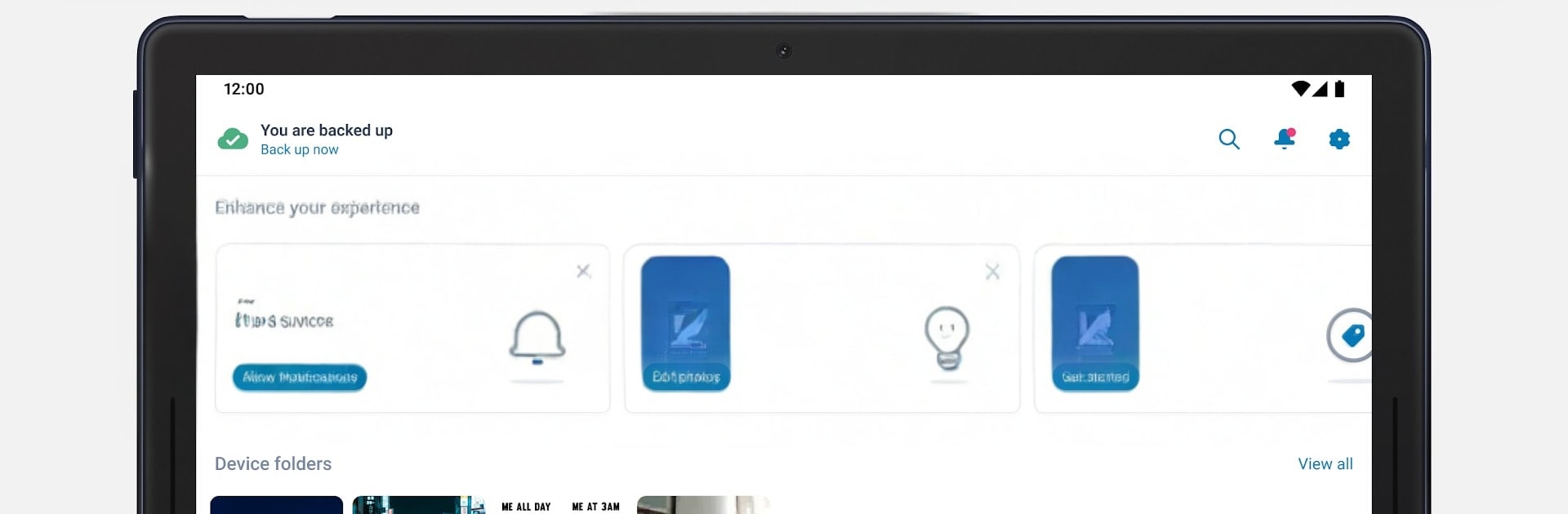
AT&T Personal Cloud feels like a set-it-and-relax kind of app. It quietly backs up photos, videos, and documents in the background, then keeps everything lined up across phones, tablets, and computers. The best part is how easy it is to find stuff later. Tagging and search work well, so someone can pull up that one vacation clip or the dog photos without scrolling for ages. There is a Private Folder with a PIN for passports, licenses, or even passwords, which is handy when real life paperwork gets scattered. It also throws in weekly flashbacks and highlights that resurface old shots, plus some simple editing with filters and AI touch ups when a photo needs quick fixing.

Running it on a PC with BlueStacks is nice for big screen browsing. Sorting albums, batch selecting, and dragging files in from the desktop just feels simpler when there is a mouse and keyboard. It also helps when clearing space on a phone, since offloading a bunch of media to the cloud is less of a chore.

There is a 30 day trial, then it turns into a subscription with different storage tiers. It is tied to an AT&T wireless account and only works in the U.S., so that part matters. If someone cancels, uploads stop and the stored files get removed after a short period, so planning ahead is smart. Overall, it does the boring parts of backup well and leaves nice touches for memory keeping.

Eager to take your app experience to the next level? Start right away by downloading BlueStacks on your PC or Mac.

How to Download and Run AT&T Personal Cloud on PC or Mac

  • Download and install BlueStacks on your PC or Mac

  • Complete Google sign-in to access the Play Store, or do it later

  • Look for AT&T Personal Cloud in the search bar at the top right corner

  • Click to install AT&T Personal Cloud from the search results

  • Complete Google sign-in (if you skipped step 2) to install AT&T Personal Cloud

  • Click the AT&T Personal Cloud icon on the home screen to start playing

video
Watch Video

Minimum System Requirements

With BlueStacks 5, you can get started on a PC that fulfills the following requirements.

  • Operating System

    Microsoft Windows 7 or above, macOS 11 (Big Sur) or above

  • Processor

    Intel, AMD or Apple Silicon Processor

  • RAM

    at least 4GB

  • HDD

    10GB Free Disk Space

Note:

* You must be an Administrator on your PC. Up to date graphics drivers from Microsoft or the chipset vendor.

AT&T Personal Cloud - FAQs

  • How to Run AT&T Personal Cloud on Windows PC & Mac?

    Run AT&T Personal Cloud on your PC or Mac by following these simple steps.

    • Click on ‘Download AT&T Personal Cloud on PC’ to download BlueStacks
    • Install it and log-in to Google Play Store
    • Launch and run the app.
  • Why is BlueStacks the fastest and safest platform to play games on PC?

    BlueStacks respects your privacy and is always safe and secure to use. It does not carry any malware, spyware, or any sort of additional software that could harm your PC.

    It is engineered to optimize speed and performance for a seamless gaming experience.

  • What are AT&T Personal Cloud PC requirements?

    Minimum requirement to run AT&T Personal Cloud on your PC

    • OS: Microsoft Windows 7 and above:
    • Processor: Intel or AMD Processor:
    • RAM: Your PC must have at least 2GB of RAM. (Note that having 2GB or more disk space is not a substitute for RAM):
    • HDD: 5GB Free Disk Space.
    • You must be an Administrator on your PC.