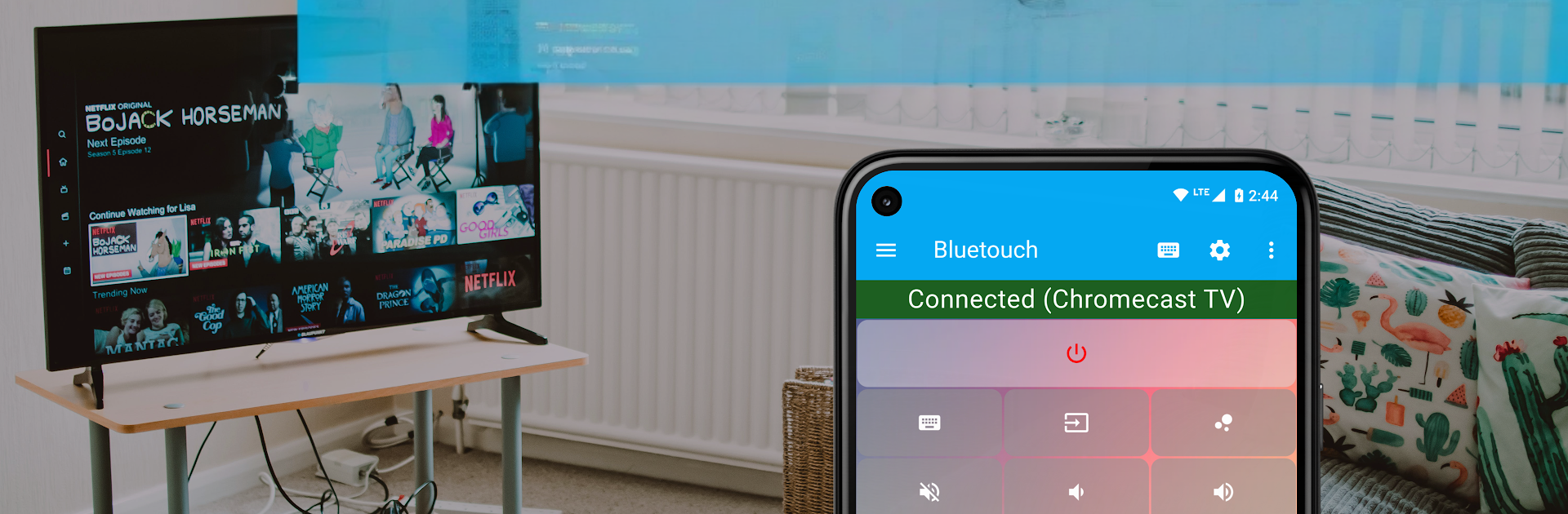
Bluetouch™ Keyboard and Mouse

Bluetouch™ Keyboard and Mouse

Tools

| AppsBySeed

Play on PC with BlueStacks or from our cloud

  • Overview
  • How to Download

Page Modified On: December 15, 2025

Run Bluetouch™ Keyboard and Mouse on PC or Mac

Let BlueStacks turn your PC, Mac, or laptop into the perfect home for Bluetouch™ Keyboard and Mouse, a fun Tools app from AppsBySeed.

Bluetouch Keyboard and Mouse turns a phone or tablet into a Bluetooth mouse, keyboard, and remote without any extra setup, and it feels surprisingly direct. The trackpad is smooth, with left, right, and middle buttons that behave like a normal mouse. Scroll speed and direction can be tuned, so it does not fling too fast, and the full keyboard includes function and arrow keys for those odd shortcuts that regular mobile keyboards usually skip. If someone prefers their system keyboard, that works too, so swipe typing and speech to text are still there for quick searches or long passwords. The neat trick is the mouse jiggler that keeps a PC awake during long tasks or a presentation. It is also a solid backup when a mouse battery dies or the TV remote disappears under the couch again.

What stands out is how flexible it gets once custom layouts come into play. They can build a simple TV remote, a presentation clicker, even a basic game controller, then switch between layouts on the fly while staying connected. Shortcuts can send up to six keys at once, so things like ctrl alt delete or custom hotkeys are one tap. Copy text outside the app and paste to a connected device, or scan a QR or barcode and it sends the data over Bluetooth. Language layouts are there for multilingual setups. On BlueStacks, it feels like a tidy control panel on the desktop, easy to test layouts and keep a PC in reach without reaching for another device. It is straightforward, practical, and it does not get fussy.

BlueStacks gives you the much-needed freedom to experience your favorite apps on a bigger screen. Get it now.


How to Download and Run Bluetouch™ Keyboard and Mouse on PC or Mac

  • Download and install BlueStacks on your PC or Mac

  • Complete Google sign-in to access the Play Store, or do it later

  • Look for Bluetouch™ Keyboard and Mouse in the search bar at the top right corner

  • Click to install Bluetouch™ Keyboard and Mouse from the search results

  • Complete Google sign-in (if you skipped step 2) to install Bluetouch™ Keyboard and Mouse

  • Click the Bluetouch™ Keyboard and Mouse icon on the home screen to start playing

video
Watch Video

Minimum System Requirements

With BlueStacks 5, you can get started on a PC that fulfills the following requirements.

  • Operating System

    Microsoft Windows 7 or above, macOS 11 (Big Sur) or above

  • Processor

    Intel, AMD or Apple Silicon Processor

  • RAM

    at least 4GB

  • HDD

    10GB Free Disk Space

Note:

* You must be an Administrator on your PC. Up to date graphics drivers from Microsoft or the chipset vendor.

Bluetouch™ Keyboard and Mouse - FAQs

  • How to Run Bluetouch™ Keyboard and Mouse on Windows PC & Mac?

    Run Bluetouch™ Keyboard and Mouse on your PC or Mac by following these simple steps.

    • Click on ‘Download Bluetouch™ Keyboard and Mouse on PC’ to download BlueStacks
    • Install it and log-in to Google Play Store
    • Launch and run the app.
  • Why is BlueStacks the fastest and safest platform to play games on PC?

    BlueStacks respects your privacy and is always safe and secure to use. It does not carry any malware, spyware, or any sort of additional software that could harm your PC.

    It is engineered to optimize speed and performance for a seamless gaming experience.

  • What are Bluetouch™ Keyboard and Mouse PC requirements?

    Minimum requirement to run Bluetouch™ Keyboard and Mouse on your PC

    • OS: Microsoft Windows 7 and above:
    • Processor: Intel or AMD Processor:
    • RAM: Your PC must have at least 2GB of RAM. (Note that having 2GB or more disk space is not a substitute for RAM):
    • HDD: 5GB Free Disk Space.
    • You must be an Administrator on your PC.