GCodePrintr - The 3D Print App

GCodePrintr - The 3D Print App

Tools

| MDCode

Play on PC with BlueStacks or from our cloud

  • Overview
  • How to Download

Page Modified On: December 15, 2025

Run GCodePrintr - The 3D Print App on PC or Mac

What’s better than using GCodePrintr – The 3D Print App by MDCode? Well, try it on a big screen, on your PC or Mac, with BlueStacks to see the difference.

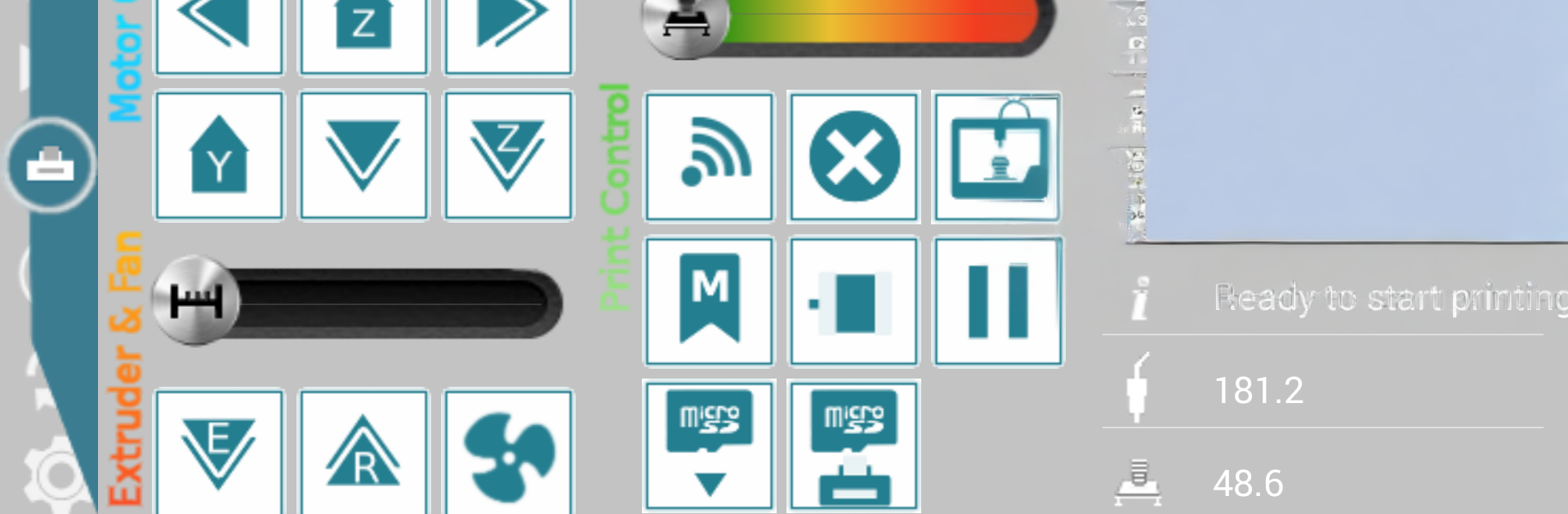
GCodePrintr basically turns an Android device into a full control panel for a 3D printer. The layout is simple to read, with clear status info like remaining time and temperatures, and big buttons for moving X, Y, Z or homing. What stands out is how easy it is to load a gcode file from local storage, a network share, or cloud drives, then tweak speed or temps mid print and instantly see the new finish time. It can talk to printers over USB with an OTG adapter or over Bluetooth, and it even has SD card features like upload, list files, and autostart. There is a built in web interface too, so starting a job remotely or just peeking at progress is straightforward. Add a webcam app and it will stream a live view.

The paid version removes ads and adds dual extruder support, user macros with a quick favorite button, a recover print option, plus remote start from the web page. The visualizer is handy on its own: a 3D view, layer by layer simulation with different colors, real time or fast forward, and stats like estimated time, remaining time, filament, weight, cost, and movement speeds. It works with many G-code based printers and common firmware like Marlin, Repetier, or Smoothie, with options for bed size, baud rate, and axis flips.

On a PC with BlueStacks, it feels like a big, tidy console on a larger screen. Great for previewing gcodes and using the web features or Bluetooth. USB OTG is meant for real Android hardware, so network control is the safer route there. If in doubt, the free GCode Simulator is useful to check a printer connection before going further. MakerBot style S3G is simulation only, and huge files may hit memory limits.

Ready to experience GCodePrintr – The 3D Print App on a bigger screen, in all its glory? Download BlueStacks now.


How to Download and Run GCodePrintr - The 3D Print App on PC or Mac

  • Download and install BlueStacks on your PC or Mac

  • Complete Google sign-in to access the Play Store, or do it later

  • Look for GCodePrintr - The 3D Print App in the search bar at the top right corner

  • Click to install GCodePrintr - The 3D Print App from the search results

  • Complete Google sign-in (if you skipped step 2) to install GCodePrintr - The 3D Print App

  • Click the GCodePrintr - The 3D Print App icon on the home screen to start playing

video
Watch Video

Minimum System Requirements

With BlueStacks 5, you can get started on a PC that fulfills the following requirements.

  • Operating System

    Microsoft Windows 7 or above, macOS 11 (Big Sur) or above

  • Processor

    Intel, AMD or Apple Silicon Processor

  • RAM

    at least 4GB

  • HDD

    10GB Free Disk Space

Note:

* You must be an Administrator on your PC. Up to date graphics drivers from Microsoft or the chipset vendor.

GCodePrintr - The 3D Print App - FAQs

  • How to Run GCodePrintr - The 3D Print App on Windows PC & Mac?

    Run GCodePrintr - The 3D Print App on your PC or Mac by following these simple steps.

    • Click on ‘Download GCodePrintr - The 3D Print App on PC’ to download BlueStacks
    • Install it and log-in to Google Play Store
    • Launch and run the app.
  • Why is BlueStacks the fastest and safest platform to play games on PC?

    BlueStacks respects your privacy and is always safe and secure to use. It does not carry any malware, spyware, or any sort of additional software that could harm your PC.

    It is engineered to optimize speed and performance for a seamless gaming experience.

  • What are GCodePrintr - The 3D Print App PC requirements?

    Minimum requirement to run GCodePrintr - The 3D Print App on your PC

    • OS: Microsoft Windows 7 and above:
    • Processor: Intel or AMD Processor:
    • RAM: Your PC must have at least 2GB of RAM. (Note that having 2GB or more disk space is not a substitute for RAM):
    • HDD: 5GB Free Disk Space.
    • You must be an Administrator on your PC.