HTTP Client
HTTP Client

HTTP Client

Tools

| Dan L Solutions

Play on PC with BlueStacks or from our cloud

  • Overview
  • How to Download

Page Modified On: November 03, 2025

Run HTTP Client on PC or Mac

Let BlueStacks turn your PC, Mac, or laptop into the perfect home for HTTP Client, a fun Tools app from Dan L Solutions.

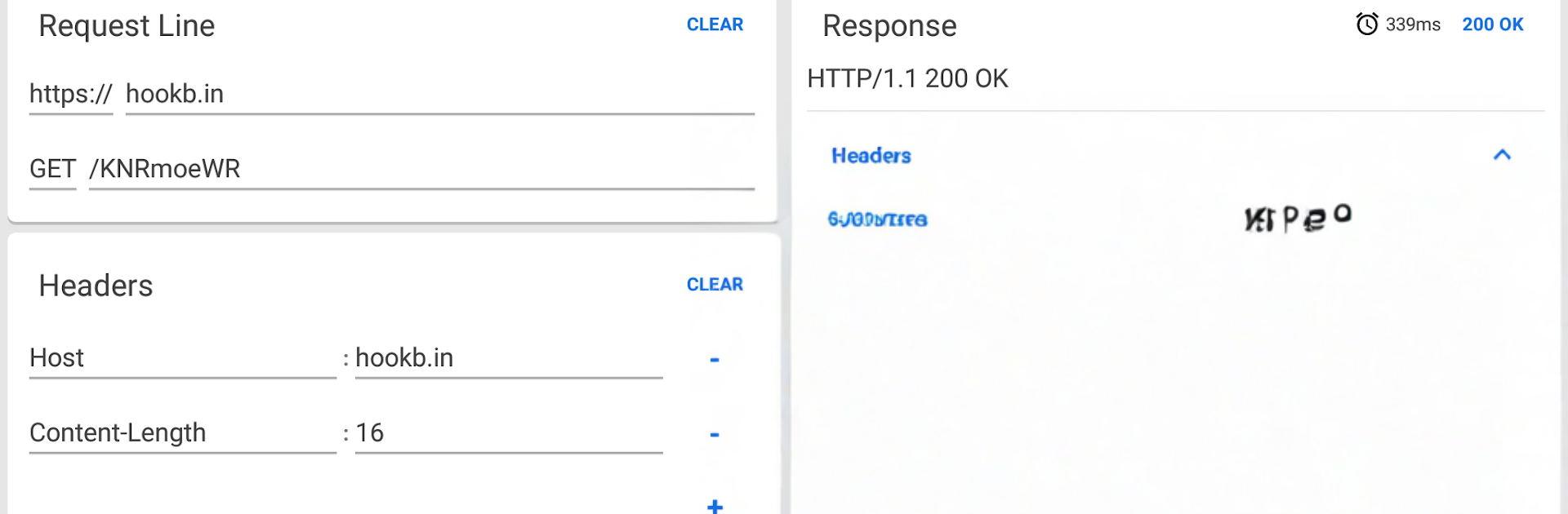
HTTP Client feels like a clean, no fuss toolkit for poking at APIs without dragging a laptop IDE into the mix. The layout is straightforward: pick a method, fill in the URL, toss in headers or a body if needed, hit send, then watch the response roll in. Everything sent gets logged in a history with the server reply attached, plus a response time in milliseconds, which is helpful when something feels slow. Requests can be saved with labels, so frequent calls are easy to organize and reload. The response view is split into line, headers, and body, which keeps long payloads from turning into a wall of text. A quick formatter flips bodies to readable JSON or HTML with one tap. HTTPS is there, all the usual methods are covered, and there is even a small built-in guide that explains methods and status codes when memory blanks.

There are home screen widgets for firing off saved requests, and those are surprisingly customizable, though that feature sits behind a purchase. Ads can be removed separately now, which is nicer than bundling everything together. The app had a big rewrite that made it faster and less clunky, with a menu drawer that keeps the top bar from feeling crowded and a database that saves and restores items quicker. On a PC with BlueStacks, the bigger screen makes those three response sections easy to scan, and a real keyboard makes editing long JSON bodies and header lists less of a chore. Tablet style dual-pane layouts translate well on desktop too. Nothing flashy, just practical controls, stable behavior, and the details that matter when testing requests for real work.

BlueStacks gives you the much-needed freedom to experience your favorite apps on a bigger screen. Get it now.


How to Download and Run HTTP Client on PC or Mac

  • Download and install BlueStacks on your PC or Mac

  • Complete Google sign-in to access the Play Store, or do it later

  • Look for HTTP Client in the search bar at the top right corner

  • Click to install HTTP Client from the search results

  • Complete Google sign-in (if you skipped step 2) to install HTTP Client

  • Click the HTTP Client icon on the home screen to start playing

video
Watch Video

Minimum System Requirements

With BlueStacks 5, you can get started on a PC that fulfills the following requirements.

  • Operating System

    Microsoft Windows 7 or above, macOS 11 (Big Sur) or above

  • Processor

    Intel, AMD or Apple Silicon Processor

  • RAM

    at least 4GB

  • HDD

    10GB Free Disk Space

Note:

* You must be an Administrator on your PC. Up to date graphics drivers from Microsoft or the chipset vendor.

HTTP Client - FAQs

  • How to Run HTTP Client on Windows PC & Mac?

    Run HTTP Client on your PC or Mac by following these simple steps.

    • Click on ‘Download HTTP Client on PC’ to download BlueStacks
    • Install it and log-in to Google Play Store
    • Launch and run the app.
  • Why is BlueStacks the fastest and safest platform to play games on PC?

    BlueStacks respects your privacy and is always safe and secure to use. It does not carry any malware, spyware, or any sort of additional software that could harm your PC.

    It is engineered to optimize speed and performance for a seamless gaming experience.

  • What are HTTP Client PC requirements?

    Minimum requirement to run HTTP Client on your PC

    • OS: Microsoft Windows 7 and above:
    • Processor: Intel or AMD Processor:
    • RAM: Your PC must have at least 2GB of RAM. (Note that having 2GB or more disk space is not a substitute for RAM):
    • HDD: 5GB Free Disk Space.
    • You must be an Administrator on your PC.